Using Webster with a Projector 31
TS and Webster
®
• From your Macintosh PC: Tap the Show Webster button on the
projection toolbar, or choose “Go To Webster” from the System Menu
in the menu title bar.
USING THE ON-SCREEN KEYBOARD
In projection mode, Webster provides an on-screen keyboard that enables
you to enter text from the whiteboard.
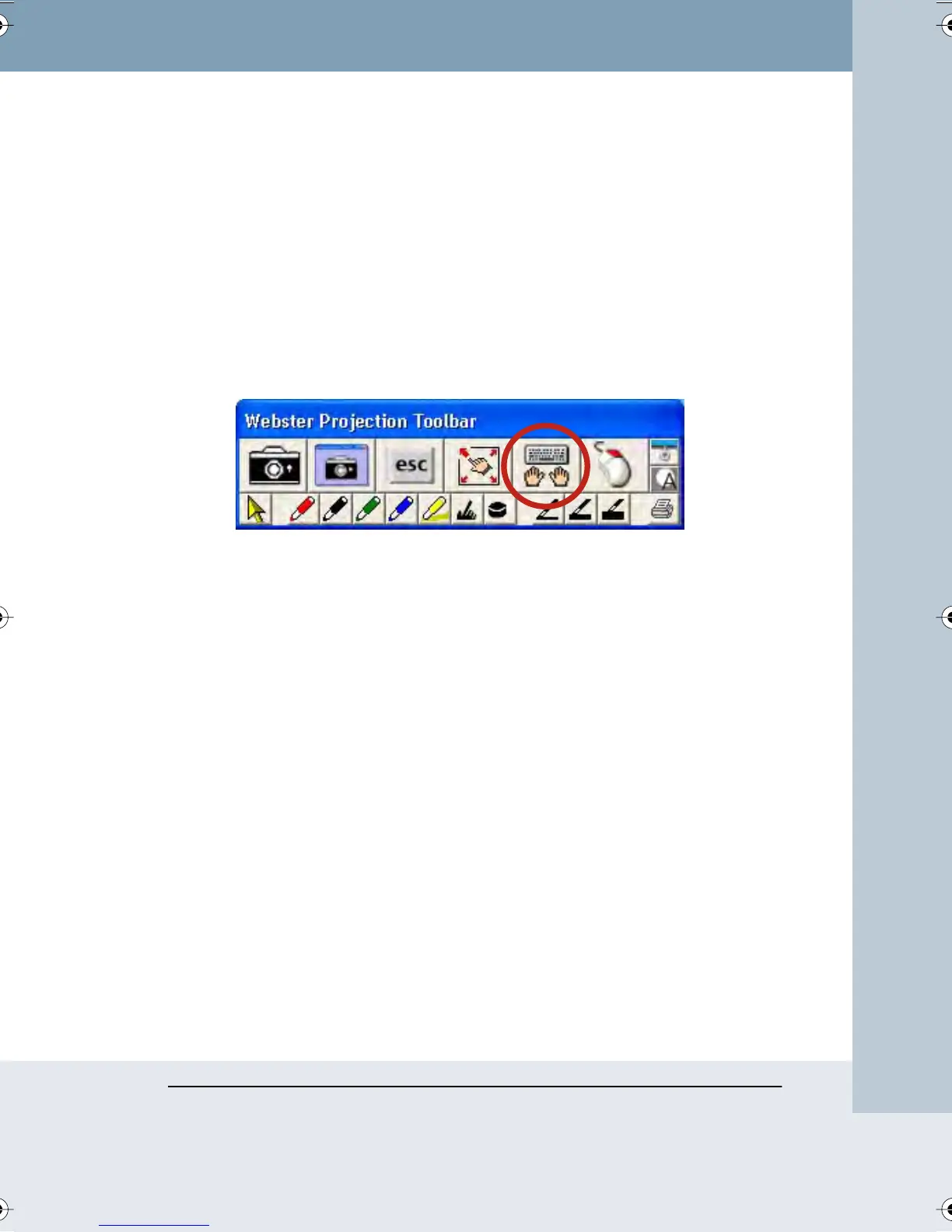
To launch the on-screen keyboard, tap the Keyboard button on the
projection toolbar or press the Keyboard button on the remote control
(Walk-and-Talk models).
Use the on-screen keyboard for entering text and performing keyboard
functions as follows:
• To enter text, move the cursor to a text entry location (e.g., in a word
processor, web browser, or dialog box), then tap the keys of the on-
screen keyboard.
• To use Shift, Ctrl, Alt, Caps, Command, or Option, tap the projected
key (it changes color), then the key it modifies (e.g., Ctrl + s to save).
The Caps key remains active until you tap it again.
• To perform keyboard actions, tap a key (e.g., F1 for Help).
• To move the keyboard, tap and drag the title bar and release it in the
desired location.
• To hide the keyboard, tap the Keyboard button on the projection
toolbar or press the Keyboard button on the remote control (Walk-and-
Talk models).
Webster_draft2.book Page 31 Friday, November 3, 2006 2:24 PM



 To Next Page