84 Installing the TS and TSL Series Whiteboards
TS and Webster
®
5 Attach the mounting bracket to the wall anchors on the wall using the
four Phillips screws provided. Assure that the screws are snug.
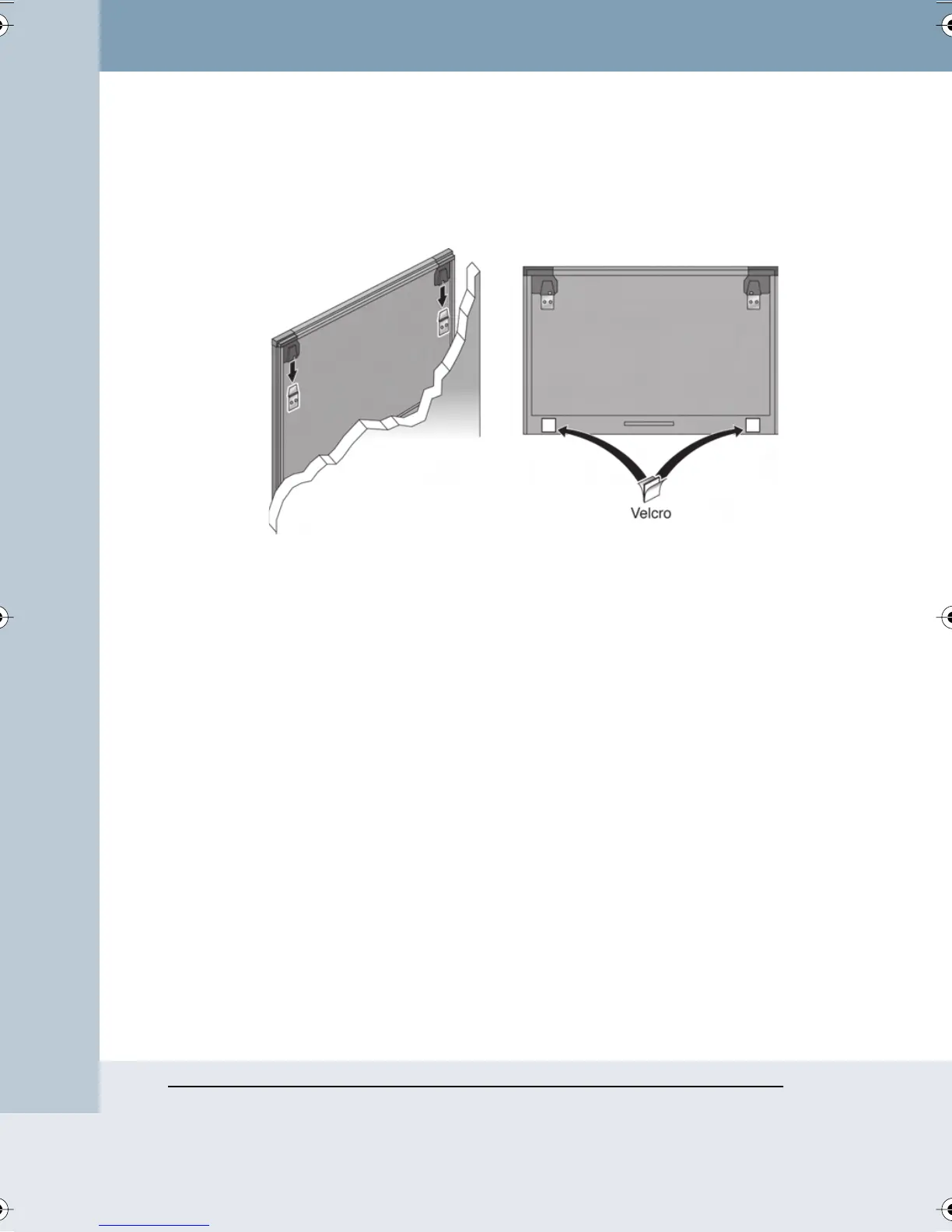
6 With the help of an assistant, lift the board and hang it on the
mounting plates using the slots at the top corners of the board.
7 Peel the backing off the front and back of the two Velcro strips.
8 Attach Velcro strips to lower right and left corners on the back of
whiteboard and press against the wall.
To mount your whiteboard on an optional stand or easel, see the
instructions included with your stand or easel, or visit
www.polyvision.com.
CONNECTING YOUR WHITEBOARD
Ensure that both your computer and whiteboard are powered off before
you make connections.
Connections for all TSL and TS 410, 610, or 810 Models
To connect the whiteboard to your computer:
1 Plug the USB cable to the USB port on your computer.
Webster_draft2.book Page 84 Friday, November 3, 2006 2:24 PM



 To Next Page