Using Webster with a Projector 25
TS and Webster
®
To exit projection mode:
• Press the Projection button on the remote control (Walk-and-Talk
products); tap the Projection icon in the whiteboard icon strip (TS and
TSL models); click the projection button in the command toolbar; or
choose “Projection” from the Edit menu.
Alignment, If You are Already in Projection Mode
Generally, you need to align the projection only when you enter projection
mode. However, if you move the projector or PolyVision product while you
are in projection mode, you might need to re-align the product.
You know that you need to re-align the PolyVision product if the computer’s
cursor does not align with the point you touch on the product.
To re-align in projection mode:
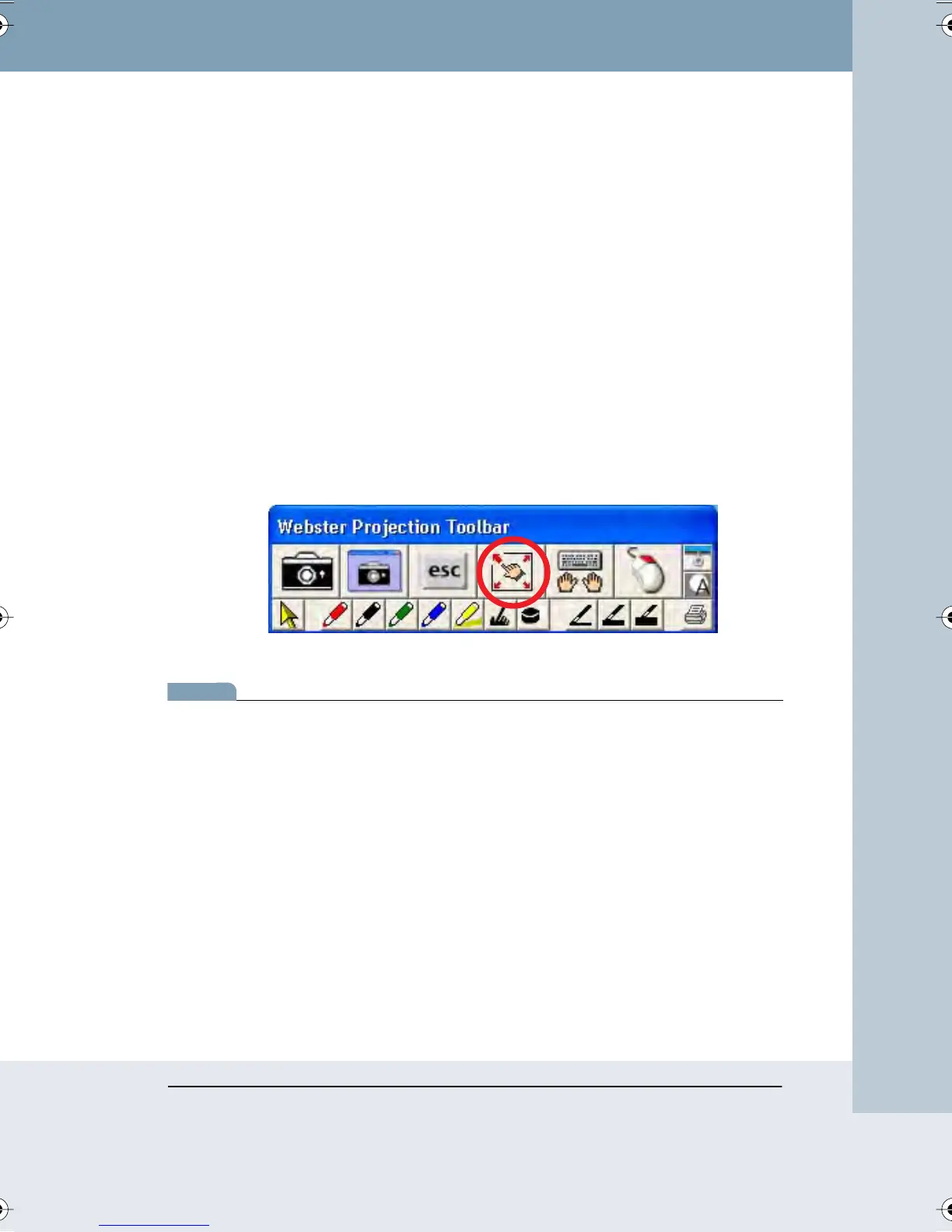
1 On the computer, click the Align button in the projection toolbar.
2 Follow the instructions you see on the PolyVision product.
note:NOTE:
If you still have trouble with alignment after using this procedure, try using a
higher level of alignment, as described below.
Choosing the Number of Alignment Points
The alignment between your projector and the PolyVision product is
important. Webster offers three levels of alignment: 4-point, 8-point, and
16-point alignment. The default is 4-point alignment.
You might need to use more alignment points if there is any mismatch
between the position of the computer cursor and the stylus when you tap
the PolyVision product. (Some video projectors, for instance, do not
produce a linear display when projector with keystone correction is used.)
To change the number of alignment points:
1 Choose “Options” or “Preferences” from the Edit menu.
Webster_draft2.book Page 25 Friday, November 3, 2006 2:24 PM



 To Next Page