24 Using Webster with a Projector
TS and Webster
®
Projection Mode” on page 26.
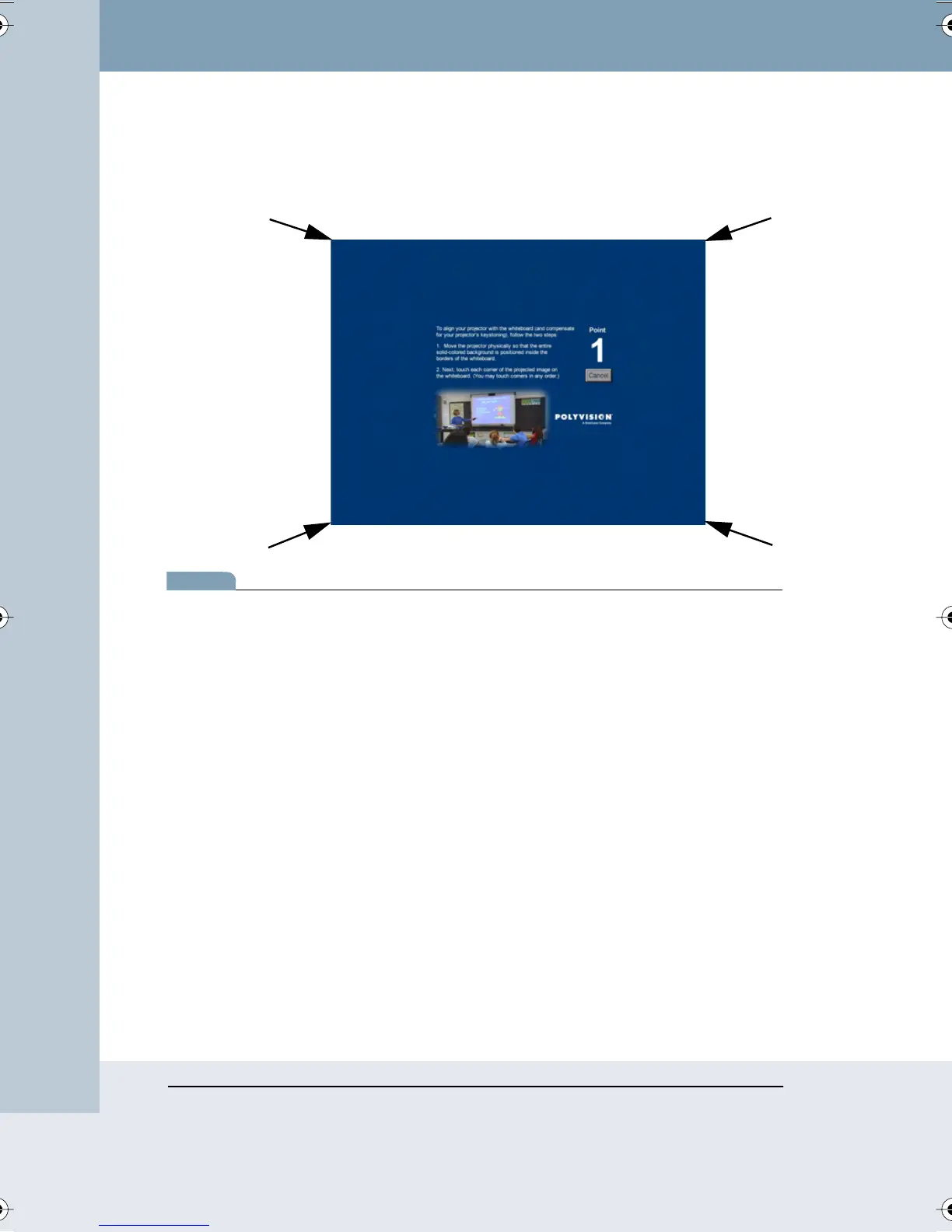
WT or TS models: an alignment window is projected from the software
onto the board.
note:NOTE:
If the alignment window does not appear, it might be because another user
selected an option in Webster to use the previous alignment when starting
up. To change that option and view the alignment window, choose
“Options” (or “Preferences”) from the Edit menu. On the Projection tab,
uncheck “Remember last alignment.” Repeat Step 4.
5 On the board, tap each corner of the projected image following the
instructions you see on the board. On any of the interactive
whiteboard models, you can use your fingertip or the stylus provided
to tap the board. For FSM models, use the stylus provided.
At the completion of this procedure, your whiteboard is in projection mode,
the projection toolbar appears, and you are ready to use the PolyVision
product as a touch screen to control your computer. Refer to “The
Projection Toolbar” on page 27 for information about using the projection
toolbar. Refer to “Customizing Projection Mode Settings” on page 70 for
additional projection mode options.
Webster_draft2.book Page 24 Friday, November 3, 2006 2:24 PM



 To Next Page