Working with Snapshots 57
TS and Webster
®
PUBLISHING A SNAPSHOT AS HTML OR ADOBE PDF
You can publish a snapshot in HTML or Adobe PDF format, posting it on
the World Wide Web or saving it on your computer.
note:NOTE:
In Windows 98 or NT, before using this feature, make sure the Microsoft
Web Publishing Wizard is installed. If necessary, you can download the
wizard at www.microsoft.com/windows/software/webpost.
If you are using Windows 2000 or XP, Microsoft Office Professional is
necessary.
To publish a snapshot as HTML or Adobe PDF:
1 (optional) Select the snapshot(s) to be published.
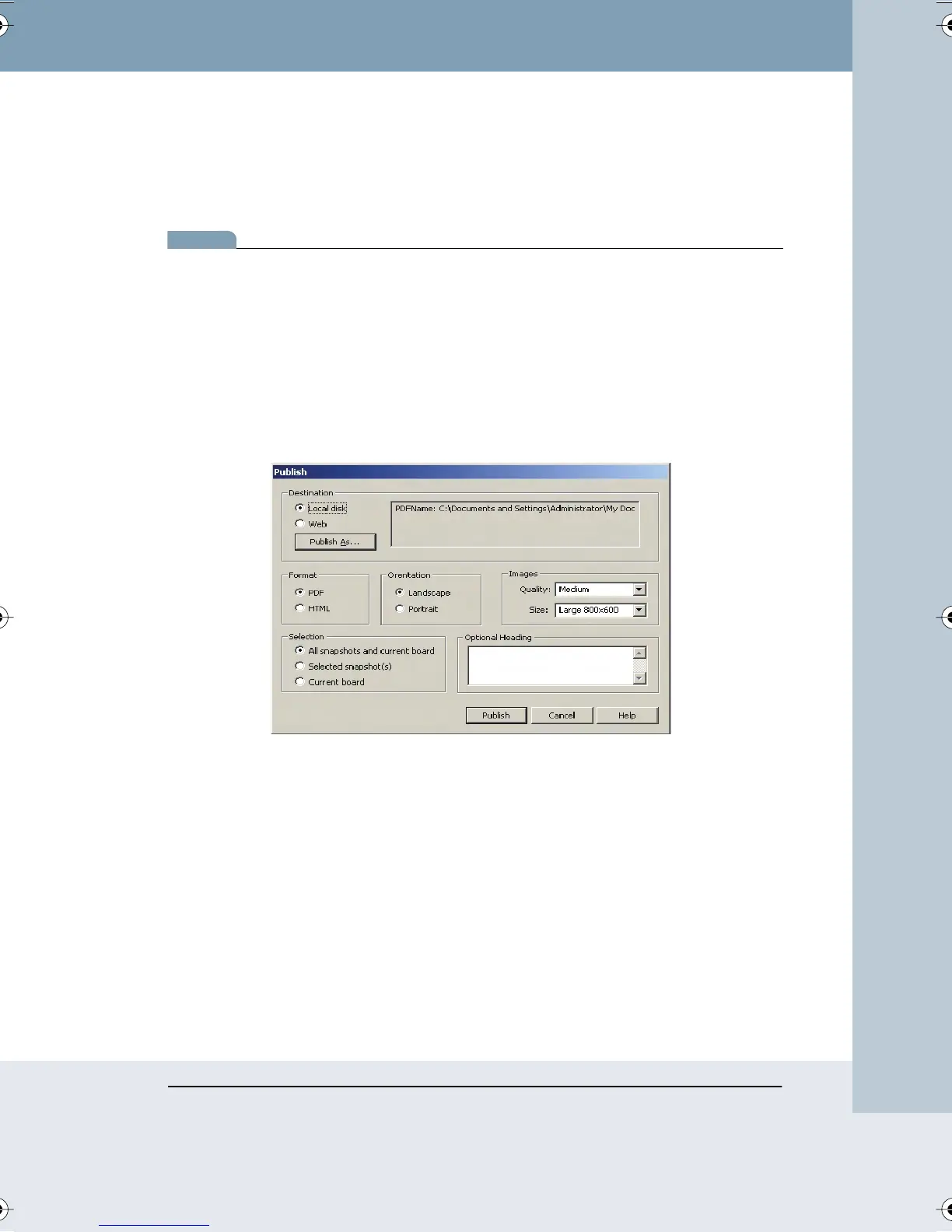
2 Choose “Publish” from the File menu. The following dialog appears.
3 To choose a destination for the resulting file, click a radio button
beside “Local Disk” or “Web.”
4 Click “Publish As.”
5 If you clicked the “Web” radio button, a dialog opens where you can
enter the file name, server, path, user ID, and password (optional) of
the web host FTP site, then click “OK.” The resulting file is published to
the specified site.
If you clicked the “Local” radio button, a dialog opens where you can
browse to the file destination on your computer and click “Save.” The
resulting file is saved to your hard disk at that location.
Webster_draft2.book Page 57 Friday, November 3, 2006 2:24 PM



 To Next Page