62 NetMeeting and Webster
TS and Webster
®
4 If you are disconnected from a conference or want to join a conference
in progress, click “Join Conference.”
5 To view the status of individual remote whiteboards, click the “Remote
Whiteboards” tab and click “Show.”
Conference View Preferences
Webster enables you to control whether remote viewers see everything,
new writing, or just your current whiteboard.
To control remote viewer access:
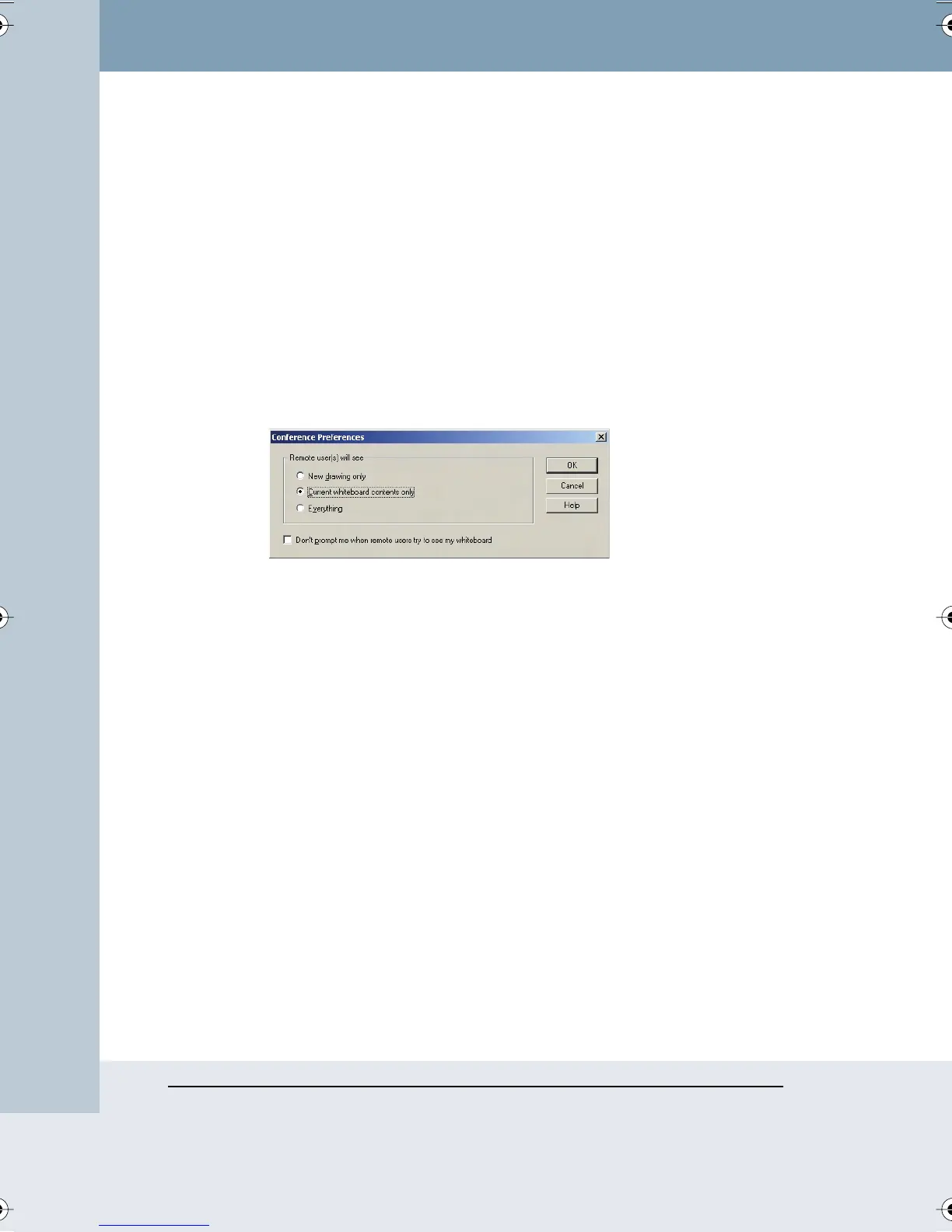
1 Choose “Preferences” from the Conference menu. You see the
following dialog.
2 Click beside your view preference:
• “New drawing only”: Remote users can see only new writing you
add.
• “Current whiteboard contents only”: Remote users see the current
whiteboard contents but not new writing.
• “Everything”: Remote users see the current board and everything
you write.
• “Don’t prompt me when remote users try to see my whiteboard”:
Check to receive no message when a remote user requests to
look at your PolyVision product.
USING WEBSTER PROJECTION MODE WITH NETMEETING
If you are in projection mode and connected to a NetMeeting conference,
note the following:
• The Show Webster button toggles between the NetMeeting whiteboard
(not Webster) and the current screen.
Webster_draft2.book Page 62 Friday, November 3, 2006 2:24 PM



 To Next Page