Webster Options 67
TS and Webster
®
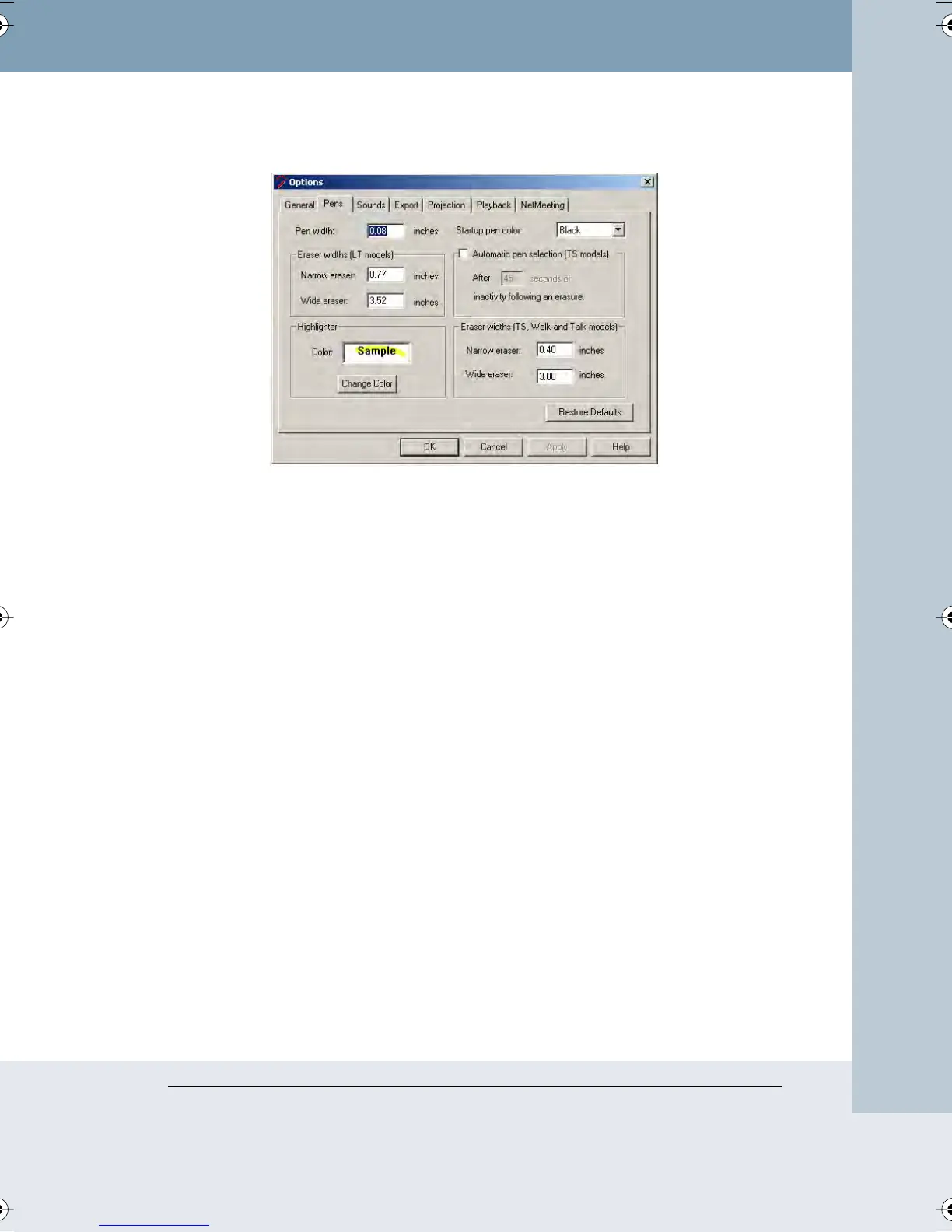
2 Click the “Pens” tab. The following dialog appears.
“Pen width”: Enter the desired pen width for the smallest pen. The medium
and large pen widths are multiples of the smallest pen width. Changes
apply only to all future strokes.
“Eraser widths”: Specify the eraser width for the large or small eraser.
“Pen shape”: (Macintosh only) Two pen shapes are available: round and
square. Use the round shape for better quality strokes. Use the square
shape when you need faster recording.
“Highlighter”: To specify the color of the highlighter tool, click the color
sample and choose a color from the color palette.
“Startup pen color”: Choose a color from the drop down list to specify the
default pen color that is active when you first launch Webster and begin
writing. This color is also used when the software automatically switches
back to the pen tool.
“Automatic pen selection (TS and TSL models)”: The software can detect
inactivity following use of an eraser and automatically switch back to the
default pen. This feature protects your work if your last action was an
erasure and you forgot to specify a new pen color before continuing to
write on the board. Enter the amount of time (in seconds) to elapse before
the software switches to the default pen. If you do not use this option, the
tool you select (pen or eraser) stays in effect until you select a different one.
“Eraser widths (TS, TSL, Walk-and-Talk models)”: Specify the eraser width
for the large or small eraser.
Webster_draft2.book Page 67 Friday, November 3, 2006 2:24 PM



 To Next Page