18 Getting Started with Webster Tools
TS and Webster
®
Annotation tools provide software shortcuts to many of the tools that are
also found on the TS and TSL whiteboard icon strip and the Walk-and-Talk
remote control. For example, on any TS or TSL interactive whiteboard, you
can save a snapshot either by tapping the Snapshot icon on the icon strip
or by clicking the Snapshot button in the annotation toolbar. Similarly, if you
use a Walk-and-Talk model, you can save a snapshot either by pressing
the Save button on the remote control or by clicking the Snapshot button
on the annotation toolbar.
On a Macintosh, the annotation tools are part of the command toolbar at
the top of the window. In Windows, the annotation toolbar is a floating
toolbar that can be docked on any edge of the program window. The
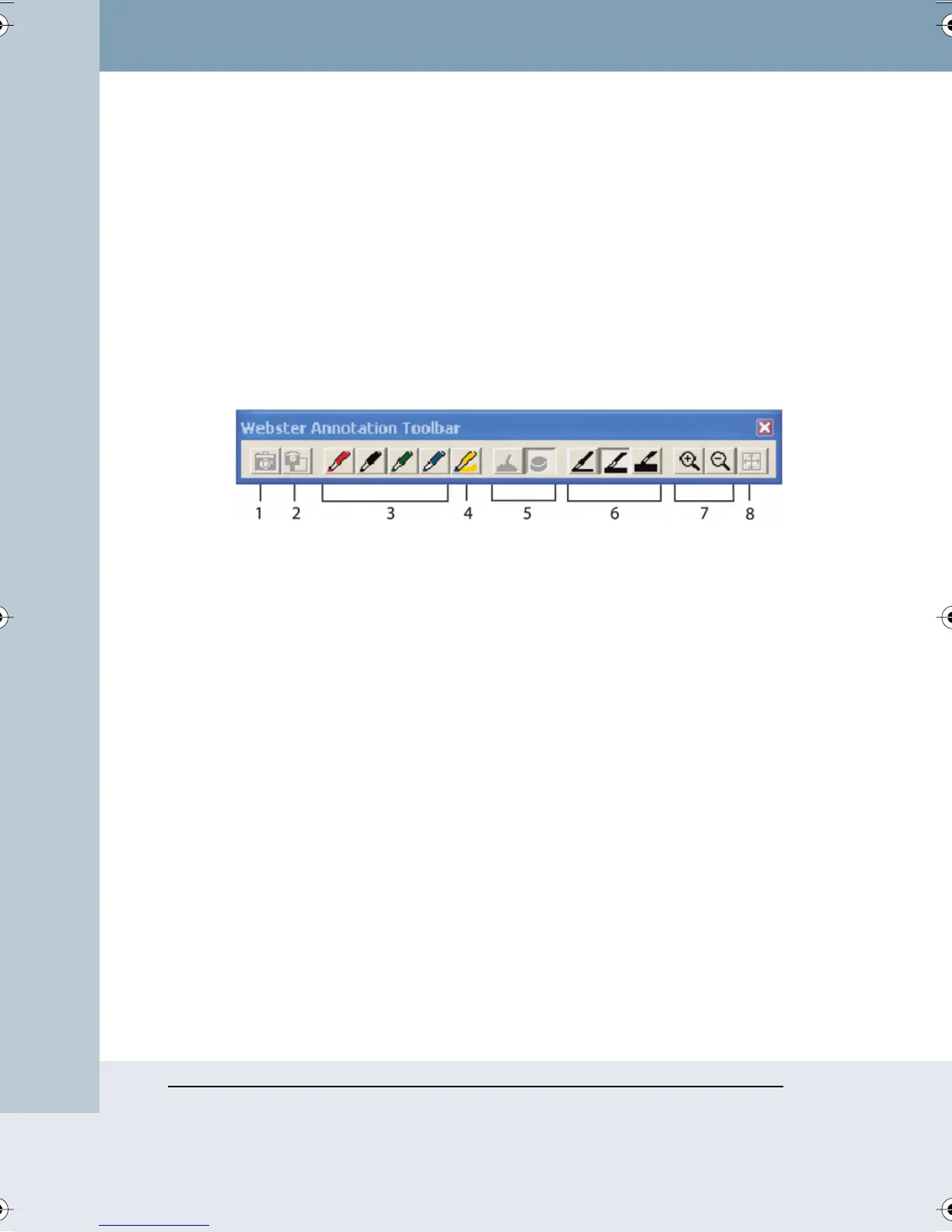
annotation toolbar includes the following functions:
1 Snapshot: Capture a snapshot from the PolyVision product.
2 Snapshot/Erase All: Capture a snapshot from the PolyVision product
and erase the Current Board pane in the software.
3 Pen color: Choose a pen color to add writing to an existing snapshot
or current board pane.
4 Highlighter: Highlight important items. To change highlighter color,
choose “Options” or “Preferences” from the Edit menu and choose the
“Pen” tab.
5 Erasers: Choose a wide or narrow eraser for erasures on the snapshot
or current board pane.
6 Pen size: Choose the pen width that is recorded in the software (or
choose “Pen Size” from the Edit menu).
7 Zoom: Zoom in or out of the Selection pane.
8 Fit to Window: Resize the image to fit the window.
Webster_draft2.book Page 18 Friday, November 3, 2006 2:24 PM



 To Next Page