72 Webster Options
TS and Webster
®
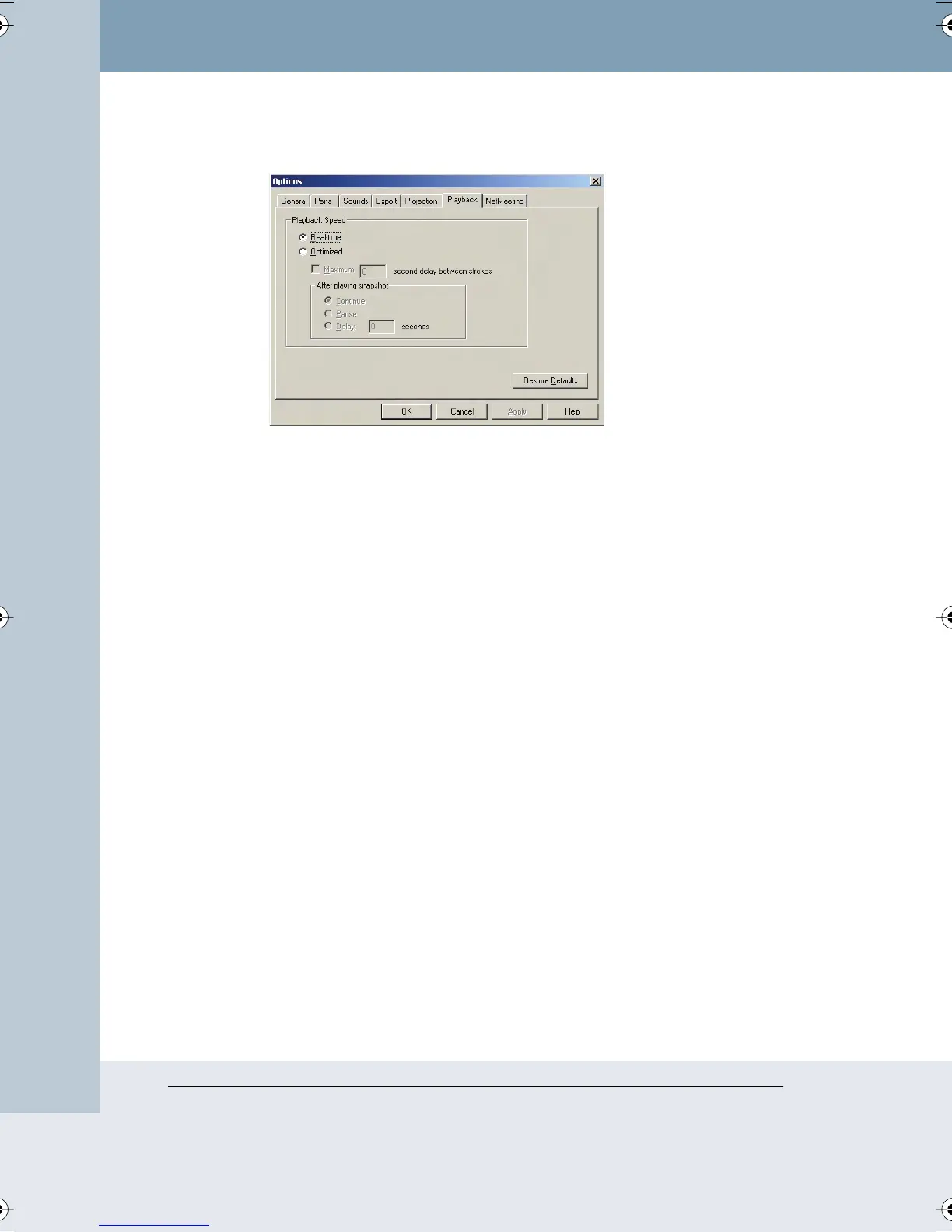
2 Choose the “Playback” tab. The following dialog appears.
“Real-time”: Check to play back all pen strokes, erasures, and pauses at
the same speed that they were created, including any pause that occurred
between strokes.
“Optimized”: Check to optimize playback speed, so that pauses between
strokes are eliminated.
“Maximum delay between strokes”: For optimized playback, enter a
maximum delay between strokes. If there was a pause between strokes
longer than the value you specify, playback will pause for only the amount
of time you specify.
“After playing snapshot”: For optimized playback, choose:
• “Continue”: Click to repeat playback in a loop with no interruption.
• “Pause”: Click to pause after playback of one snapshot in a loop is
complete. Click the “Pause” button on the toolbar to continue the
loop.
• “Delay”: Click to enter a delay after playback of an entire snapshot
is complete, before playback of the next snapshot in a loop, then
specify the delay.
To restore factory default options:
• Click “Restore Defaults.”
Webster_draft2.book Page 72 Friday, November 3, 2006 2:24 PM



 To Next Page