74 Webster Options
TS and Webster
®
• Background: White
For TS and TSL whiteboards, the default pen colors correspond to the
colors of the pen icons on the whiteboard icon strip and the supplied
markers. For Walk-and-Talk models the default pen colors correspond to
the ink color buttons on the remote control.
To change the default colors in Windows:
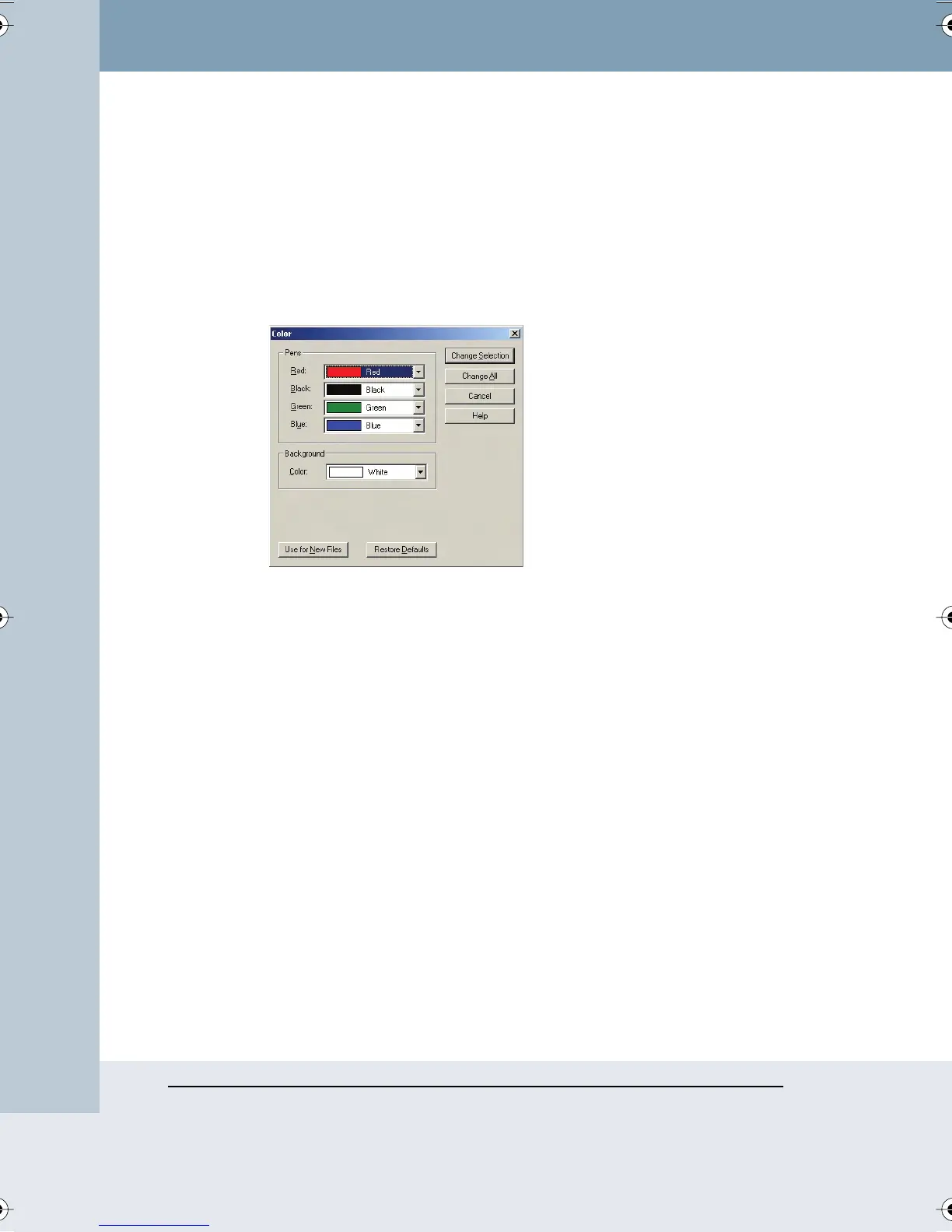
1 Choose “Color” from the Edit menu.The following dialog appears.
2 Select a new pen and/or background color from one or more of the
drop down menus.
3 Specify:
• “Change Selection”: Click to apply the new colors to the selected
snapshot(s) or current board.
• “Change All”: Click to apply changes to all snapshots and the
current board in the open file.
• “Use for New Files”: Click to apply changes to the current file and
new files that you create. Otherwise changes apply only to the
currently open file.
To restore factory default options:
• Click “Restore Defaults.”
Webster_draft2.book Page 74 Friday, November 3, 2006 2:24 PM



 To Next Page