Configuring the Access Point
Configuring Device Settings
ZoneFlex Indoor Access Point 9.8.1 User Guide, 800-70601-001 Rev C 115
Configuring Device Settings
Device settings refer to the device name, location, service provider login and other
settings. (Some settings only available on certain ZoneFlex models.)
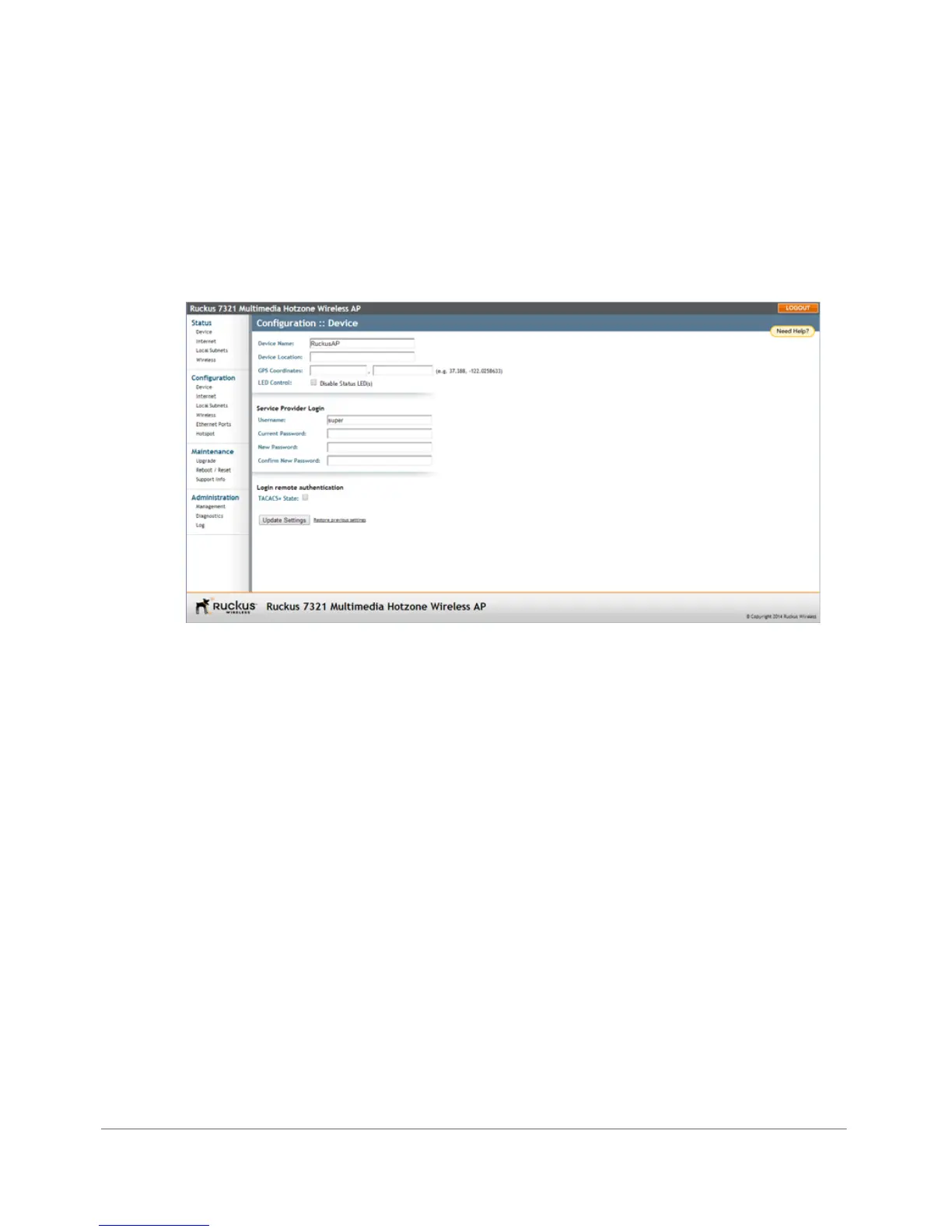
1 Go to Configuration > Device. The Configuration > Device page appears.
Figure 58. The Configuration > Device page
2 In Device Name, type a new name for the device or leave as is to accept the
default device name (RuckusAP). The device name identifies the Access Point
among other devices on the network.
3 Optionally, enter Device Location and GPS Coordinates to keep track of the
physical location of the AP.
4 In Temperature Update (specific models only), enter the interval (in seconds) to
record the internal temperature of the device.
5 Under LED Control (specific models only), check the Disable Status LED(s)
box to turn off the status LEDs. This can be useful when the AP is installed in a
public location, to avoid drawing attention to the AP.
6 Under Service Provider Login, change the login information as required:
• Username: Type the name that you want to use for logging into the Web
interface. The default user name is super.
• Current Password: When you are changing the password, enter the existing
password here.










 To Next Page