SEEDMASTER 2023
99
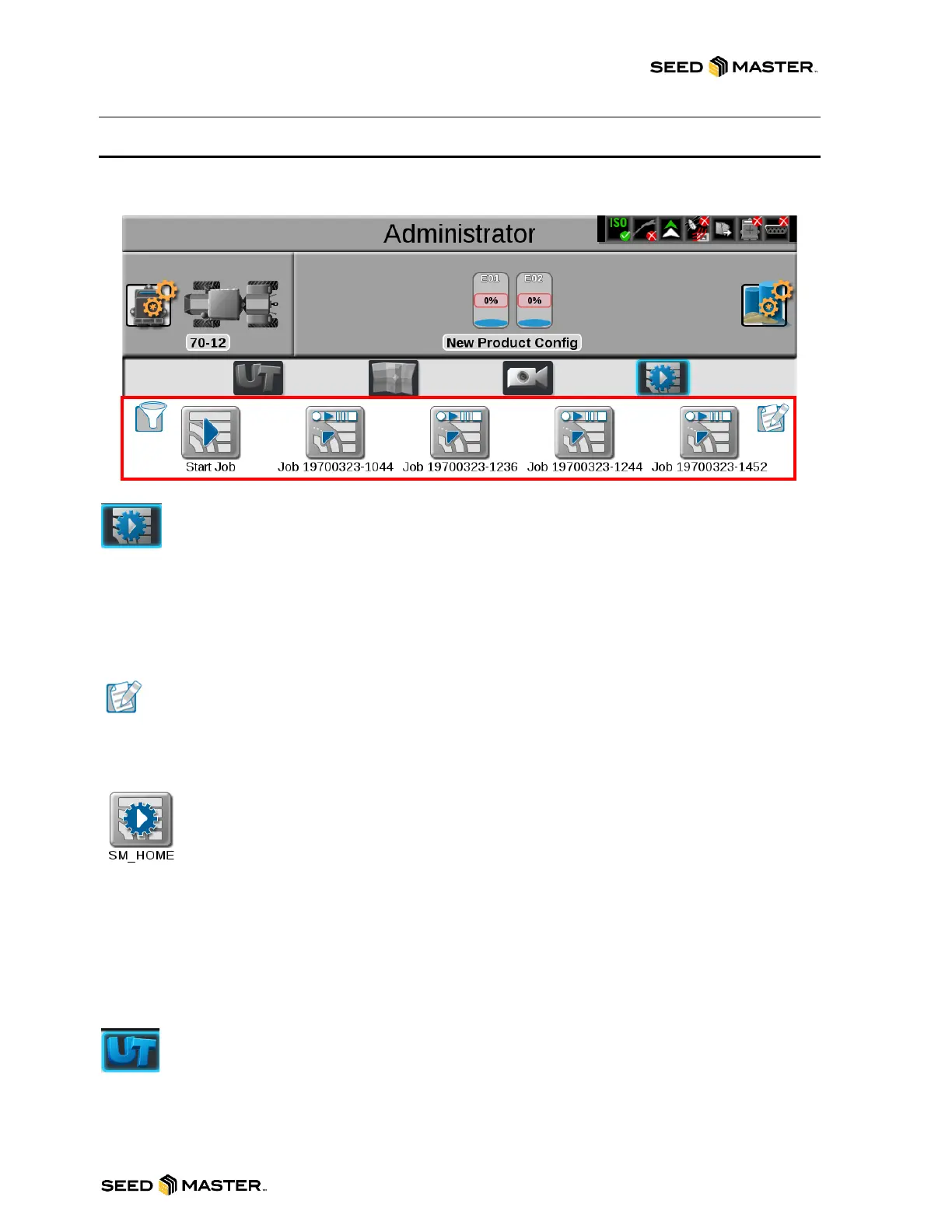
JOB PROFILE PANEL
The job profile panel provides the operator or system administrator with the following tools to set up,
filter, and select profiles for specific field operations or tasks:
On initial bootup the Viper4+ will load the Job Profile screen. To access the Job Profile
screen, touch the Job Profile icon.
The Job Profile panel allows you to do the following:
a. Start a NEW or EXISTING Job.
b. Create a NEW or EDIT a Job Profile.
c. Sort or Filter Jobs and Job Profiles.
JOB PROFILE CONFIGURATION
This configures common or recurring field operations to save job settings such as grower and
field data, scouting information, or saved guidance lines for use or reuse during upcoming and
future field operations.
JOB PROFILE SELECTION
When the equipment arrives at the field, the operator selects the preconfigured job profile,
verifies the job settings, enters the target product rate or rates, selects any modifications to
the guidance or scout information, and selects start to begin application.
The job profile panel also displays any previous jobs started using a preconfigured profile.
To resume a previous job operation, select the specific job file, verify the job settings, and
select start. The V4+ also provides utilities to help sort and filter the items displayed in the job profile
panel. This helps the operator quickly locate and select the correct profile or previous operation.
Note: Setting up a job profile is not a requirement and is designed as a Grower function. The default
Start Job profile allows a user to quickly start a job and allows the user to assign Grower/Farm/Field
(GFF), saved guidance lines, and scout groups (if applicable).
UT (Universal Terminal) PANEL
The UT panel provides access to the ISOBUS working set displays and ECU options or
features. Use this panel to access features such as the Raven ISO Product Control, Raven,
or various third-party features connected to the ISOBUS communication network.
Note: The UT panel will be available in the lower, left corner of the main panel display only if an
ISOBUS compatible ECU is detected by the device.



 To Next Page