SEEDMASTER 2023
112
VIPER 4+ FILE MAINTENANCE
File Maintenance can be defined as the process of archiving specific files from the Viper 4+ and deleting
files that are no longer needed. It is recommended that the user perform this maintenance at the end of
each day. If this is not possible, maintenance should be performed at least once a week.
File maintenance ensures that the Viper 4+ system can perform at optimal efficiency by removing files
that are no longer needed. Regular file maintenance also safeguards valuable information from being
lost if a file is damaged or corrupted since files will be archived on a personal computer or laptop for
future reference.
All Viper 4+ job files are stored in memory. The storage location for these files is of a fixed size and will
hold a large, but limited number of files. File maintenance should be conducted on a regular basis to
ensure enough storage space is available for future jobs.
Files can be loaded onto the Viper 4+ or downloaded from the Viper 4+ using an external USB drive.
Insert the USB drive into the USB connector located in the left side of the Viper 4+.
Note: Do not leave the USB flash drive in the USB connector while operating the machine. Insert the
USB flash drive into the USB connector only to perform file maintenance.
Transferring Files to a USB Drive
1. Insert a USB drive into the Viper
4+.
2. Touch the Administrator Panel.
3. Touch the File Manager Button.
4. Select the Files to be copied to the
USB drive or select all to transfer
all files.
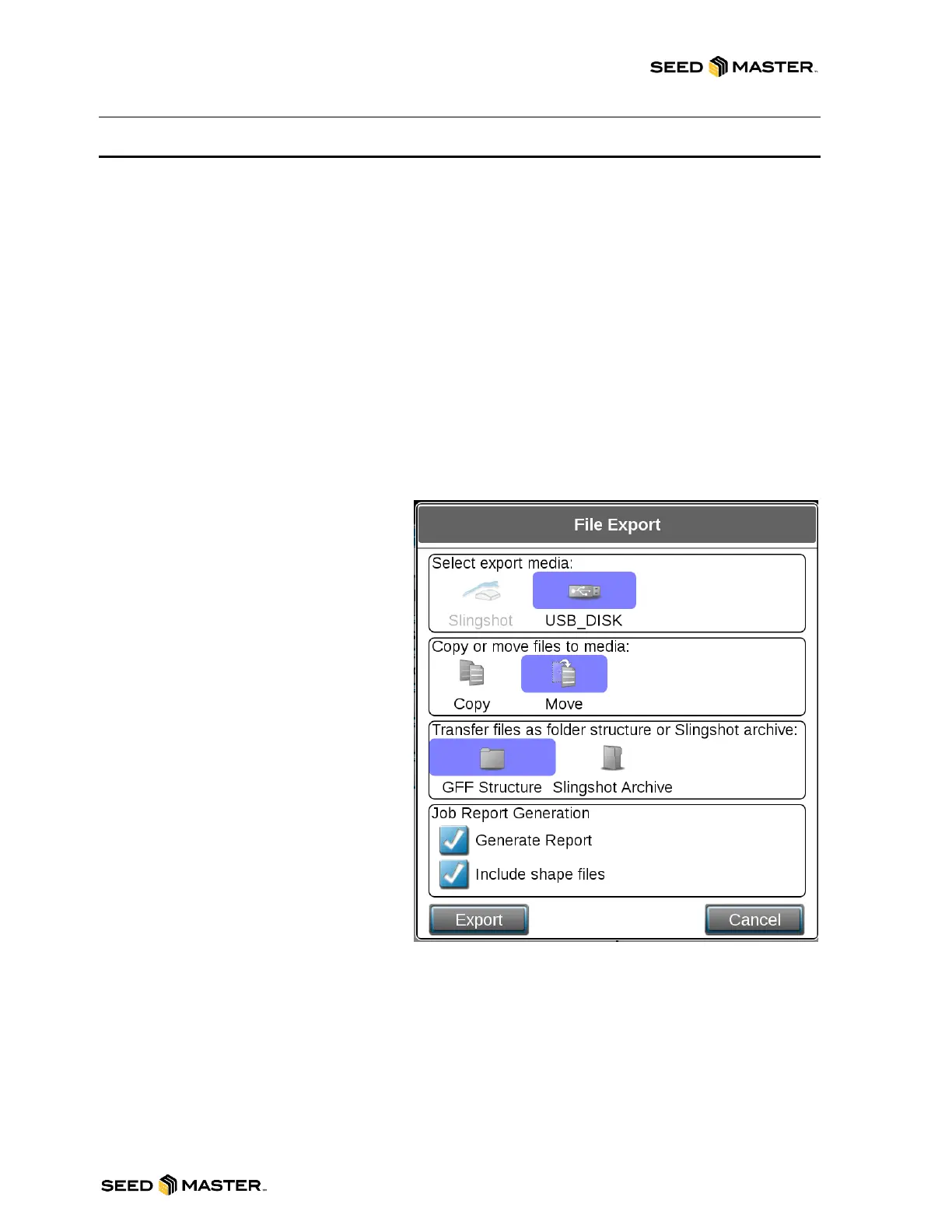
5. Touch the File Transfer button.
6. Touch the USB_DISK button.
7. Touch the Move Button.
8. Touch the GFF Structure Button.
9. Place check marks in the Generate
Report and Include shape files
selections.
10. Touch the Export Button.
11. The files will be deleted from the
Viper 4+. Touch Yes to continue.
12. After the File Transfer is complete
touch the OK button.
Deleting Files from the Viper 4+
1. Touch the Administrator Panel.
2. Touch the File Manager Button.
3. Select the Files to be deleted from the Viper 4 or select all to delete all files.
4. Touch the Trash Can button.
5. Touch Yes to confirm the deletion of the files.



 To Next Page