SEEDMASTER 2023
100
ADMINISTRATOR OR USER PANEL
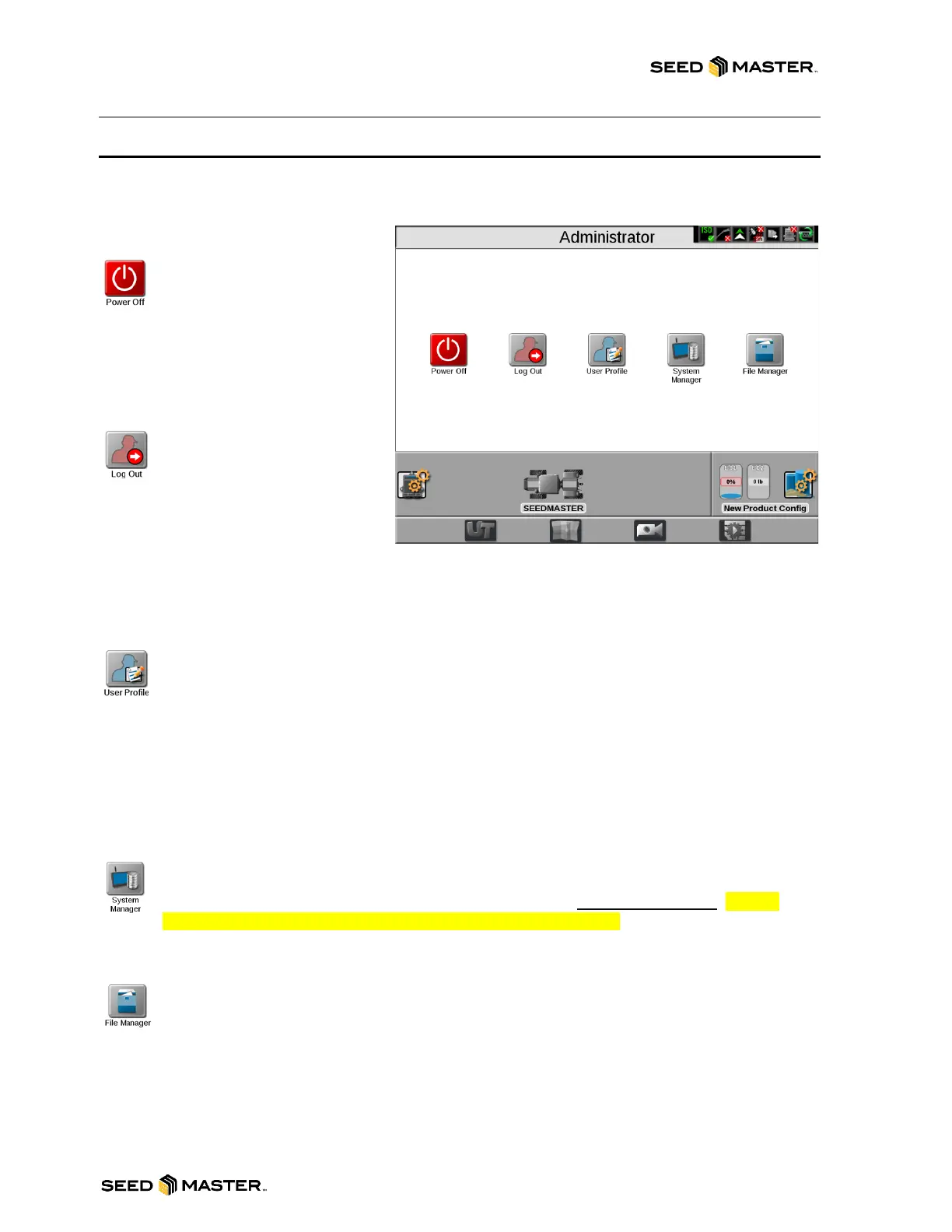
Touch “Administrator” at the top of the display to access the Administrator or User Panel and the
following utilities:
Power Down
Touch the power down icon to
shut down the device. It is
recommended to shut down the
device using this icon prior to removing
power by switching the vehicle ignition
off.
Log Out
Touch the log out icon to exit
the current user profile. Use
this function when leaving the
equipment for short periods, at the end
of a shift, or when switching operators to
secure the management system from
unauthorized access or operation of the
control system.
Note: Demonstration mode features are also available via the logout prompt.
User Profile
User profiles may be created for each operator to save user preferences such as language and
displayed units. This will maximize each user’s comfort level while operating the equipment.
Each user profile may also be assigned a unique Personal Identification Number (PIN) to
secure the device from unauthorized access, modification, or operation. In addition to securing the
system from unauthorized use, the monitor saves active user profile information with each job report. If
multiple operators will be using the same machine during a specific field operation, the job report will
display each user profile active during the job. The system administrator may also review the specific
field areas in which each operator was logged in and operating the equipment.
System Manager
Access the system manager utility within the administrator or user panel to perform software
updates and CAN node firmware updates. Product software and documentation updates may
be made available periodically on the SeedMaster web site: www.seedmaster.ca. Please
ensure to only use updates found on the SeedMaster website.
File Manager
Access the file manager to perform file maintenance, access utilities for exporting and
transferring job files and other data to and from the device, and to view the transfer history for
previous job data.
Do not store job and field information on the device for long term reference or archiving.
Perform file maintenance regularly and remove files associated with completed jobs or field
operations to ensure memory resources are available for new operations as needed. Archive and
back up job and field information on a home or office PC to ensure the data is securely archived
and backed up.



 To Next Page