SEEDMASTER 2023
97
VIPER 4+
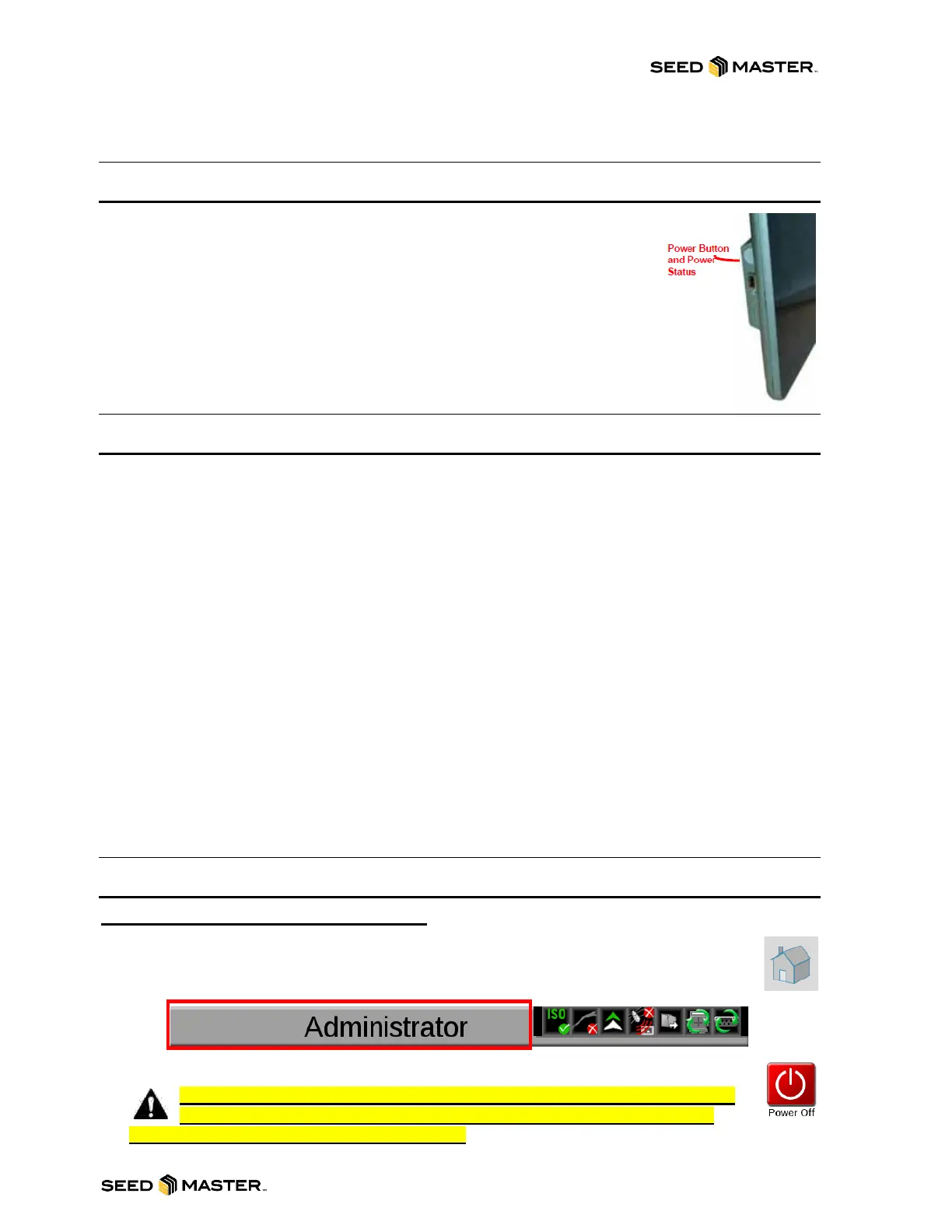
POWER BUTTON AND STATUS
To power up the monitor, press the power button once. The power status indicator will
flash red and then should illuminate green. If the status indicator stays red or
does not illuminate, contact your SeedMaster dealer for assistance.
Note: Do not connect any USB drives or devices to the monitor during the
power up sequence.
VIPER 4+ BUILT-IN SELF TEST
If the Viper 4+ fails to display a picture on the screen, perform a Viper 4+ self-test to diagnose the issue.
The built-in self-test will help determine if a black screen symptom is caused by a hardware issue or a
software issue.
To perform a Viper 4+ self-test:
1. Remove power from the Viper 4+ by disconnecting the four-pin power plug.
2. Press and hold the power button on the side of the Viper 4+.
3. Reconnect the four-pin power plug.
4. Release the power button and note the power button color. If the button is:
a. Green - Hardware is working properly. The cause of the black screen is likely a software
issue. Reload the software on the Viper 4+.
b. Yellow - Hardware is functioning properly but the firmware may be corrupt. Use the thumb
drive with the appropriate firmware to reinstall the firmware.
c. Red - A hardware issue has occurred. Contact a distributor to schedule the Viper 4+ to be
returned to the Raven service department for analysis and repair.
d. No Color - If the power button does not display a color, this could indicate that there is no
power being applied to the Viper 4+. Check the power and input with the voltmeter and
troubleshoot any external power issues. If power is present at the Viper 4+ power plug,
contact your distributor to return the Viper 4+ to the Raven service department for analysis
and repair.
DEVICE SHUT DOWN
Proper shut down is critical to device health. When finished using the Viper4+ device:
1. Close any active jobs by selecting the home icon in the lower, right corner of the
display.
2. Touch the administrator or user panel.
3. Touch the shutdown icon. Then touch Yes to confirm shut down.
NOTE: The monitor should ALWAYS be shut down properly before turning
off your tractor. Failure to do so can result in corrupt files and improper
monitor function not covered under warranty.



 To Next Page