SEEDMASTER 2023
116
LOADING RX MAPS WITH A JOB
After initially starting a job, select the prescription (Rx) rate mode to apply product according to a
prescription map stored on the Viper4+ and load it into the job profile or active job operation. This
mode allows the Viper 4+ to automatically adjust the target rate for field areas as designated by the
prescription map.
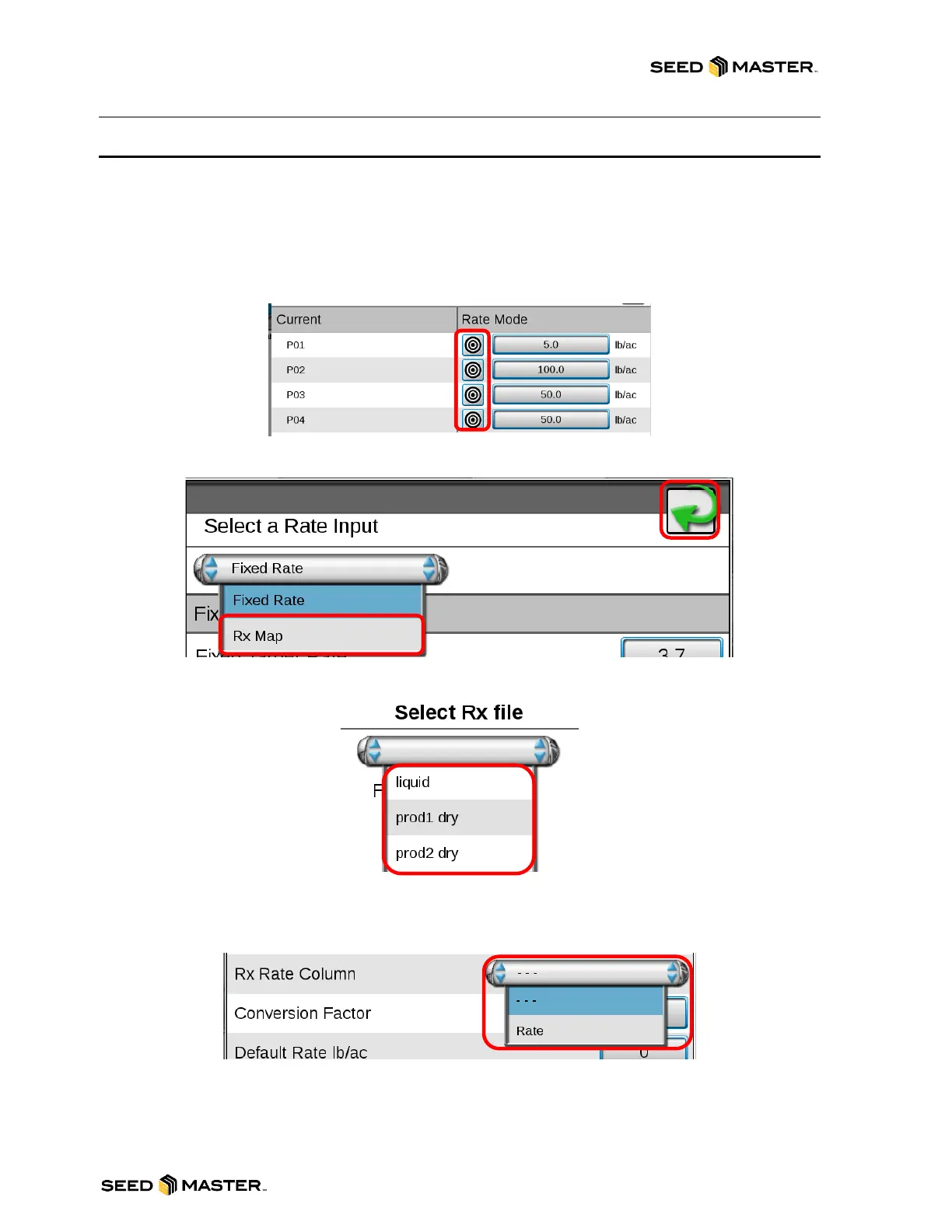
1. Determine what product the RX map will be applied to.
2. Touch the target icon for the product that the RX map will be applied to.
3. Touch the drop-down menu below “Select a Rate Input”.
4. Select “Rx Map”. Then touch the green arrow.
5. Touch on “RX Map Name” and choose the RX associated to that product.
6. After selecting the RX map, touch on the drop-down menu for “RX Rate Column”. Then choose
the desired Rate.
7. The conversion factor for the RX map is set to 1 for a ratio of 1 to 1. If you desire to cut the rates
in half for the RX Map enter .5.
8. The Default Rate for applying outside of the RX map is set to 0. If desired, change this to your
own desired default rate.



 To Next Page