SEEDMASTER 2023
119
WIFI OR TETHERED REMOTE SUPPORT
The Viper 4+ can connect to a Wi-Fi network or Tethered Hotspot to perform remote support.
NOTE: To ensure the feature works correctly, the Viper 4+ must first be registered on the Slingshot
Website using the monitor’s serial number. Make sure the Wi-Fi antenna included with your Viper 4+ is
installed on the back of the monitor.
1. Ensure you are in range of a Wi-Fi network or that you have enabled a Hotspot connection from
your mobile device. Refer to your mobile device’s operator’s manual on how to enable a
Hotspot.
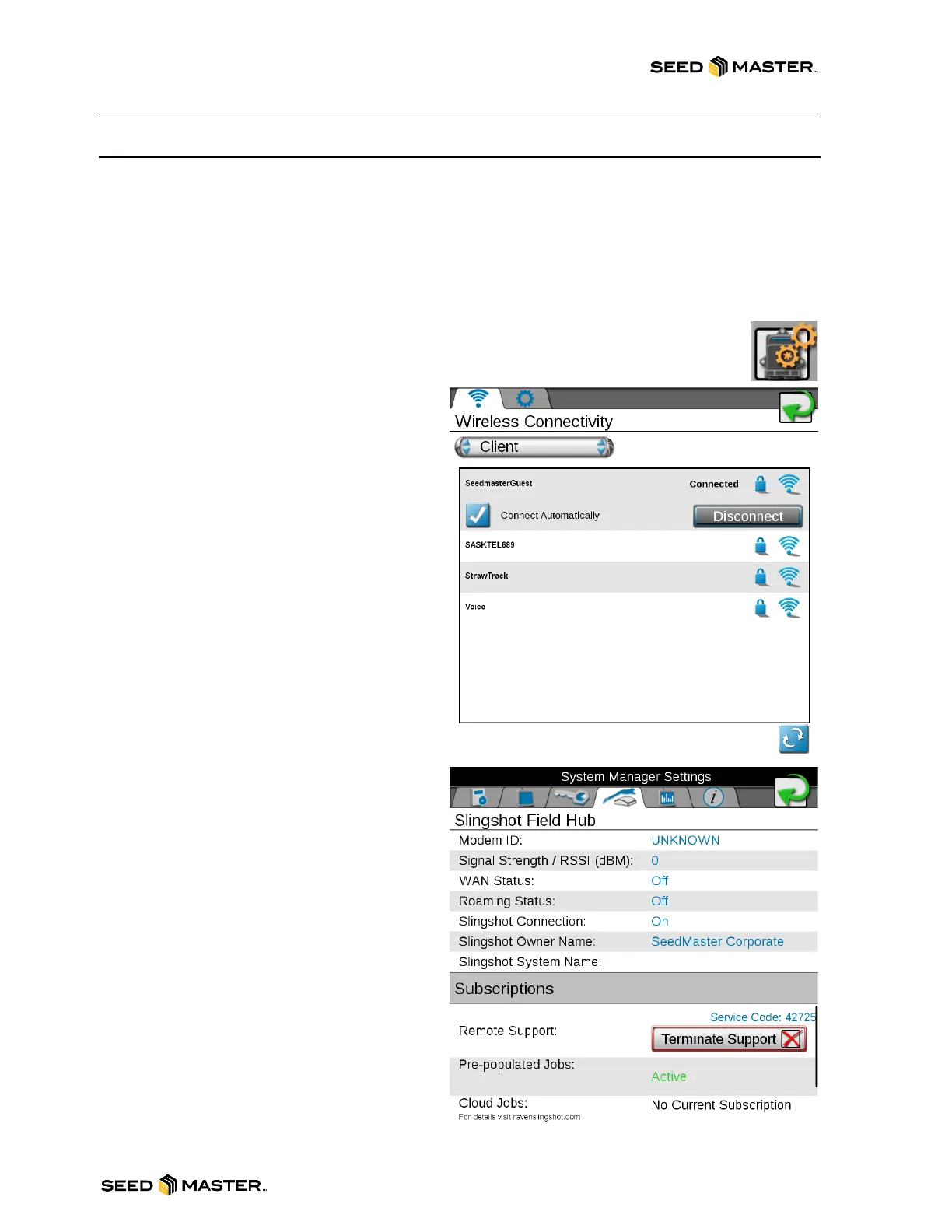
2. On the Viper 4+ monitor, touch the ”CAN System Configuration” icon.
3. Swipe left to the fourth page.
4. Touch the “Networking” icon.
5. Enable the Wi-Fi Connection by
touching the drop-down box and
selecting “Client”.
6. Wait about 30-60 seconds. If your
network does not appear, touch the
refresh button. If it still does not appear,
please ensure that you are in range of a
Wi-Fi network, or your Hotspot is
enabled. Also, check to ensure the
antenna is installed on the back of the
Viper 4+.
7. Once your network is visible, touch on
the network name.
8. Place a check mark in the Connect
Automatically box.
9. Touch the “Connect” button.
10. Enter the Password for the Wi-Fi
network or Hotspot, then touch the
check mark.
11. After the connection is made, the Viper
4+ is ready for Remote Support.
12. Touch the “Administrator” panel.
13. Touch “System Manager”.
14. Touch the “Slingshot” tab (Frog and
Field Hub Tab).
15. Touch the “Request Support” button.
16. Touch “Yes” to agree to the terms and
conditions.
17. A service code will be displayed above
the Terminate Support Button.
18. To end the Remote Support Session,
touch the “Terminate Support” Button.



 To Next Page