SEEDMASTER 2023
107
FIELD REVIEW MAP
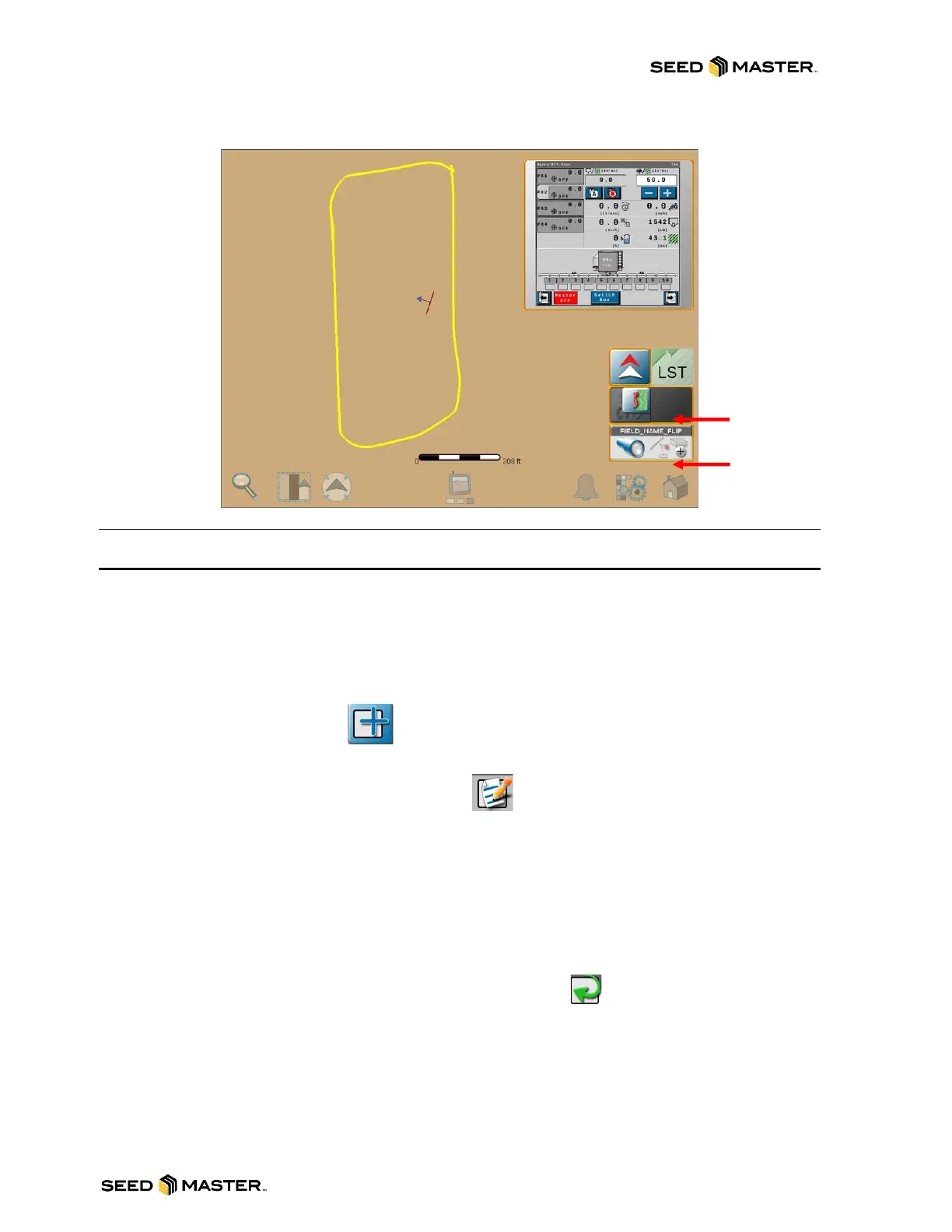
MANAGING SCREEN LAYOUTS
Each run screen layout can be modified or created. If modifying the run screen, it is recommended that
a new personalized run screen is created. Follow the procedure below to create a new screen layout.
1. From the operating run screen, touch the widget settings button.
2. Choose the layout view by either swiping left or right. The name of the view will appear at the
top of the screen.
3. Touch the add view button.
4. Enter a name for your view and touch the check mark.
5. Touch the pencil and paper to edit the layout.
6. Touch the Widget Add Button to add widgets. There are a variety of widgets to choose from.
Scroll left or right to browse the widgets.
7. To add a widget, simply touch and hold the widget for 3 seconds. The widget will be added to
the run screen.
8. Touch, hold, and drag the widget around to your desired location on the screen. To delete a
widget, tap on it then touch the red trash can located in the top left corner of the widget.
9. When all desired widgets have been added, touch the widget finish or back button. Then touch
the green check mark to complete the widget layout editing.



 To Next Page