SEEDMASTER 2023
109
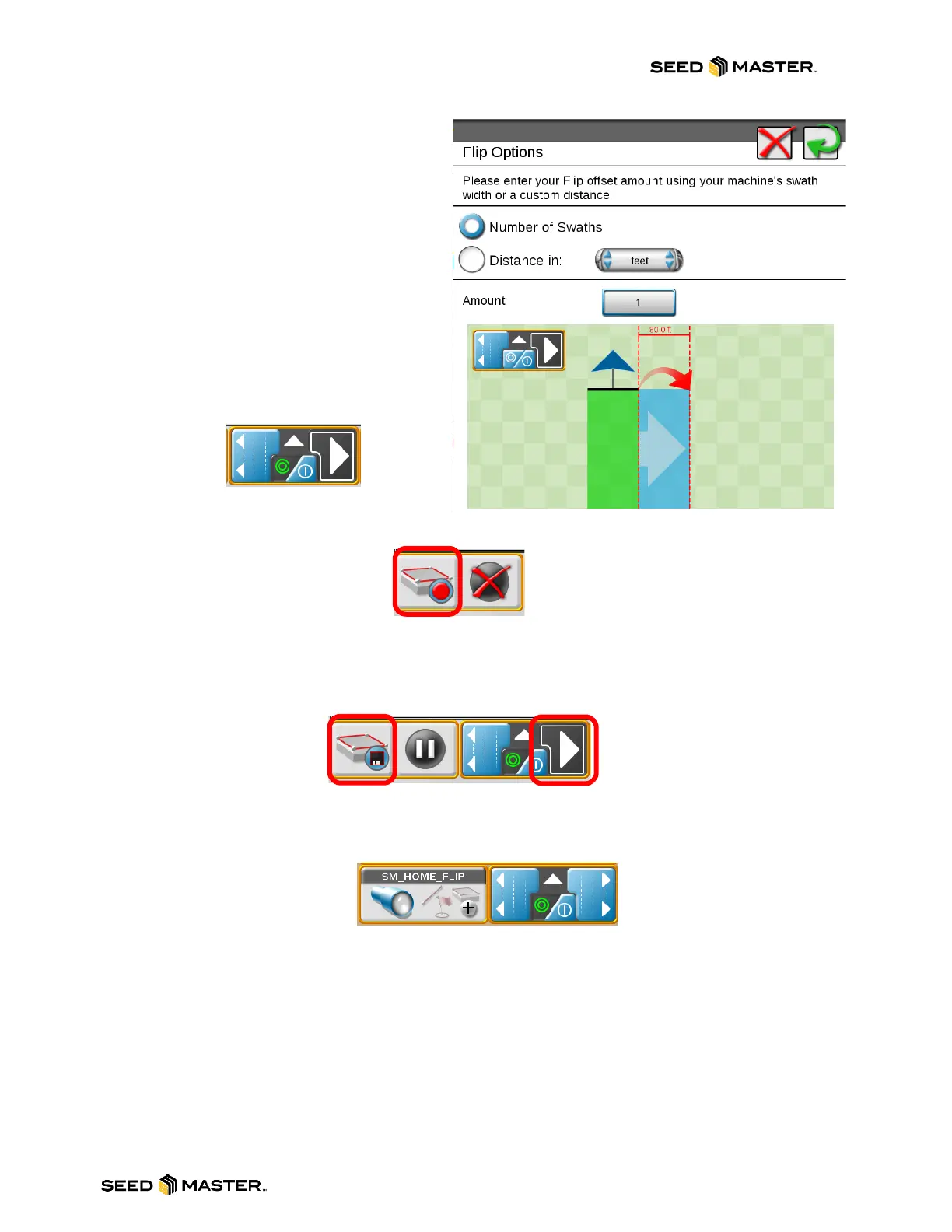
4. Set how many virtual passes you would
like to create. The FLIP widget will
default it to one virtual pass. To change
this, touch and hold on the FLIP widget.
If you would like to shrink the virtual
pass, touch the “Distance in” and enter
the width of the virtual pass.
For example, on 80 feet enter 70. When
finished touch the green arrow.
5. Enable FLIP LEFT or FLIP RIGHT. If
you are doing the headland clockwise,
you will touch FLIP RIGHT. If you are
doing the field counterclockwise, you will
touch FLIP LEFT.
FLIP RIGHT ENABLED
6. After enabling FLIP, touch the record button on the Field Boundary Widget.
7. Complete the first headland pass. Stop moving, then touch the Save Boundary button and Save
FLIP map button.
NOTE: If at any time it is necessary to lift and turn out touch the pause button.
FIELD BOUNDAY & FLIP MAP SAVE BUTTONS
FIELD BOUNDARY & FLIP map is now complete. The name of the FIELD BOUNDARY will appear in
the Scout Widget and the FLIP widget is ready for Inside FLIP maps.



 To Next Page