Distance and angle measurement
9-62
9
Continued from page 9·59: Setting the DST & AGL MES. (measurement of distance and angle) for GRAV.
(center of gravity operations).
Continued on the following page
Select item 1 START POINT COND (starting point conditions)
[MEASURING COND] (TYPE00-MEAS.1-DST&ANGL MEAS)
1START POINT COND
(TO NEXT SUB-MENU)
2AUX.CONDITIONS (TO NEXT SUB-MENU)
3DISTANCE CONDITIONS
(TO NEXT SUB-MENU)
4ANGLE CONDITIONS (TO NEXT SUB-MENU)
5UPPER MENU
1MEASWINDOW TYPE
RECTANGLE CIRCLE ELLIPSE
2
MEASWINDOW POSIT
MOVE UP.L(224,208) LO.R(287,271)
3MASK WINDOW TYPE
NO RECTANGLE CIRCLE ELLIPSE
4
MASKWINDOW POSIT
MOVE UP.L(224,208) LO.R(287,271)
5THRESHOLD VALUE U.LM−255 L.LM−100(0~255)
6INVERT B/W NO YES
7BINARY PROCESS FIXED THRSHOLD-ADJ (VAR-DIFF VAR-RATE)
8BOUNDARY PROCESS
VALD INVLD
9LABEL ORDER SACN-ORDER SIZE-ORDER
0IMAGE PRE-PROCESS
OFF SMOOTH EDGE-EMPHASIS
ALL-EDGE HORZ-EDGE VERT-EDGE
qBINARY NOIS FILTR NO EXP.→CONTR. CONTR.→EXP.
wNUM. OF FILTR PASS
EXPD.0(0~5) CONTR0(0~5)
eAREA FILTER 000000PIXEL LOWER LIMIT
rUPPER MENU
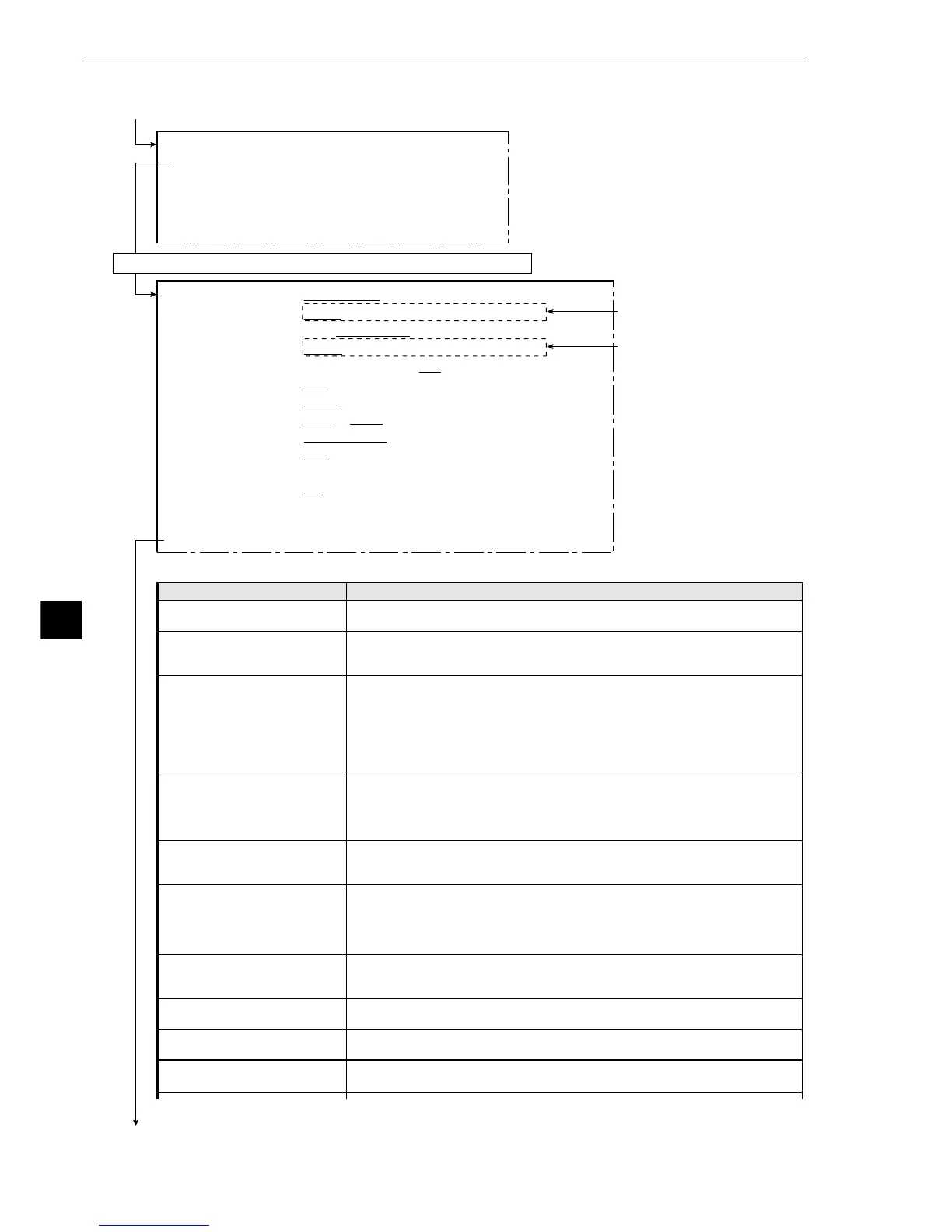
This is how the display looks
when item 3 MASK
WINDOW TYPE, is set to
RECTANGLE.
This is how the display looks
when item 1 MEAS WINDOW
TYPE is set to RECTANGLE.
· Item 4 will be displayed unless item 3 is set to NO.
Menu
1MEAS WINDOW TYPE
(measurement window)
2MEASWINDOW POSIT
(measurement window
position)
3MASK WINDOW TYPE
4MASK WINDOW POSIT
(mask window position)
5THRESHOLD VALUE
6INVERT B/W
(black and white inversion)
7BINARYPROCESS
(binary conversion process)
8BOUNDARY PROCESS
(boundary processing)
9LABEL ORDER
0IMAGE PRE-PROCESS
Setting details
Select measurement window type: RECTANGLE (rectangular), CIRCLE
(circular) or ELLIPSE (elliptical).
Set the size and position of the window in units of 1 pixel.
· If circle or ellipse is selected in item 1, then the two variables you must
set are the center and diameter.
Decide whether a mask window will be employed and if so which type
(rectangular, round or elliptical).
· A mask window exists inside the boundary of the measurement window
and screens out those parts of the image which are not needed for the
measurement process.
Set the size and position of the mask window (which is drawn with a dotted
line) using units of 1 pixel.
· If a circle or an ellipse is selected in item 1, then the two variables you
must set are the center and diameter.
· The mask window can be set exceeding the measurement window.
Set the upper and lower limits for binary conversion, within the range of 0 to
255.
-See page 9·7, Setting threshold values, in shared settings.
Set the inversion of black and white in the image to YES or NO.
· NO means the white area will be measured after the image has been
converted to binary values.
· YES means the black area will be measured after the image has been
converted to binary values.
Select either fixed or threshold value correction as the binary conversion
processing method. (VAR-DIFF or VAR-RATE).-See methods for binary
conversion in shared settings on page 9·8.
Enable or disable boundary processing.
-See setting the window boundary in shared settings on page 9·7.
Select the labeling order.
-See labeling order in shared settings on page 9·8.
Select a method for pre-processing image data.
-See pre-processing in shared settings on page 9·9.



 To Next Page