The information contained in this document is confidential, and only for the information of the intended recipient and may not be published or redistributed without the prior written consent of Summa NV.
Summa nv Tel +32 59 27 00 11 Fax +32 59 27 00 63 Email support@summa.com Website www.summa.com Page 60 of 76
8.1 USB Interface
In case of communication problems when using the USB interface, then the media may start
to feed randomly, or random lines may have been cut across the media (see “Random lines”).
The software used to drive the machine may report communication problems. In such cases
check the following items:
• The USB cable length should not exceed 5 meters.
• Do not use extension cables.
• The USB cable may be defective: try another cable.
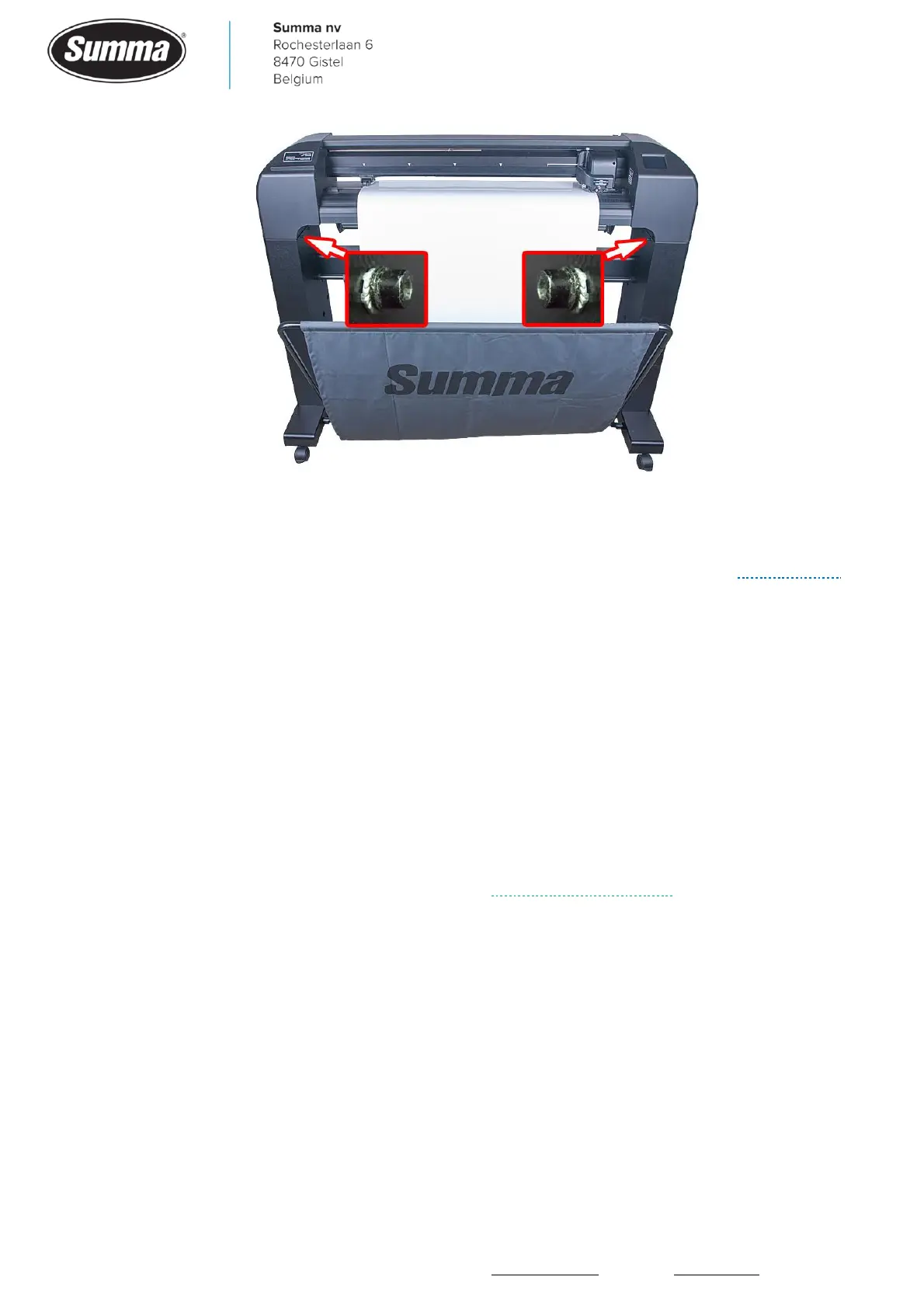
• Prevent the USB cable to touch the media support roll. Prevent the media to touch the USB
cable. This to prevent static electricity discharge over the USB cable causing communication
issues.
• The USB socket on the cutter may be loose or defective. To prevent damage on the USB
socket, guide the USB cable inside the stand. Replace the main board.
• Check the USB class of the cutter: click [Settings] – [More] – [Communication] – [USB class].
Best is to set the USB class to “USB port 1” when only one Summa cutter is connected to the
computer. The software driving the machine has to be configured for the same USB class.
• Multiple programs may try to communicate with the machine, e.g. the barcode server of the
RIP and Summa Cutter Control. Close one of the programs, and check communication again.
• In case Windows 7, 8 or 10 is used, install the most recent USB driver available from the
Summa website. The most recent USB driver uses SHA2 encryption for the digital signature,
which is not supported by older Windows versions.






 To Next Page