SonixTablet Service Manual 00.053.129, Revision C Appendix A: Troubleshooting Solutions
A-3
A.4 IMAGE IS GRAINY
A.4.1 Adjust the Clarity Setting
To Adjust the Clarity (Speckle Reduction) Imaging Mode:
1. Tap the touch screen button.
2. Tap the touch screen Clarity button.
3. Turn the associated touch screen dial to adjust the level of speckle reduction. to Medium or High.
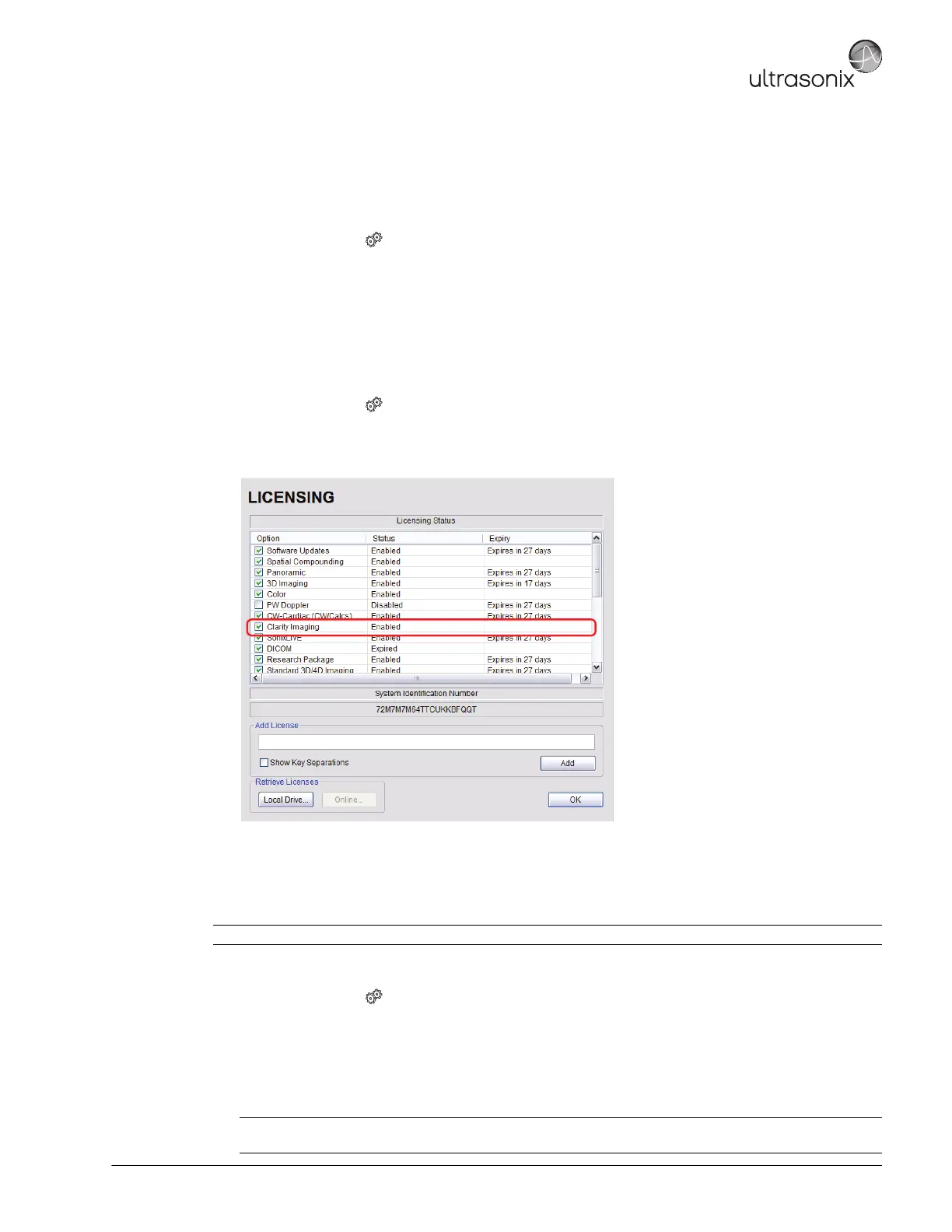
A.4.2 Check the Clarity License Status
To Access the Licensing Dialog:
1. Tap the touch screen button.
2. Select Administrator > Licensing.
3. Ensure the Status for the Clarity License is set to Enabled.
A.4.3 Re-Import License.txt
To Re-Import License.txt:
1. Insert the USB device with license.txt file into one of the system's USB drives.
2. Tap the touch screen button.
3. Select Administrator > Licensing.
4. Select Local Drive.
5. Under the Look in drop-down menu, select the relevant drive/device and locate license.txt.
6. Select Open to re-import license.txt.
Note: This process presumes the license.txt file is stored on a USB device.
Note: If there are any problems, clear all menus, return to the Licensing dialog and contact Ultrasonix
Technical Support for assistance.


 To Next Page