SonixTablet Service Manual 00.053.129, Revision C Chapter 6: Peripherals and Accessories
6-3
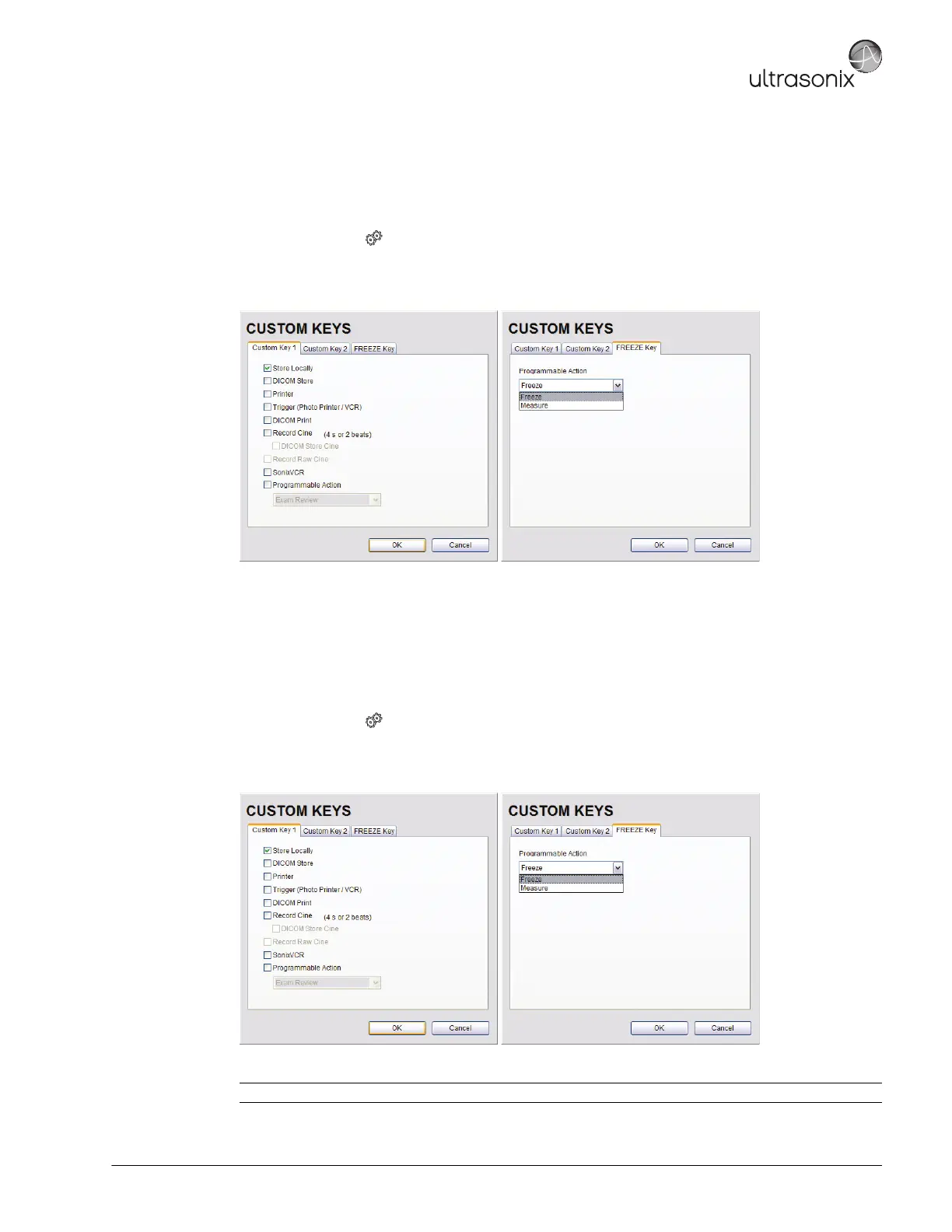
6.1.3 Configuring Custom Keys
6.1.3.1 Paper Printing Configuration
To Configure a Print Key for Paper Printing:
1. Tap the touch screen button.
2. Select Administrator > Custom Keys.
3. Select the desired Custom Key tab.
4. Select the Printer checkbox.
5. Select OK.
6.1.3.2 Trigger Configuration
To Configure the Custom Key Function for Trigger:
1. Tap the touch screen button.
2. Select Administrator > Custom Keys.
3. Select the desired Custom Key tab.
4. Select Trigger and select OK.
5. To print a test image on the thermal printer, tap the relevant touch screen button.
Note: If Trigger is not accessible (i.e., grayed out), deselect Record CINE, then select Trigger.


 To Next Page