SonixTablet Service Manual 00.053.129, Revision C Chapter 8: DICOM
8-3
8.1.2 DICOM Storage Settings
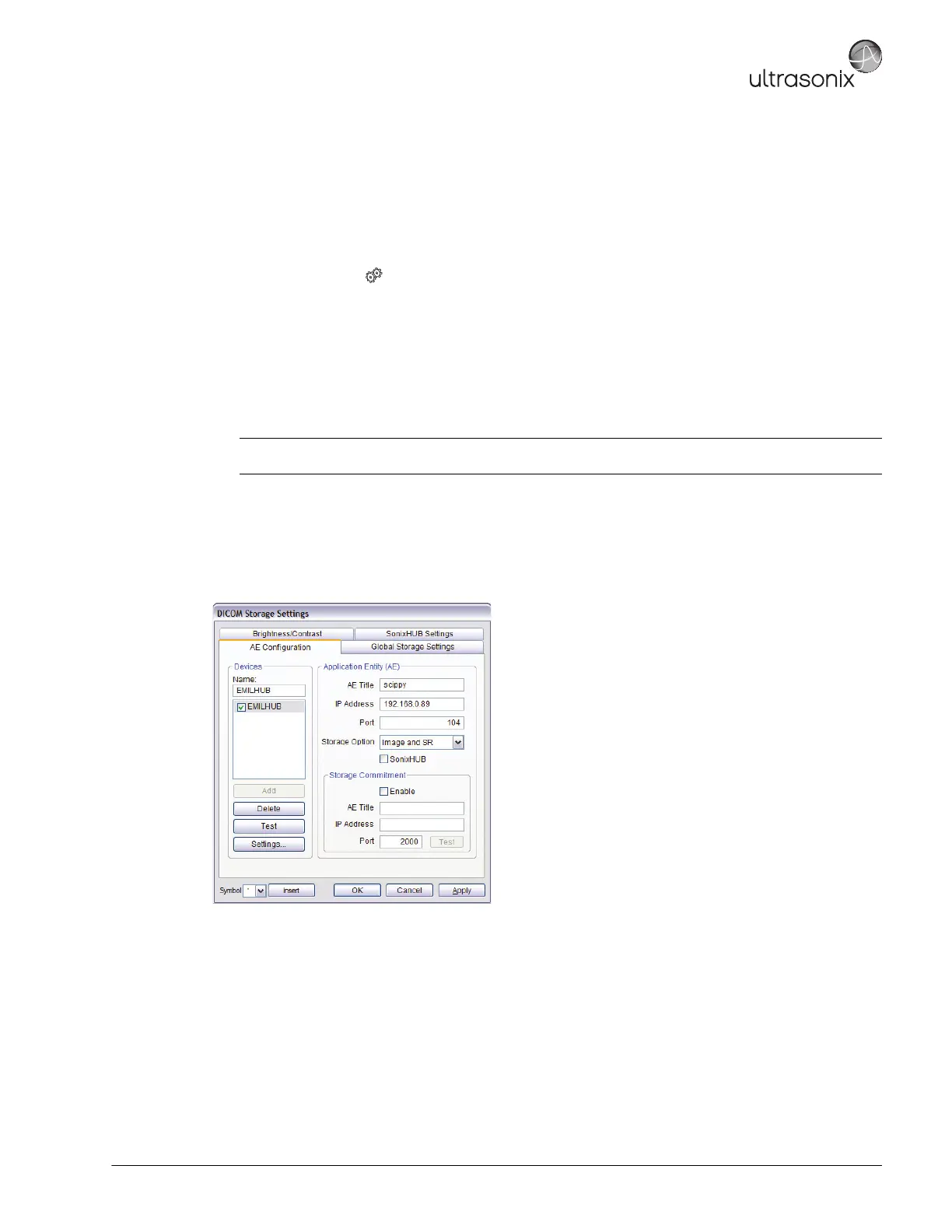
The DICOM Storage Settings dialog offers basic and advanced settings for configuring the system for DICOM
image storage.
To Configure the DICOM Storage Setting:
1. Tap the touch screen button.
2. Select Administrator > DICOM > Storage.
3. An onscreen dialog with four (4) tabs will be presented: AE Configuration, Global Storage Settings,
Brightness/Contrast and SonixHUB Settings.
4. Create/select a Device Name. Edit the Application Entity (AE) settings for the selected Device.
5. Repeat step 4 as many times as required.
6. Configure Storage Settings and Brightness/Contrast as required.
The DICOM Storage AE Configuration dialog enables configuration of AE properties.
Figure 8-3: DICOM Storage Settings – AE Configuration
Note: In addition to the four (4) tabbed settings options, select the Settings... button to access Storage
Settings.


 To Next Page