Chapter 9: Network Configuration 00.053.129, Revision C SonixTablet Service Manual
9-4
9.1.2 Dialup Network Configuration (If Available)
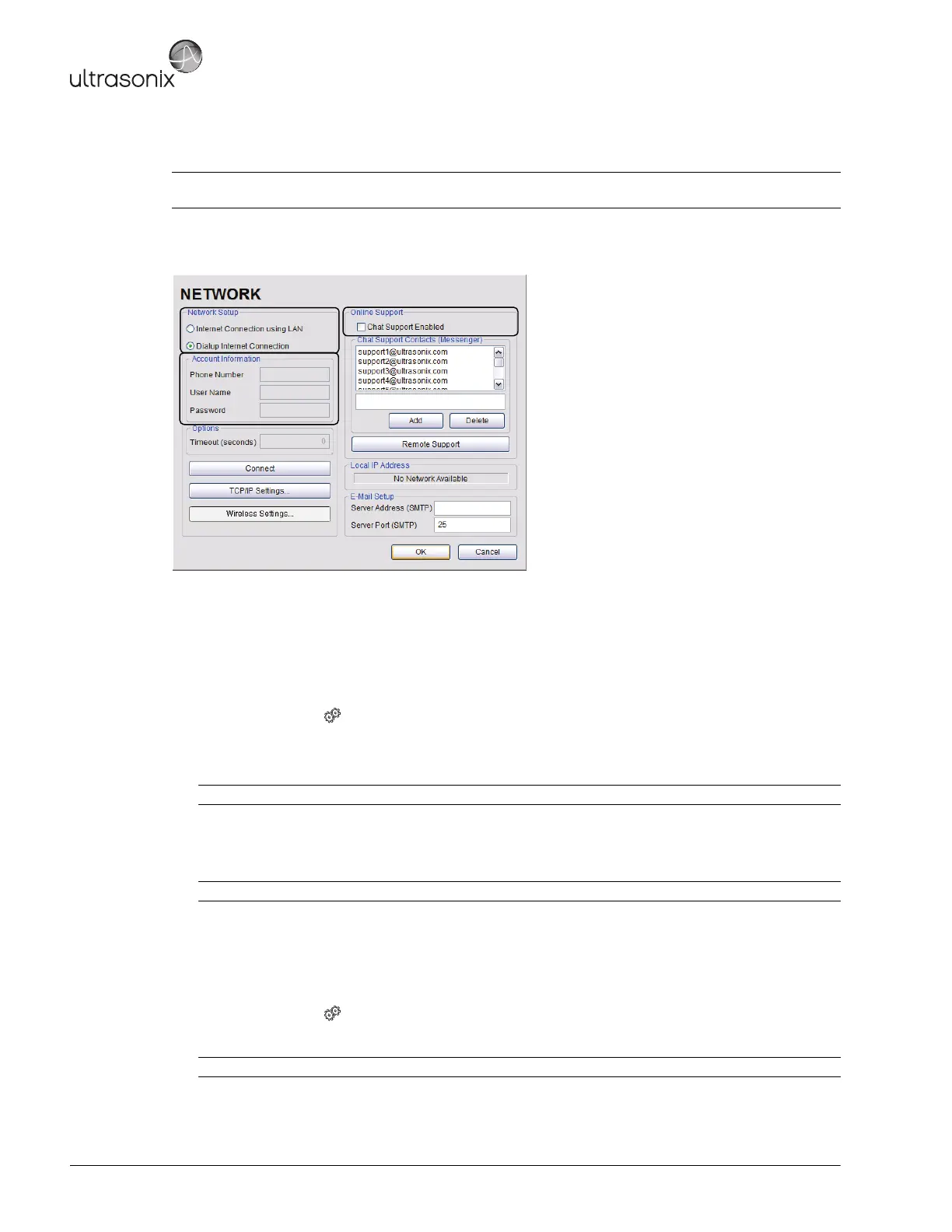
Figure 9-3: Network Configuration Page (Dialup)
To Configure a Dial-up Connection (If Available):
1. Connect the modem's USB connector to the System Case Connectivity Panel (refer to 7.1.7 Connectivity for
available connection ports).
2. Connect the other end of the modem to a telephone jack in the wall.
3. Tap the touch screen button.
4. Select Administrator > Network > Dialup Internet Connection.
5. Under Online Support, ensure the Chat Support Enabled checkbox has been selected.
6. Complete the Account Information and Options sections: Phone Number, Username, Password and
Timeout.
7. Select OK and exit the Menu system.
9.1.2.1 Dialup Communication Test
To Perform a Dialup Communication Test:
1. Tap the touch screen button.
2. Select Online Support. This should connect the system to an Ultrasonix Technical Support Representative.
Note: A dialup connection requires a third-party, USB modem. Contact your dealer or Ultrasonix Technical Support
to learn more about this option.
Note: Do not select the Chat Support Enabled checkbox unless there is an Internet connection available.
Note: While the system is dialing out, the current dialing status to the ISP will be displayed.
Note: It may be necessary to restart in order for the changes to take affect.


 To Next Page