Chapter 7: Field Service Components 00.053.129, Revision C SonixTablet Service Manual
7-6
7.1.4 Importing Patient/Exam Data (As Required)
Exam Import/Export enables data to be copied to and from the system, allowing the reinstallation of Patient/
Exam data backups.
Equipment/Tools Required:
• USB media (memory stick, external hard drive, etc.) containing previously exported data.
To Import Patient/Exam Data:
1. Tap the touch screen button.
2. Select the Import/Export button.
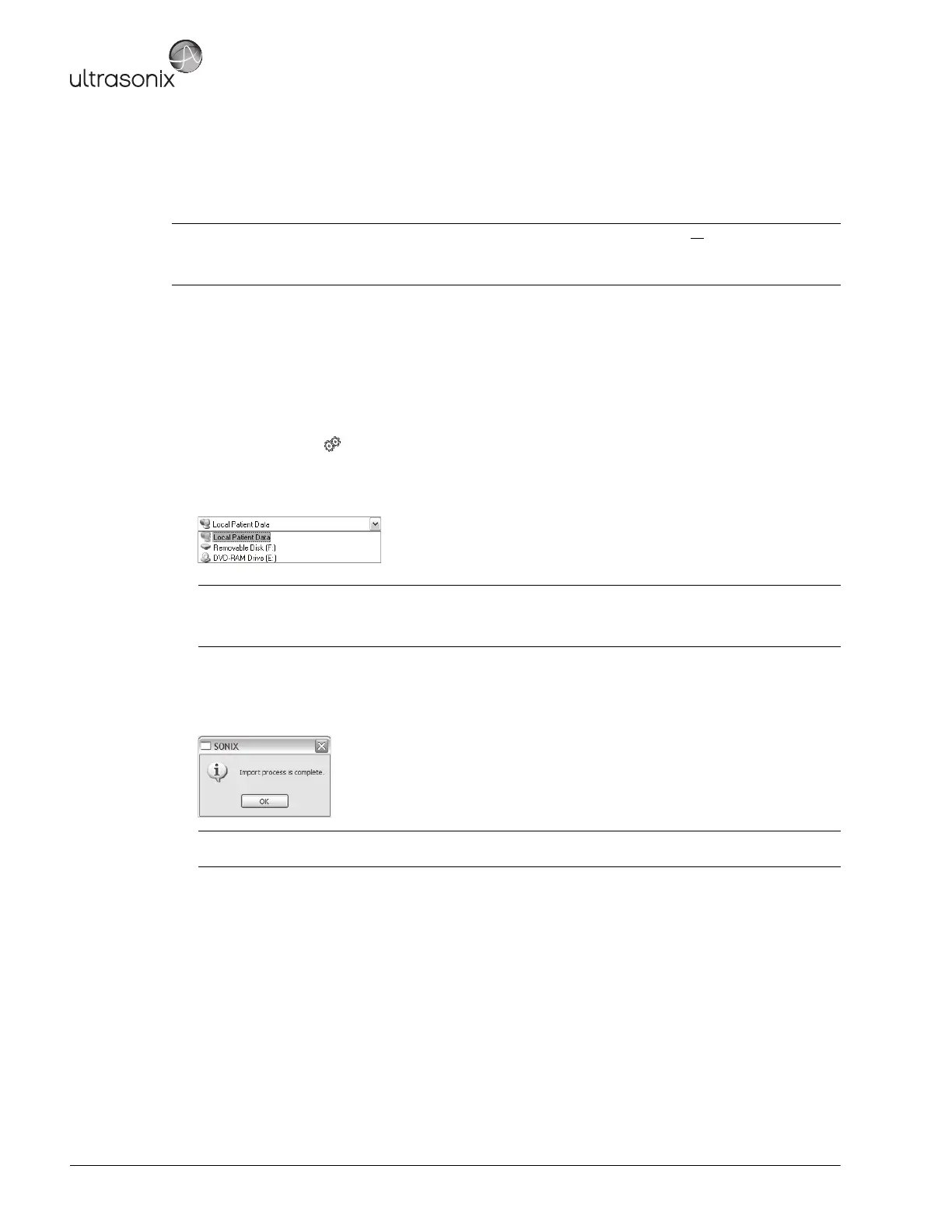
3. From the Source drop-down menu, select the Source of the data to be imported.
4. From the list presented on the left hand side of the Exam Import/Export page, select all data for import.
5. Select the Import button to begin the procedure.
6. When the Import is complete, the following message will be presented.
Note: When reinstalling Patient/Exam data after servicing the modulo, be sure to select all
Patient/Exam data for
import to the system.
If the system boots properly with all Patient/Exam data intact, this procedure will not be required.
Note: The following actions will auto-complete once the data Source is changed from Local Patient Data:
• Destination drop-down menu will change to Local Patient Data
• Export button will change to Import.
Note: If the data selected for Import is already available on the system, it will not be imported, i.e., it will not
overwrite the existing data.


 To Next Page