Chapter 6: Peripherals and Accessories 00.053.129, Revision C SonixTablet Service Manual
6-4
6.1.3.3 Image Sheet Printing
To Configure Image Sheet Printing:
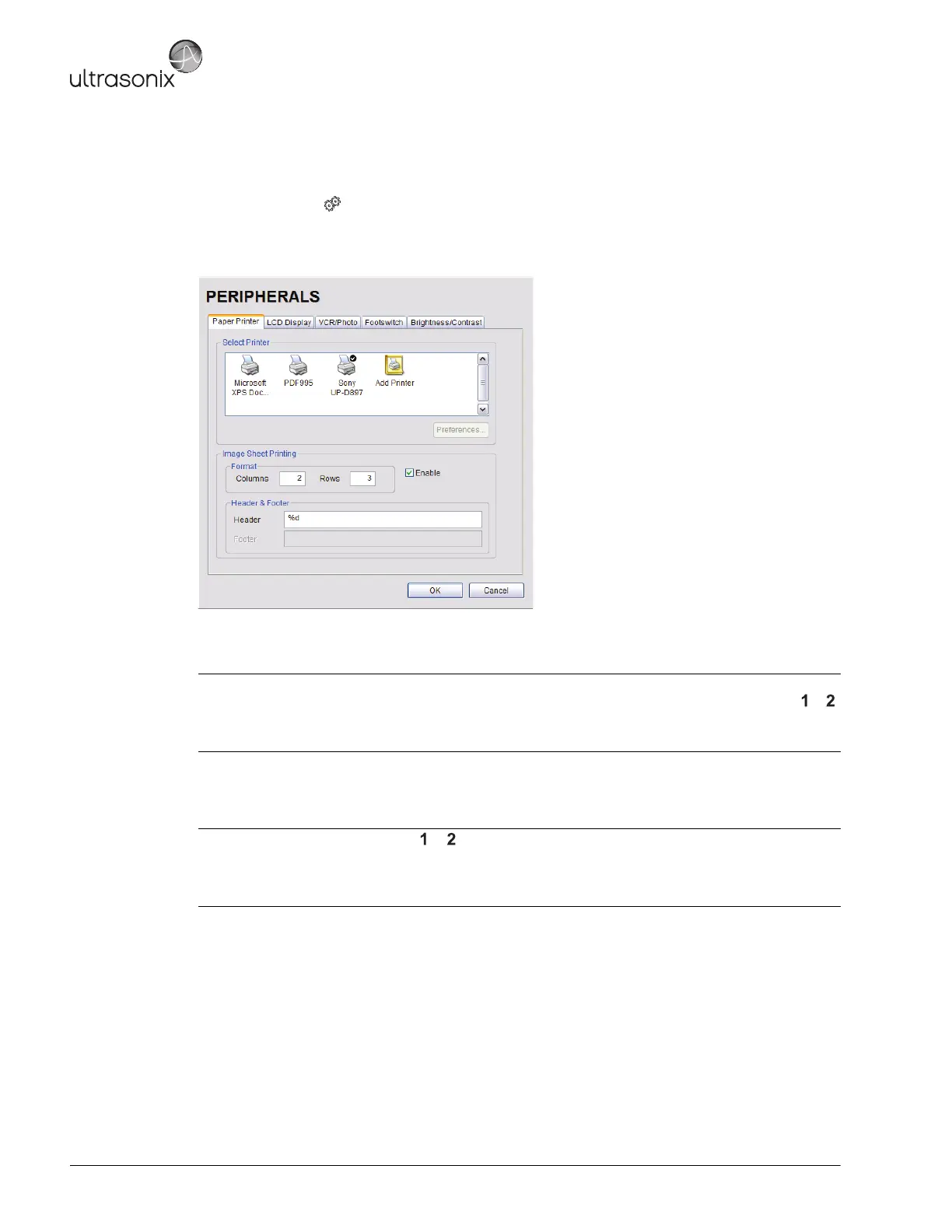
1. Tap the touch screen button.
2. Select Administrator > Peripherals.
3. Select the Paper Printer tab.
4. To select/deselect Image Sheet Printing (e.g., 2x3 image sheets), check/uncheck the Enable box.
5. Enter the number of Columns and Rows desired in the text boxes provided.
6. To add an optional Header to the image sheet (or to supply special commands, as required), enter the desired
text in the space provided.
7. Select OK.
Note: The default is set to print as two (2) columns by three (3) rows (for a total of six (6) images per sheet).
Before the printer will print, it will wait for six (6) images. Tapping the relevant Custom Key button ( or )
six (6) times will force it to begin printing.
To print one image per sheet, set Columns to 1 and Rows to 1. This will result in a single, large image.
Note: To configure the touch screen or button to send images to the printer, refer to 6.1.3 Configuring
Custom Keys.
To send partial print pages (e.g., 3 images remaining on a 4 image/sheet format) at the end of an exam,
tap the touch screen End Exam button.


 To Next Page