SonixTablet Service Manual 00.053.129, Revision C Chapter 7: Field Service Components
7-5
7.1.3 Exporting Patient/Exam Data (As Required)
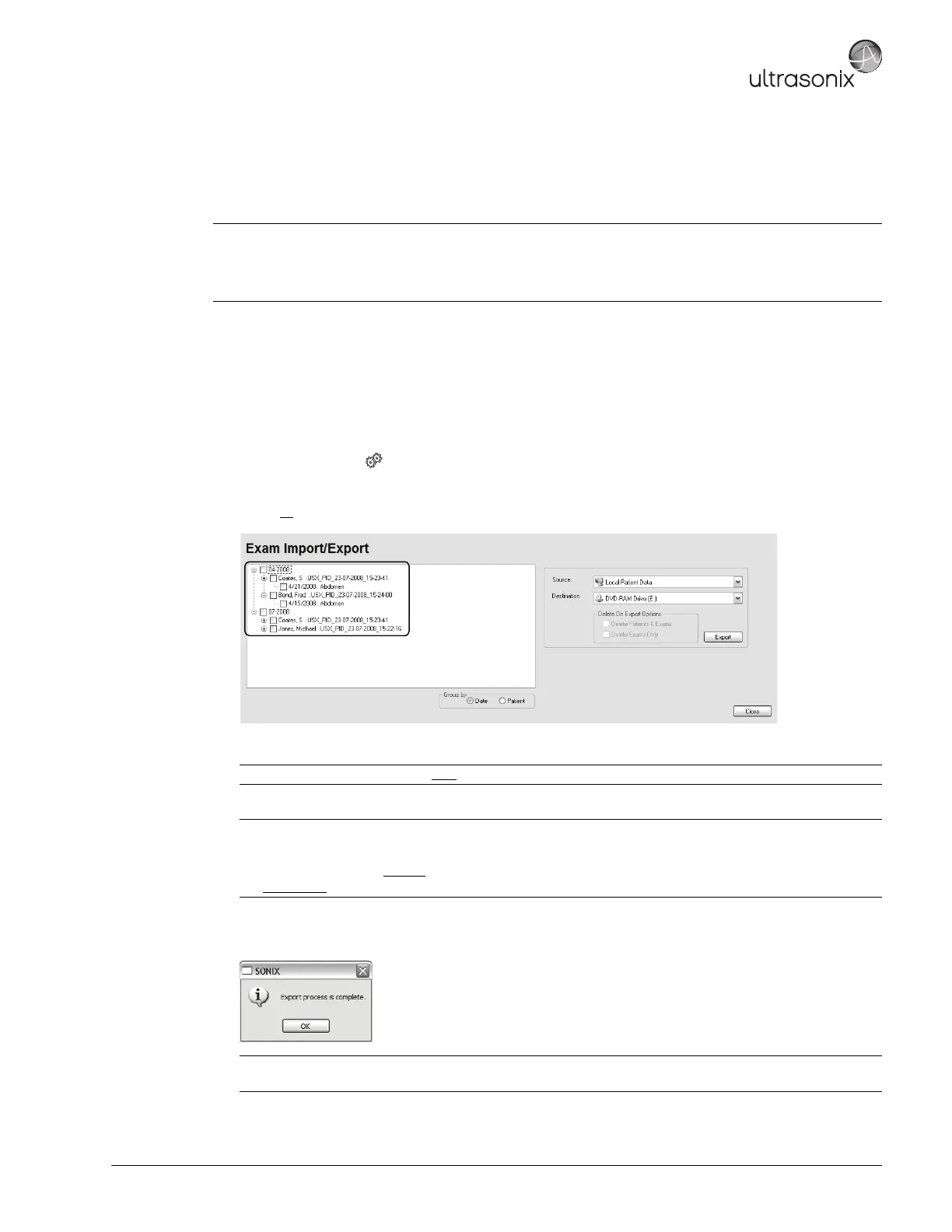
Exam Import/Export enables data to be copied to and from the system from within the system software, allowing
the creation of Patient/Exam data backups.
Equipment/Tools Required:
• USB media (memory stick, external hard drive, etc.).
To Export all Patient/Exam Data Using SonixTABLET Software:
1. Tap the touch screen button.
2. Select Import/Export.
3. Select all Patients/Exams.
4. From the Source drop-down menu, select Local Patient Data.
5. From the Destination drop-down menu, select the Export Destination.
6. Select the Export button to begin the backup.
7. When the Export is complete, the following message will be presented.
Note: When creating a backup prior to servicing the modulo, be sure to select all Patient/Exam data currently
stored on the system.
If Patient/Exam data is exported using these instructions (7.1.3), it will not be necessary to use the Backup
option (7.1.5).
Note: Local Patient Data is the only
Source for exporting data.
Note: The Delete On Export Options will not be available for selection until a valid Destination location is
selected.
To create a backup without
removing the data from the system, leave both Delete On Export Options
unchecked
.
Note: If Delete On Export Options were selected, the data will be deleted before the Export process is
complete message is presented.


 To Next Page