SonixTablet Service Manual 00.053.129, Revision C Appendix A: Troubleshooting Solutions
A-5
A.7 INITIALIZATION FAILURES
A.7.1 Electronics Initialization Failure – Hardware Test Software
To Use the Hardware Test Software:
1. Ensure a USB keyboard is connected to the system.
2. Enter Service mode.
3. Press ESC to exit the exam. If this does not shutdown the software, use CTRL+ALT+DEL and end the Exam
with Windows Task Manager.
4. Press the WINDOWS START KEY on the USB keyboard and select Programs > Accessories > Windows
Explorer.
5. Press the WINDOWS START KEY again and open Notepad (Start > Programs > Accessories > Notepad).
6. Use ALT+TAB on the USB keyboard to cycle between the Exam, Notepad, and Windows Explorer.
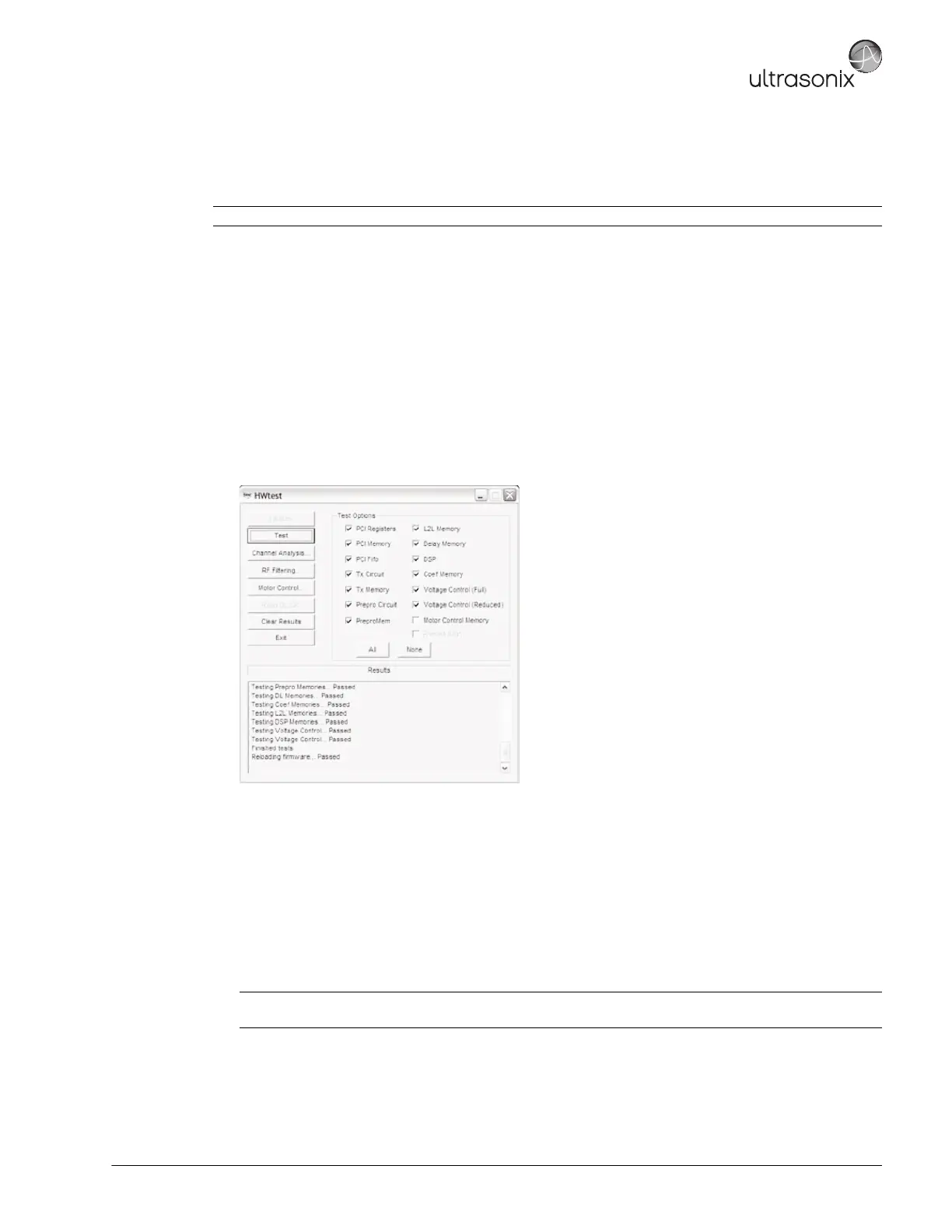
7. In Windows Explorer, go to C:\Program files\Ultrasonix\Exam and double-click Hwtest.exe.
8. Select Initialize and wait for the results.
9. Select Test and highlight the text in the results box using the trackball.
10. Set the cursor on the top left corner of the logs then press and hold the console SELECT button while moving
the trackball to the bottom of the list. The logs should now be highlighted in gray.
11. Press CTRL+C to copy.
12. ALT+TAB to Notepad and press CTRL+V to paste the log list into the file.
13. Save the logs using the File > Save As option in Notepad, giving the file an appropriate name.
14. ALT+TAB to back to the system and select Channel Analysis.
Note: The Hardware Test Software can only be used with the software version it came with.
Note: Check for dead crystals by dipping the head – and only the head – of the transducer in a small bowl of
water. Do not go past the first seam.


 To Next Page