Personal TitleMaker User Guide
28
Editing Screen
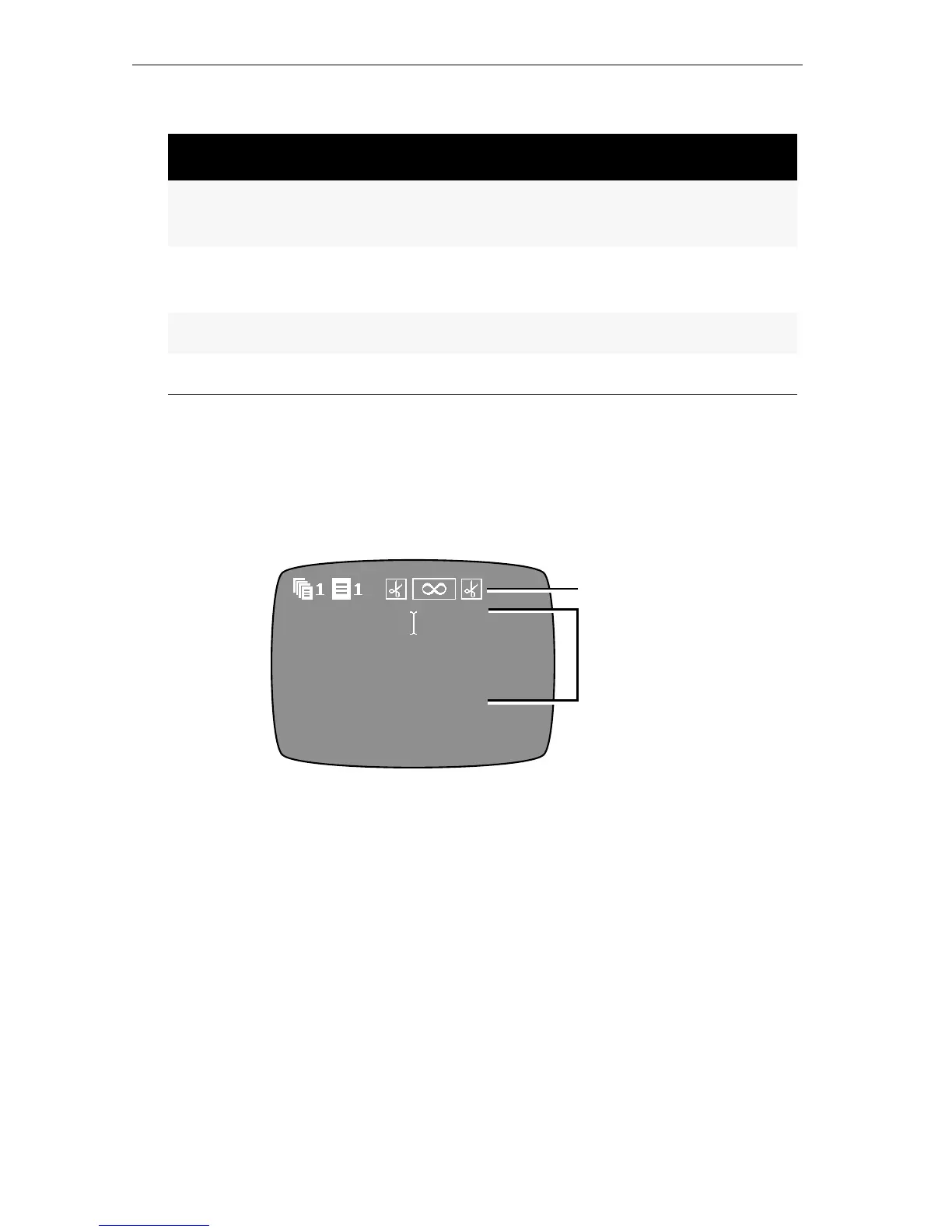
Use the Editing Screen to create titles. You can type title text on the
screen, set font attributes, create borders and backgrounds for pages,
and much more.
To access the Editing Screen:
1 Press
PAGE INDEX to display the Page Index screen, if it is not
currently displayd. (See the preceding section.)
2 Use the
ARROW keys to move the cursor up or down in the
Page Index Screen until it is positioned in the page with
which you want to work. (You cannot move the cursor into
the page header, only into the text area.)
3 Press
NEW LINE OK. The Editing Screen appears with the cur-
sor located at the page you specified.
4 To leave the Editing Screen and return to the Page Index
Screen, press PAGE INDEX.
Up to First Line in Preceding Project
CMD+UP ARROW or
CMD+LEFT ARROW
Down to First Line in Next Project
CMD+DOWN ARROW or
CMD+RIGHT ARROW
Down to Next Full Screen of Items
PAGE INDEX
Exit to Editing Screen
NEW LINE OK
Table 4: Page Index Navigation Keys (Continued)
Movement Key or Key Combination
Page Header
An editable text area
with the text cursor
shown. Enter and edit
title text here.



 To Next Page