Personal TitleMaker User Guide
90
MENU STRUCTURES
Most Personal TitleMaker menus contain sub-menus. The sub-menus
represent categories within the main menu. For example the
STYLE
menu contains sub-menus for selecting various font styles.
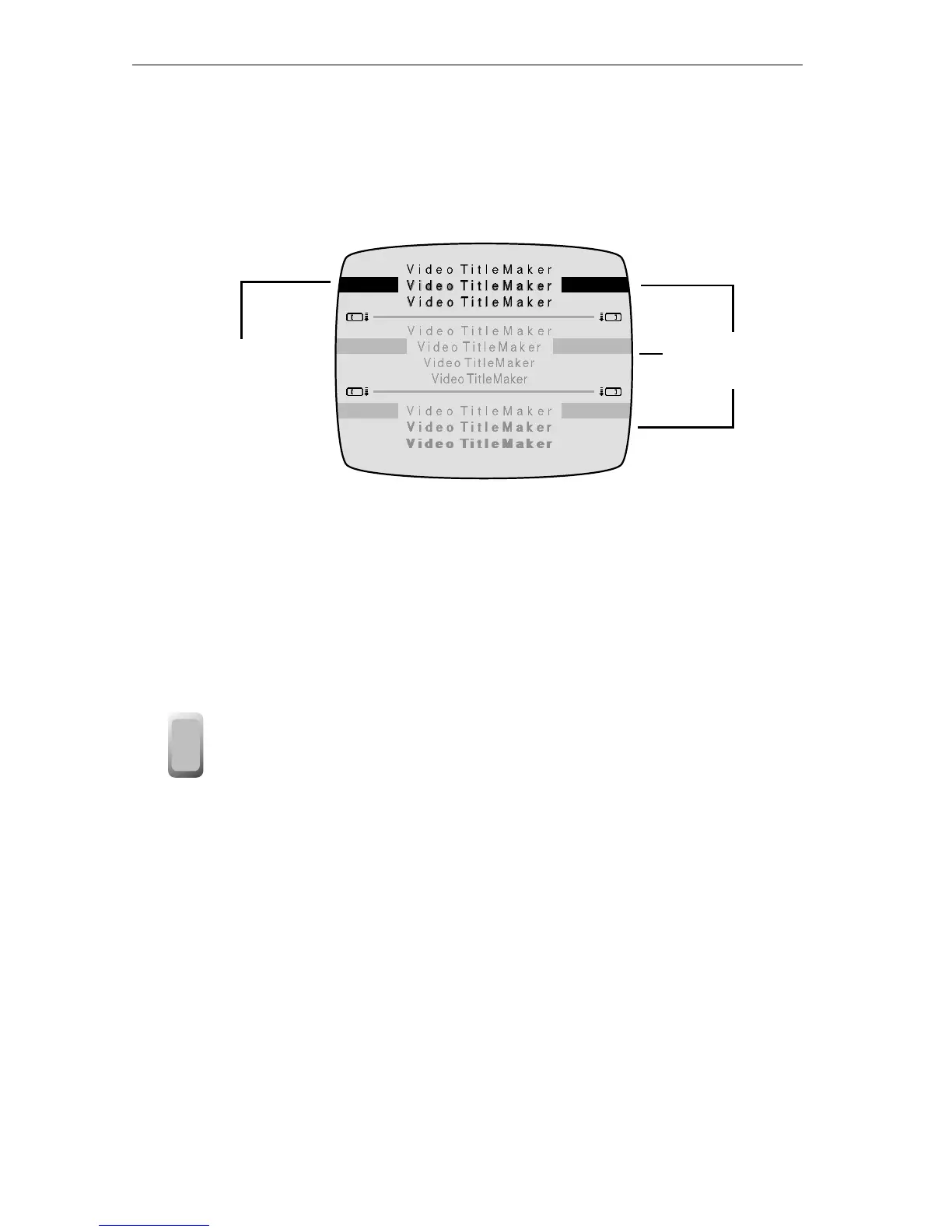
This sample menu contains three sub-menus. The first sub-menu con-
tains choices for adding outlines or shadows to a title; the second con-
tains choices for spacing between characters in a title; the third
contains choices for making titles appear in boldface.
Only one sub-menu can be active at any given time. In the sample
menu above, the first sub-menu is active. The other two sub-menus are
inactive.
To move from one sub-menu to another, press
TAB, MARK
START, or MARK END. The active menu always appears in solid
black characters; inactive menus appear in gray characters.
Repeatedly pressing
TAB, MARK START, or MARK END cycles
through all of the available sub-menus.
The black bar in the sub-menu (which appears on both sides of the
screen) indicates the currently selected item. Use the
ARROW keys to
move the highlight to a different item in the sub-menu. To apply the
selection, press
NEW LINE OK. This returns you to the Editing Screen and
Personal TitleMaker applies the selection to the page, title, or marked
text.
The black bar
indicates the
current selection.
Three separate
sub-menus
tab
tab



 To Next Page