Chapter 6 Working with Pages
71
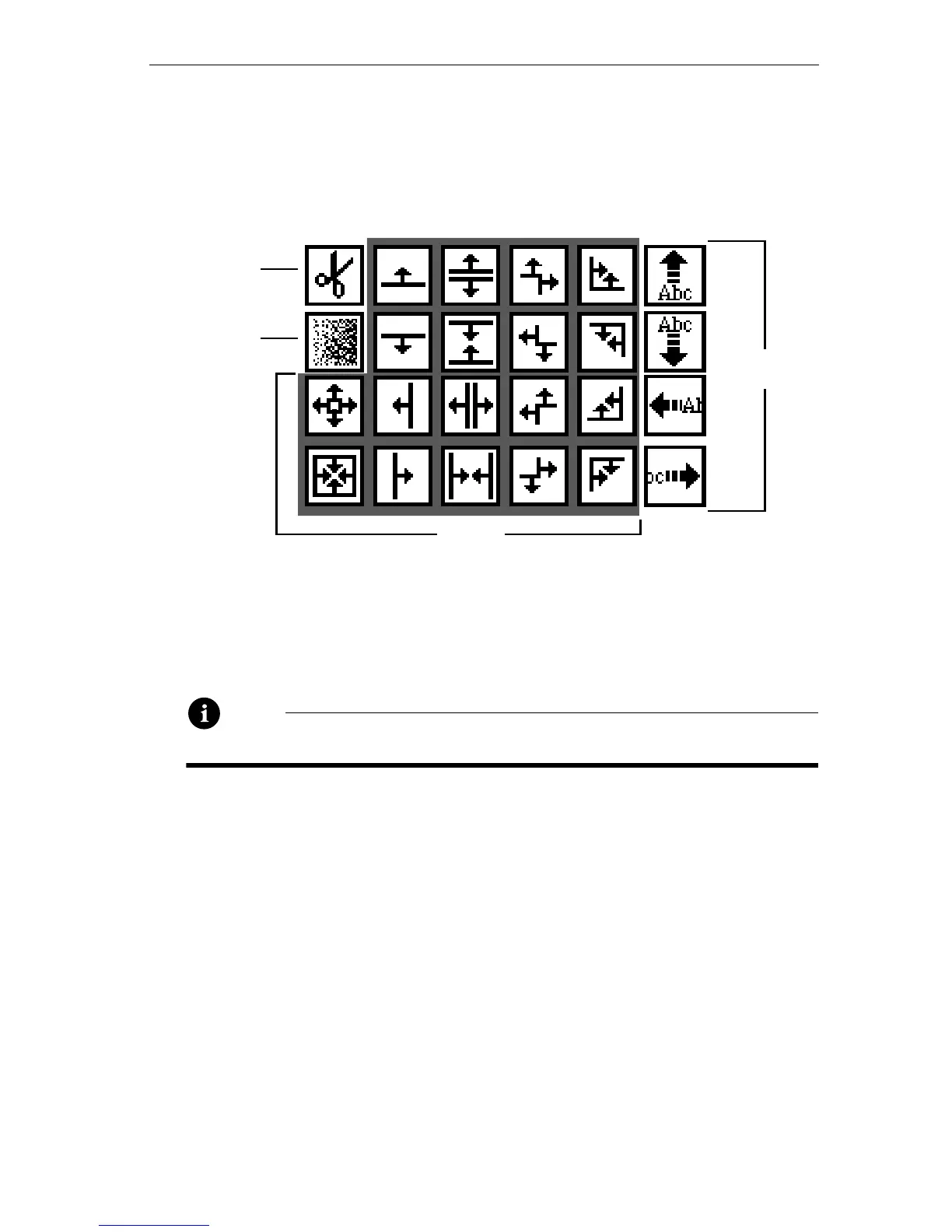
The same set of transitions is available for pages entering and exiting
the screen. To choose a transition, press either
EFFECTS/IN (for a page
entering) or
EFFECTS/OUT (for a page exiting) while the cursor is posi-
tioned in the page on the Editing Screen. The transition sub-menu
appears at the top of the screen in each case.
Cut Transition
There is only one cut transition. The cut causes the page to abruptly
appear or disappear, without any effect.
Note
Setting the speed of a cut transition does not have any effect.
Fade Transition
There is only one fade transition. The fade (sometimes called a dis-
solve) causes the page to slowly fade into view (for an In Effect), or
slowly fade out of view (for an Out Effect). Use the Speed sub-menu to
control the speed of the fade.
Wipe Transitions
There are 18 wipe transitions. In a wipe, a line or corner sweeps across
the screen. If the wipe is an In Effect, the moving boundary reveals the
new page of titles in its wake. If it’s an Out Effect, the wipe removes the
titles. Any wipe can be used as an In or Out Effect.
Cut
Fade
Slides
Wipes



 To Next Page