Chapter 6 Working with Pages
69
PAGE ATTRIBUTES
Every page has attributes that control the way the page displays during
playback. You learned a little about three of these attributes (in effect,
page duration, and out effect) under “Page Item Information” on
page 64.
Another attribute you can specify for a page is its background.
This section explains how to set page attributes. Use the Personal Title-
Maker menus to select the attributes you want.
Setting In Effects and Page Duration
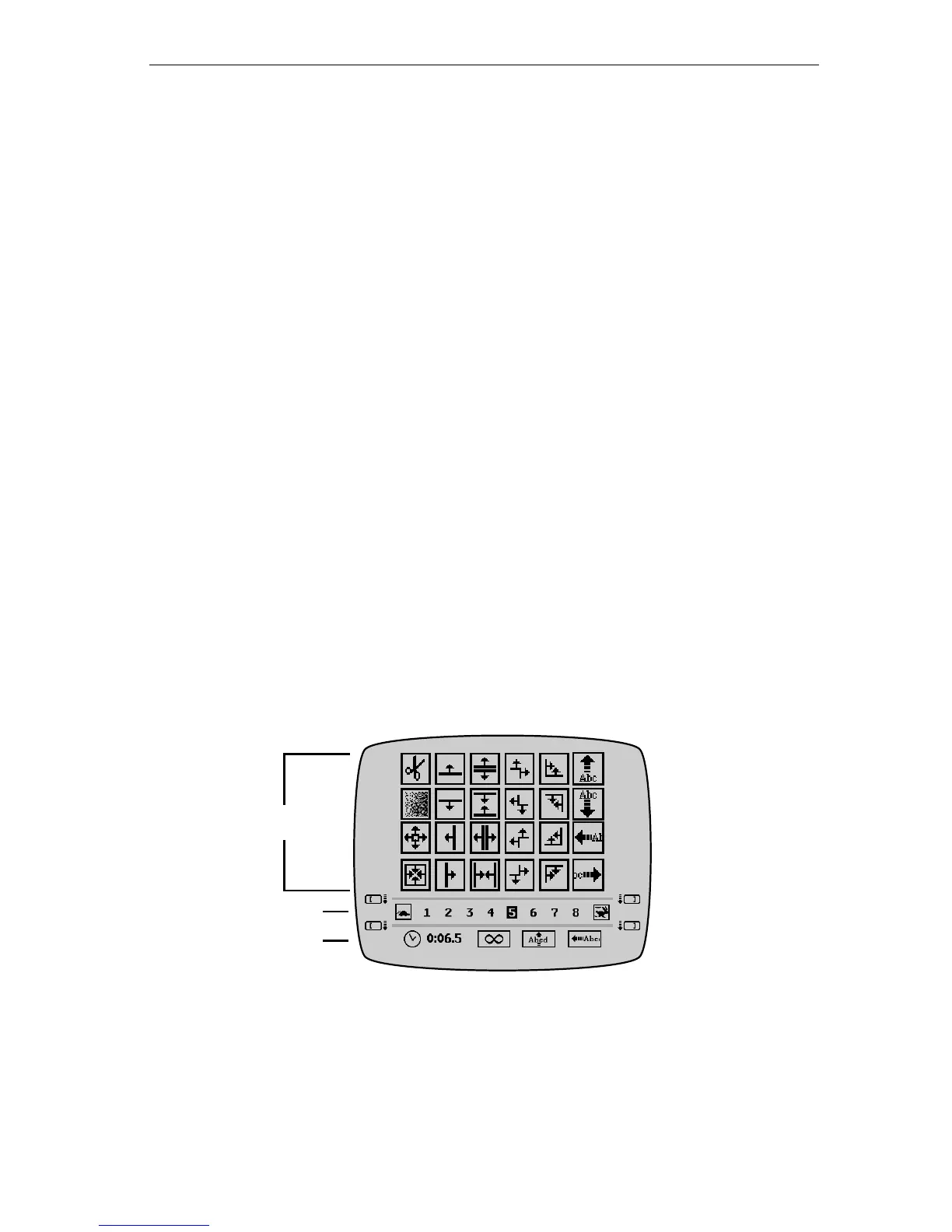
You can set both the in transition and page duration attributes from the
same menu. (The following instructions give a brief description of how
to use the appropriate menus. For additional information, see Chapter
8, Working with Menus and the subsequent chapters that discuss each
menu.)
To set In Effects and Page Duration:
1 Display the Editing Screen and move the cursor to the page
with which you want to work.
2 Press the
EFFECTS/IN button to display the menu.
3 Use
ARROW keys to highlight the transition you want to use
in the Transitions sub-menu. See “Transitions” later in this
chapter for descriptions of the transitions.
4 Press TAB to move to the Speed sub-menu.
Speed
Duration
Transitions



 To Next Page