Personal TitleMaker User Guide
72
Slide Transitions
There are four slide transitions from which to choose. A slide transition
moves the page title(s) up, down, left, or right on the screen until they
either appear or disappear completely. Slide transitions can be used
with either In or Out Effects.
Horizontal (right/left) slides might appear “jittery” or vibrate if the page
contains too much text or the speed of the slide is too fast. To remedy
this situation, try any or all of the following:
• Reduce the amount of text on the page
• Split the text into multiple, sequential pages
• Reduce the speed of the transition
• Use a vertical slide
Normally, vertical slides (down/up) appear smooth at any speed.
If the text of a title does not fit on one page, the text might be truncated
(or, cut off), depending on slide direction and position of the text on
the page. For example, if a line is wider than the screen, a horizontal
slide stops when the text reaches the edge. Characters past the trailing
edge are not displayed. You can display the missing characters by edit-
ing the page so all characters fit, such as breaking the line into two
lines, or use a smaller font, size, or style.
Setting Page Duration
Remember, you set the page duration only on the In Effects menu, you
cannot set it for the Out Effects.
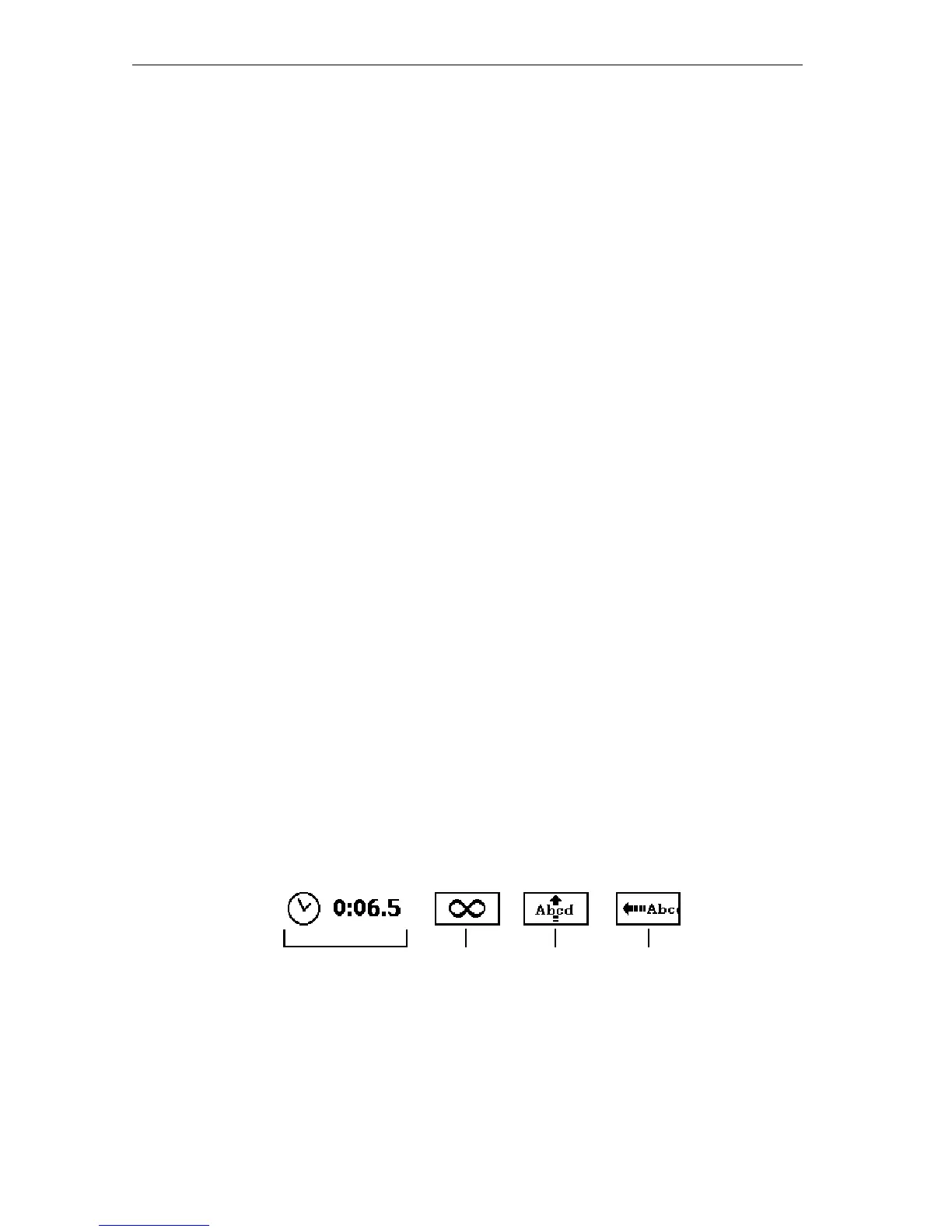
The Duration sub-menu appears at the bottom of the In Effects menu.
Duration
Timed Infinite Scroll Crawl
Duration



 To Next Page