Chapter 7 Working with Titles and Lines
87
Vertical Positioning
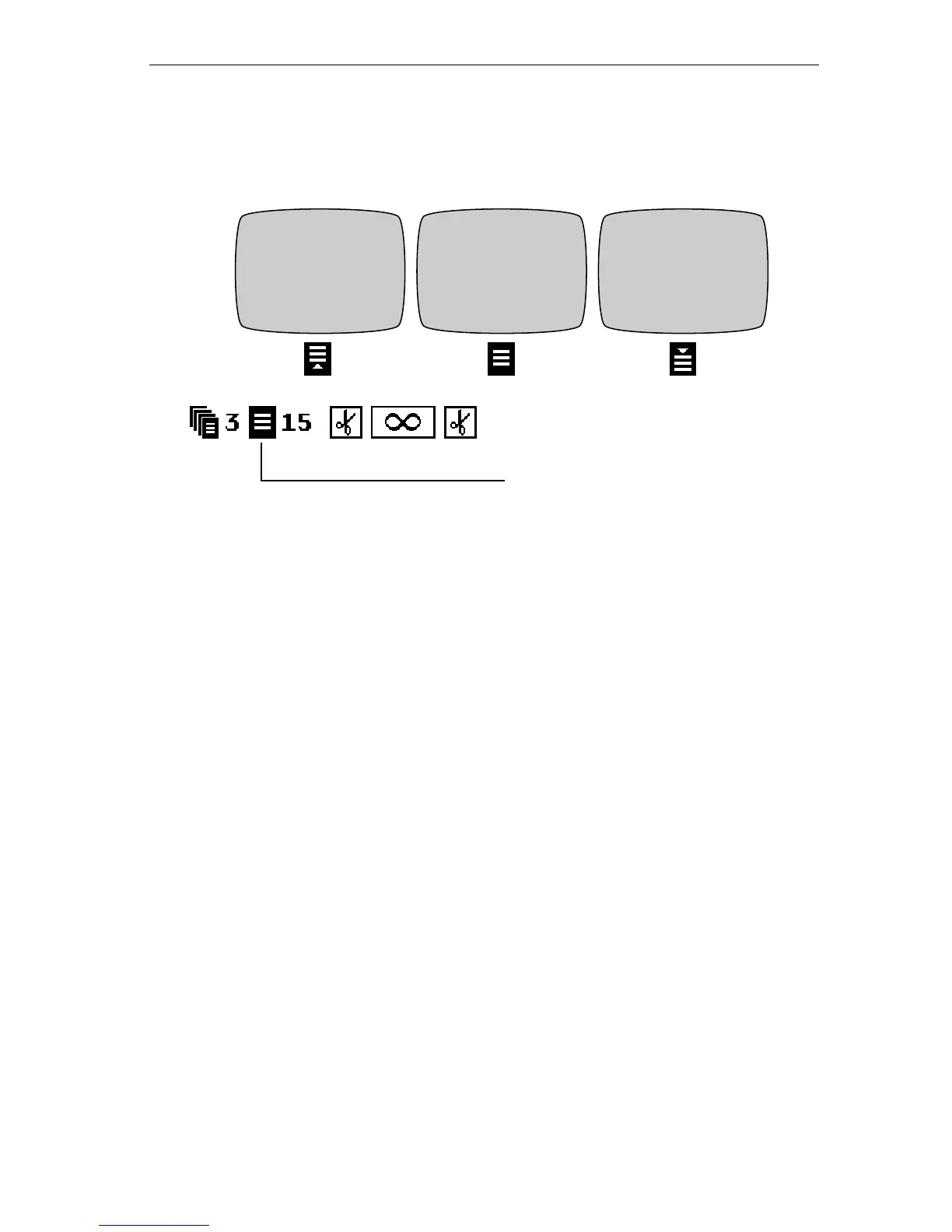
Use vertical positioning to align titles at the top, middle, or bottom of
the page.
To position a title vertically:
1 Insert the cursor in the title you want to adjust, or mark the
text in a block of titles.
2 Press and release
POSN. Do not hold the key down.
3 Press
UP ARROW or DOWN ARROW.
Each time you press
POSN then UP or DOWN ARROW, the title moves up
and down. So, if the title is aligned at the top and you press
POSN then
DOWN ARROW, the title moves back to the middle. Continue pressing
the key combinations until the title is aligned as you want it.
Other Positioning Methods
You can fine-tune horizontal positioning by adding spaces to the front
of each line, or using tabs. You can fine-tune vertical positioning by
adding blank lines to the page above or below the title. Because line
height is determined by font and size, you can further fine-tune vertical
positioning by changing the font and size of the blank lines.
Rolling Stones
World Tour
1997
Rolling Stones
World Tour
1997
Rolling Stones
World Tour
1997
Titles align, by default, at the
middle of the page. If you change
the alignment to top or bottom,
the page icon in the page header
changes accordingly.



 To Next Page