Chapter 8 Working with Menus
91
THE COLOR MENUS
The Color menus are available for all but the Font and Effects menus.
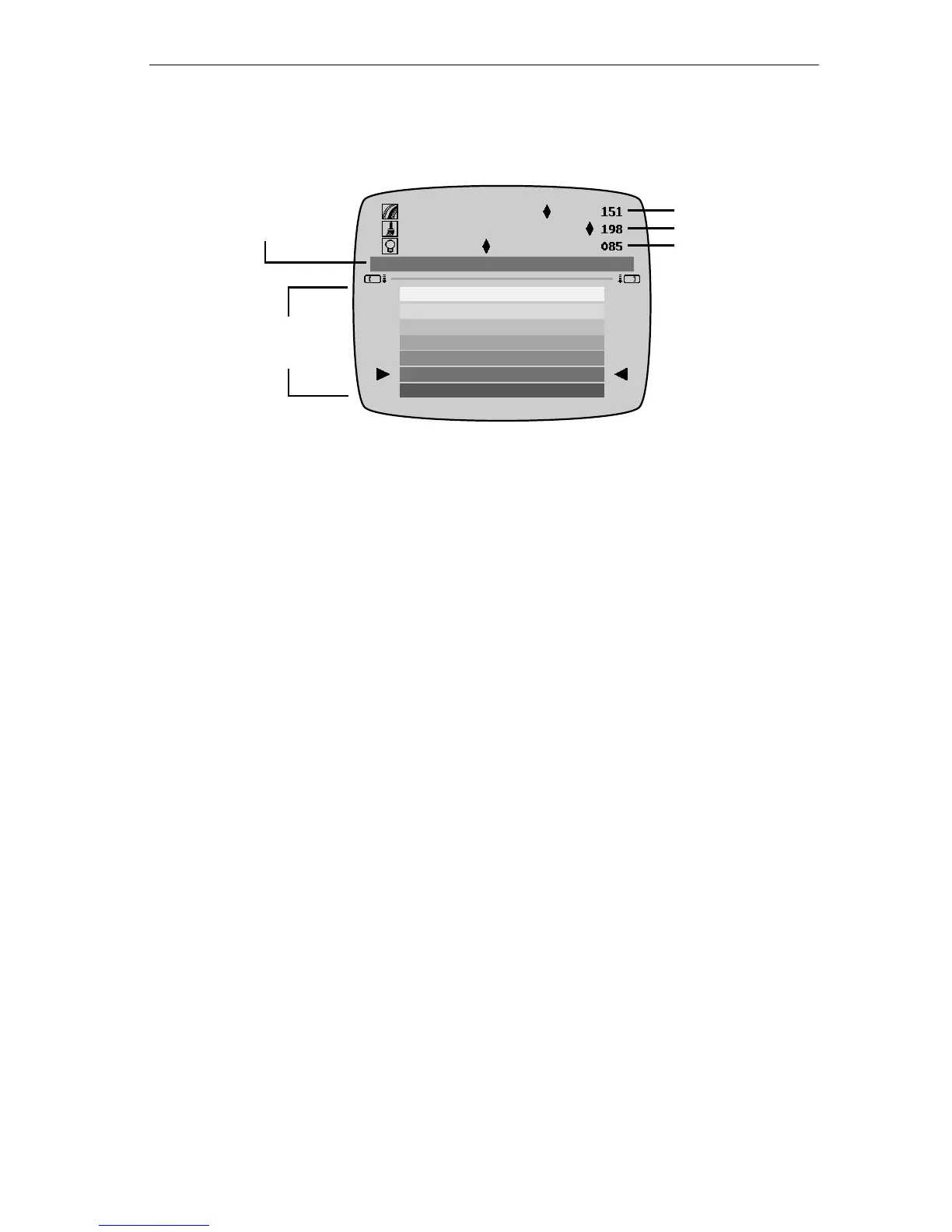
The Available Colors sub-menu contains an assortment of standard col-
ors. Press
UP ARROW or DOWN ARROW to move the highlight to the
color you want. Current Color Selection shows which color you’ve
selected. Note that the Color menu uses arrowheads, rather than a
black bar, to indicate current selection.
Custom Colors
Use the top sub-menu to specify custom colors based on Hue, Satura-
tion, and Brightness values. The diamond marker (◆) on each line
indicates the component’s current value. In the preceding example the
Hue value is 151, the Saturation value is 198, and the Brightness value
is 85. This set of values (like all such sets) produces a unique color.
To create a custom color:
1 If necessary, press
TAB to activate the custom color sub-
menu.
2 Use
UP ARROW or DOWN ARROW to select the color attribute
you want to change — that is, hue, saturation, or brightness.
3 Use
LEFT ARROW and RIGHT ARROW to decrease or increase
(respectively) the attribute’s value.
When the Current Color Selection displays the color you want, press
NEW LINE OK to select that color and exit from the menu.
Hue
Saturation
Brightness
Available
Colors
Current
Color
Selection



 To Next Page