Personal TitleMaker User Guide
78
TYPING TITLES
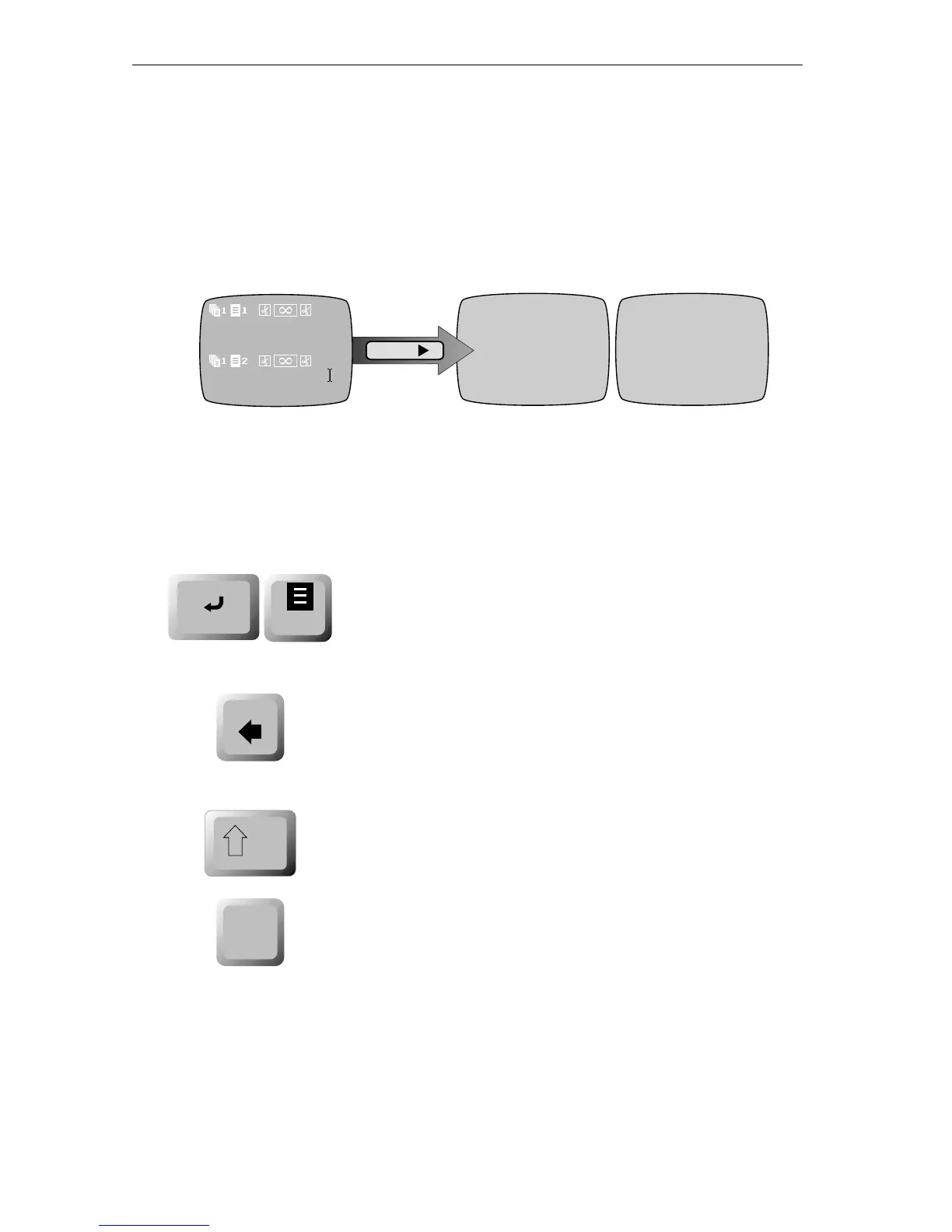
To create new titles, position the cursor where you want to type, then
type the characters on the Personal TitleMaker keyboard. Suppose, for
example, you want to create two pages with separate titles. The first
page contains the title “Sherlock Holmes” (stacked vertically) and the
second page “221B Baker Street.”
Keep in mind that pressing
NEW LINE OK always
starts a new line on the same page. When you want
to create a new page for entering another title,
press
NEW PAGE.
If you make a mistake while typing, press
DELETE to
erase the character that precedes the cursor. Keep
pressing
DELETE to delete as many characters as
necessary.
For typing upper case letters and some special
symbols (such as “!” and “%”), hold down
SHIFT
while typing.
Pressing
CAPS LOCK locks the keyboard so that it
types upper case letters.
CAPS LOCK does not affect
the number or punctuation keys – you must use
SHIFT to type those characters even with CAPS LOCK
engaged.
When you type characters, they get inserted at the cursor’s position;
they never replace existing characters.
Sherlock
Holmes
221B Baker Street
PLA Y
Sherlock
Holmes
221B Baker Street
The two pages on the Editing
Screen. For the first page, type
“Sherlock,” press
NEW LINE OK,
then type “Holmes.” For the
second page, just type the
address information as shown.
When you play the
project, the two pages
appear on-screen as
shown here.
new
line
OK
new
page
delete
X
shift
caps
lock



 To Next Page