Personal TitleMaker User Guide
38
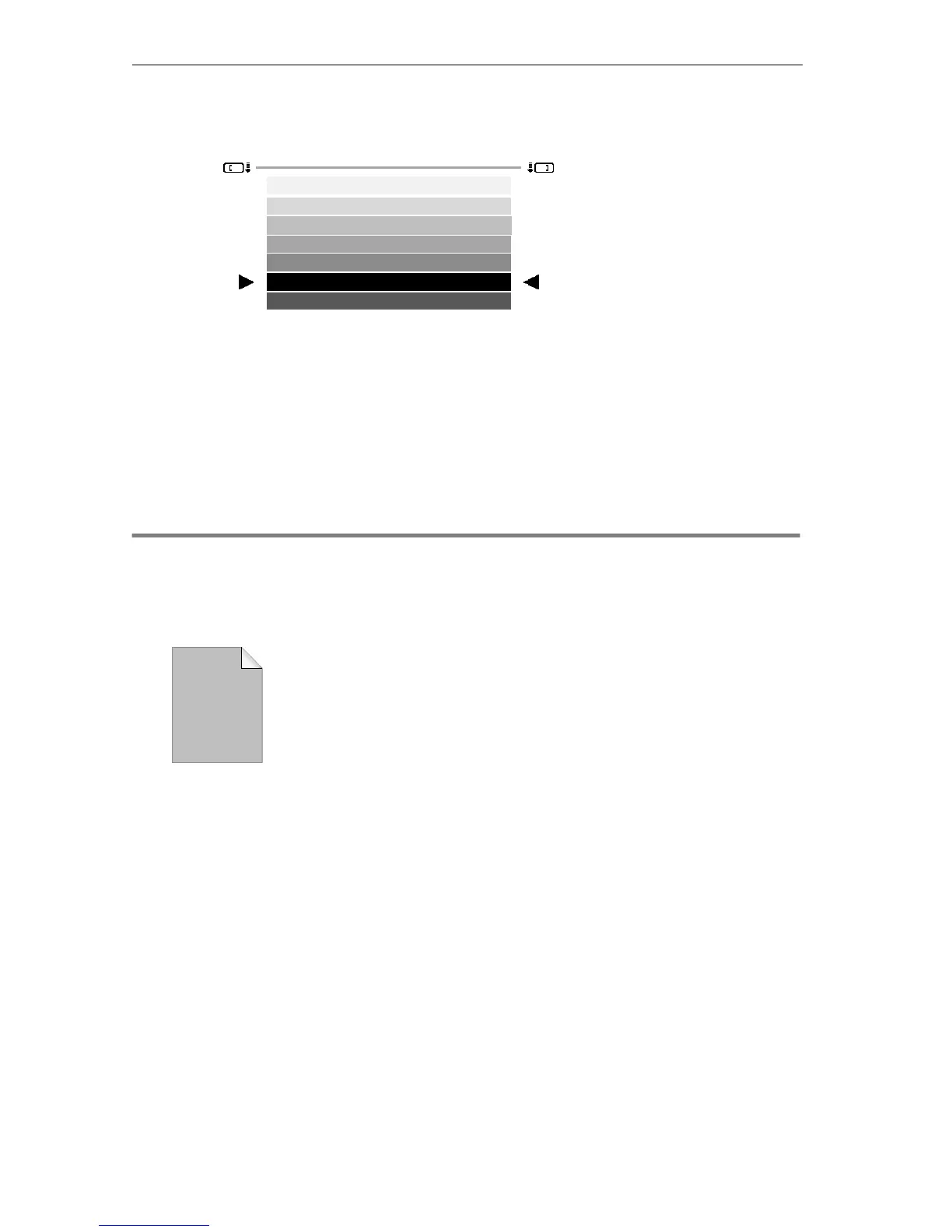
4 Press UP or DOWN ARROW to move the triangular markers so
that they are on either side of the black color bar.
5 Press
NEW LINE OK to select black as the background color.
When you return to the Editing Screen, note that the background is
black. Personal TitleMaker displays the chosen background for the
page that contains the cursor. Also note that just above the blink-
ing cursor is an infinity symbol (∞) inside a box. This page is set
for infinite duration, which is the proper setting for this page.
LESSON 3
CREATE PAGE TWO
Now you’ll create the first title page and add the nec-
essary text and page attributes.
1 Press
NEW PAGE to create page two.
A new page header appears below page one. The new page inher-
its its attributes from the preceding page — that is, page one.
2 Type
TOURING and press NEW LINE/ OK. Then type LONDON.
You’ve created two lines of text for the title.
3 Press the following key combinations to mark the text so
that you can set the text attributes — MARK END, SHIFT+UP
ARROW, SHIFT+LEFT ARROW, MARK START.
Square brackets enclose the two lines of text and a “fat” cursor
blinks next to the left bracket. The fat cursor lets you know text is
marked. This is particularly useful when marked text spans multi-
ple screens.
4 Press
FONT/FONT & SIZE to display the Font menu.
Triangular markers
indicate current
selection
Touring
London



 To Next Page