Chapter 6 Working with Pages
67
Note
A shortcut method for marking everything on a page is to posi-
tion the cursor anywhere within the page, press
SHIFT+MARK
START, the press SHIFT+MARK END.
4 Move the cursor to the exact position to which you want to
move or copy the marked text.
5 To move the marked text, press
MOVE.
To copy the marked text, press
COPY.
MERGING PAGES
There might be times when you want to merge the text from two or
more pages into a single page. To do this, remove the page header
information from the second and any subsequent pages.
To merge pages:
1 Locate the pages you want to merge on the Editing Screen.
2 Position the cursor immediately preceding the first charac-
ter on the second page, then press
DELETE.
To merge subsequent pages, repeat this step for each page
you want to merge.
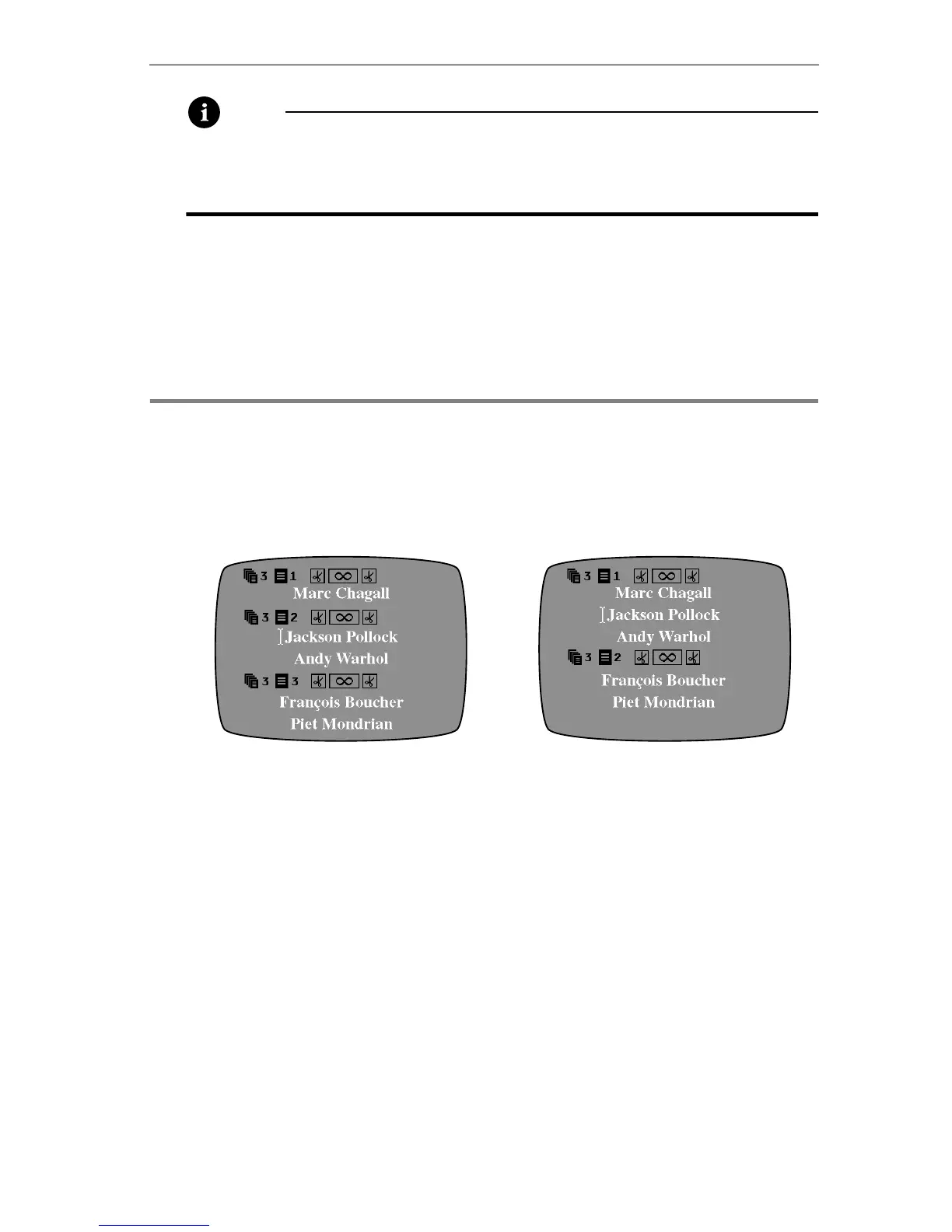
In this example, page 2 is being
merged with the previous page.
Here’s the result of
the merge operation.



 To Next Page