Personal TitleMaker User Guide
64
When the Editing Screen appears, the cursor appears in the
page you specified on the Page Index Screen. Use the
ARROW
keys to move the cursor to any other page. See “Navigating
the Editing Screen” on page 29 for instructions.
Page Item Information
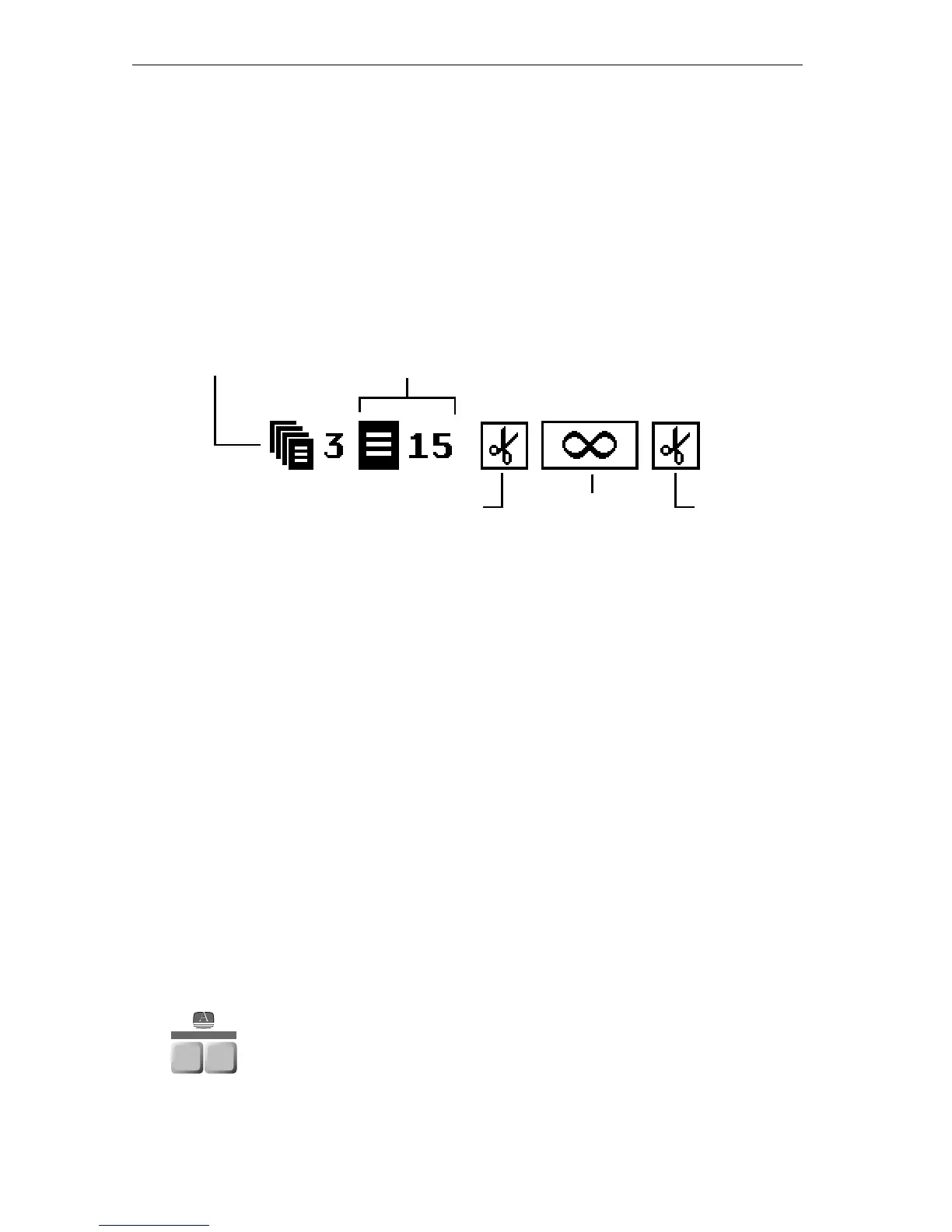
Each page item on the Editing Screen contains a page header section
that shows information about the page.
Immediately below the page header section is the title area. Enter and
edit information in this area as needed for the page. See Chapter 7,
Working with Titles and Lines, for more information about this area.
You cannot directly change any of the information in the page header
section, you must use either the Page Index Screen (described above)
or one of the menus.
The Project Icon and Number show the project to which the page
belongs. The only way you can change this information is to move the
page to some other project.
The Page Icon and Number show the page’s position within the project
and the position of the text on the page. In the example shown above,
the page is number 15. If you move the page to some other location in
the project, Personal TitleMaker automatically adjusts the page num-
ber. The icon indicates vertical positioning of the text on the page —
top, bottom, or center. See “Positioning Titles on a Page” on page 86 for
further details.
The IN Effect icon shows the transition assigned to this page.
Personal TitleMaker uses this transition when it begins to dis-
play the page on the Play Screen. To change the transition for
the page, press
EFFECTS/IN. See “Setting In Effects and Page
Duration” on page 69 for instructions.
Project Icon
and Number
Page Icon
and Number
IN Effect Page Duration OUT Effect
EFFECTS
IN
OUT



 To Next Page