Appendix 72800115 Markoprint X4JET
Seite 134 von 177 GB
Appendix
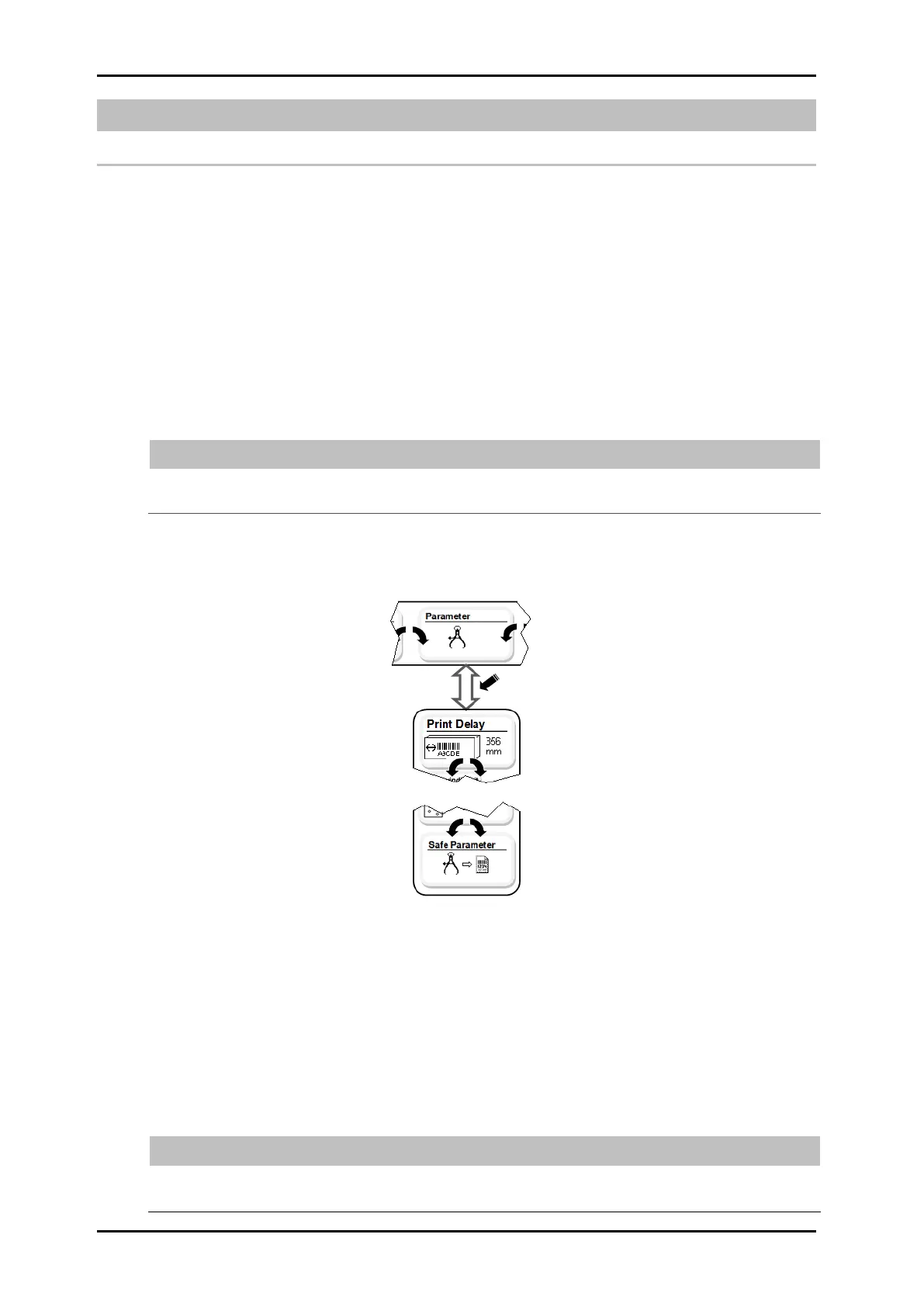
Save parameter to a label
There is the possibility to save parameter settings to a desired print label. The function is
advantageous if frequently changing products should be print and these have different
measurements and print positions.
The menu item is in the control system available if the function „Save parameter“ is
activated by iDesign software.
Requirements
The control system is connected via Ethernet or USB with a PC, on which the iDesign
software is installed.
Instruction
Please activate the function „Save parameter“ in the iDesign software as follows:
Activate the function „Save parameter to a label“ in the iDesign software
below Functions -> System settings -> Advanced settings.
After the function „Save parameter“ is activated in the iDesign software, select the menu
item „Save parameter“ in the menu structure of the control system.
If a print label with saved parameter is selected, the saved parameter will be used.
If a print label without saved parameter is selected, the last settings will be used. After
changes were made to the parameter, this can saved to the print label, as described
below. The next time the print label is selected, it will be print with the saved parameter.
Instruction
Please save the set parameter values to a print label as follows:
Touch the iLOGIK in one of the status menu.
The print image submenu is displayed.



 To Next Page