Instructions for Use 3 System Overview
2660021169042 Rev. A 2018-03 3.2 Software Overview
2660021169042 Rev. A 2018-03 43 / 246
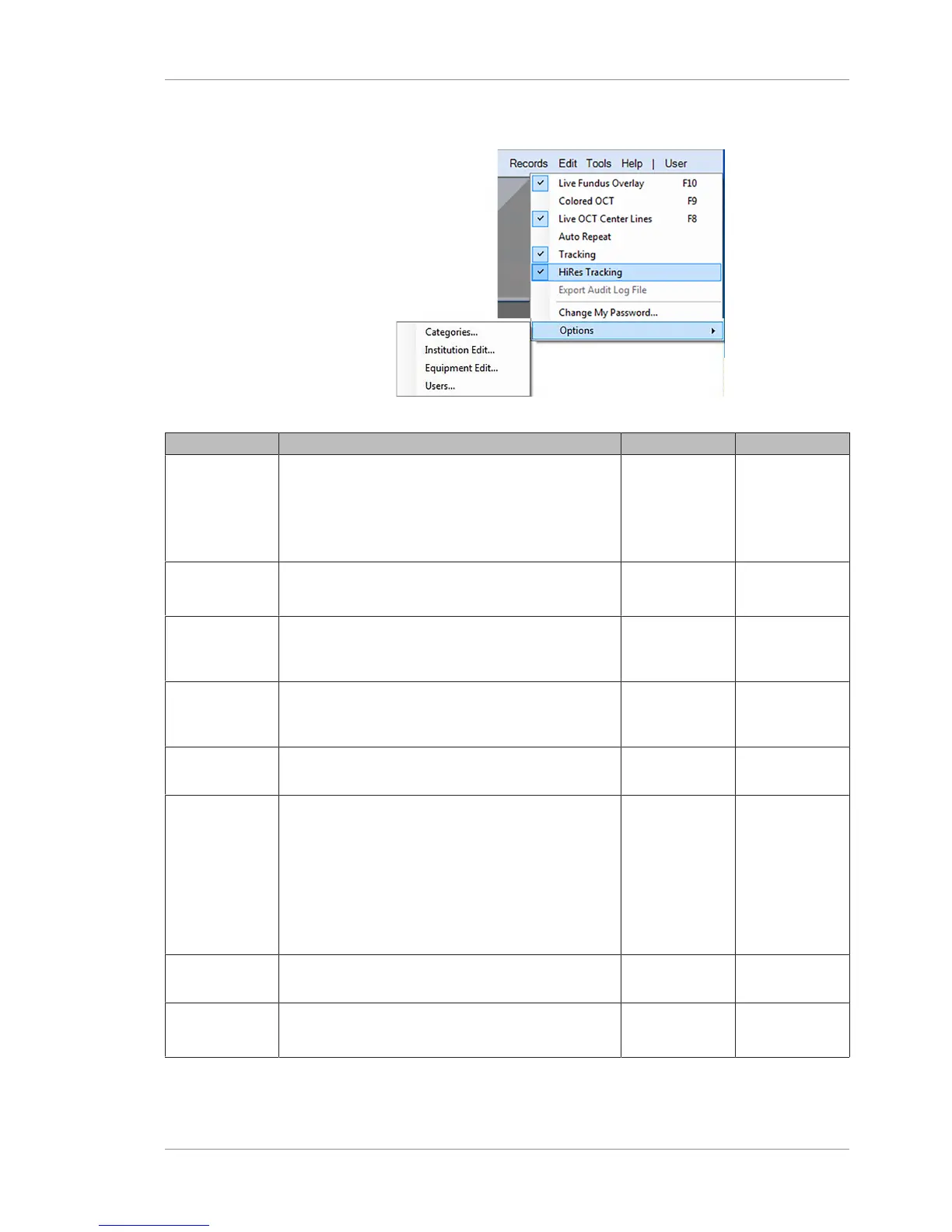
3.2.2.3 Tools Menu
Figure12: Tools Menu
Option Description Enabled in User Type(s)
Live Fundus
Overlay:
Turns the live fundus overlay on or off. Fundus
overlay is on by default.
When off, only the outline of the scan region is
visible (the bounding box) and not the vertical and
horizontal slice locations.
Acquire mode Operator
Colored OCT Toggles image display to color or grayscale. Acquire mode
Analyze mode
Operator
Live OCT
Center Lines
Toggles the display of a vertical “centering” line on
OCT images. The default is checked (center lines
visible).
Acquire mode Operator
Auto Repeat Automatically adjusts the ocular lens and chinrest to
the previous settings for the same patient, eye, and
acquisition function.
Acquire mode Operator
Tracking Turns tracking on or off (tracks eye motion and
corrects for motion).
Acquire mode Operator
HiRes Tracking (for Angio 3mmx3mm scans only) Turns on or off Hi
Res Tracking with twice the resolution of our
standard tracker.
NOTE!For patients with injuries that prevent
adequate fudus focusing around the macular
area, High Res tracking might not engage easily.
In this cases, the feature can be disabled under
the ‘Tools’ Menu of the acquisition window.
Acquire mode Operator
Export Audit
Log File
Records certain events and identifies them by date,
time, and User ID. See Log Files [}173].
Admin mode Admin
Change My
Password
Change current user password. All modes Operator
(not Admin)







 To Next Page