Instructions for Use 10 Data Management
2660021169042 Rev. A 2018-03 10.3 Patient Data
2660021169042 Rev. A 2018-03 161 / 246
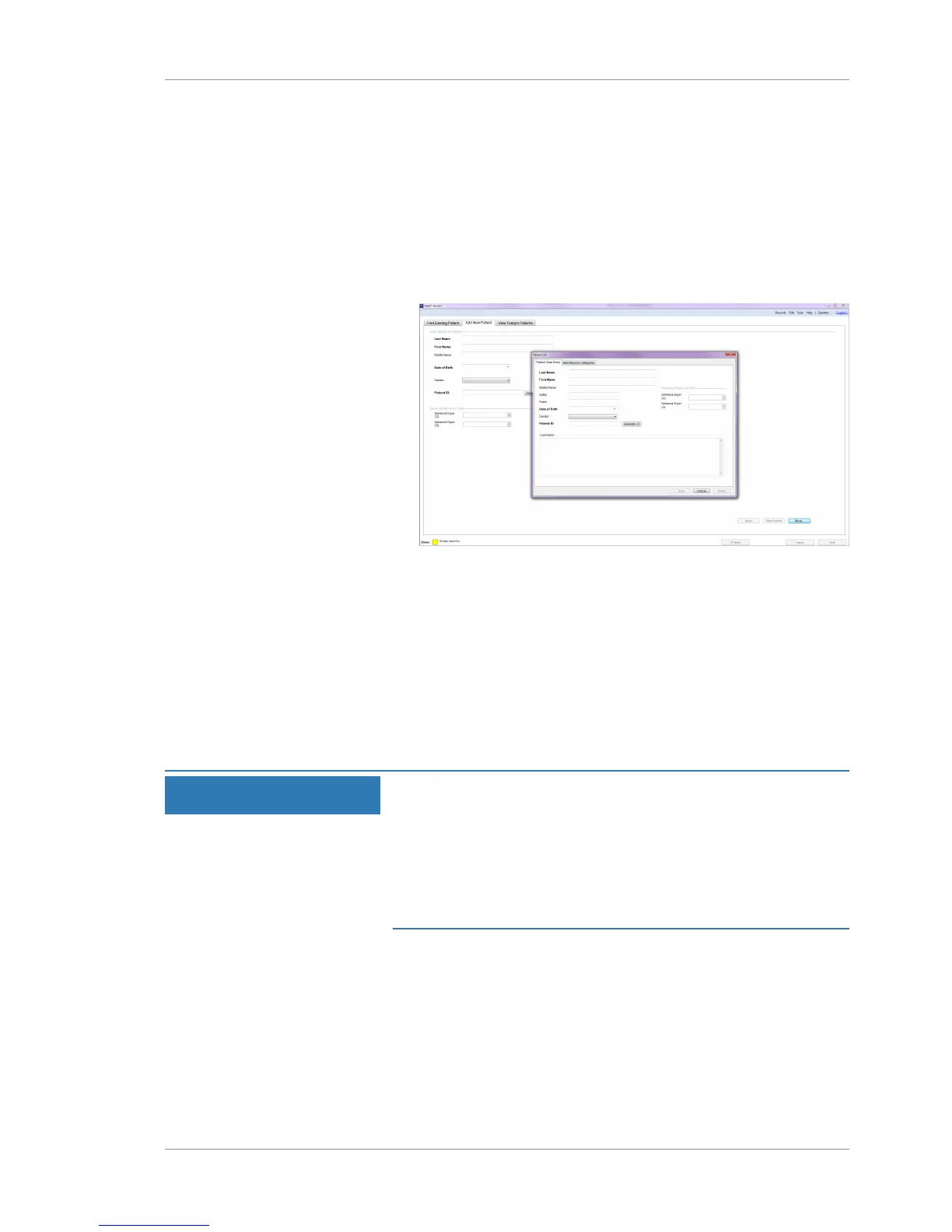
6. To have PLEX® Elite 9000 create a Patient ID, click Generate
ID.
7. To use your own numbering system, type a unique Patient ID
number.
8. To save the patient's refractive error, type the diopters for
Spherical Equiv. OD and Spherical Equiv. OS.
9. To add comments to the patient's record, click More, type the
comments, and click Done.
10. To apply categories to the new patient, select the Add/
Remove Categories tab and choose the applicable categories.
For more information about categories, see: Managing Patient
Categories [}65].
11. Click Save.
12. To add another new patient, click New Patient.
13. Click Close.
10.3.8 Finding a Worklist Patient Record (DICOM)
NOTE
Edit patient records in your EMR system (if used).
Changes made directly on the instrument do not get synchronized
into the EMR database.
u If you are connected to an EMR , always delete or edit patient
records directly in the EMR system. If you can make changes
directly on the instrument, the changes will only appear in the
instrument's database and not the EMR database.
.
Modality Worklist allows you to search a DICOM EMR archive.
A Broad Query allows searches using the following parameters:
• Date Range: Search for patients scheduled for an exam within
a selected range. To search for all dates, check All Dates.
• AE Title: Search for patients scheduled for a scan using a
particular instrument's AE Title.







 To Next Page