Instructions for Use 6 Configuring Software
2660021169042 Rev. A 2018-03 6.1 System Administration
2660021169042 Rev. A 2018-03 59 / 246
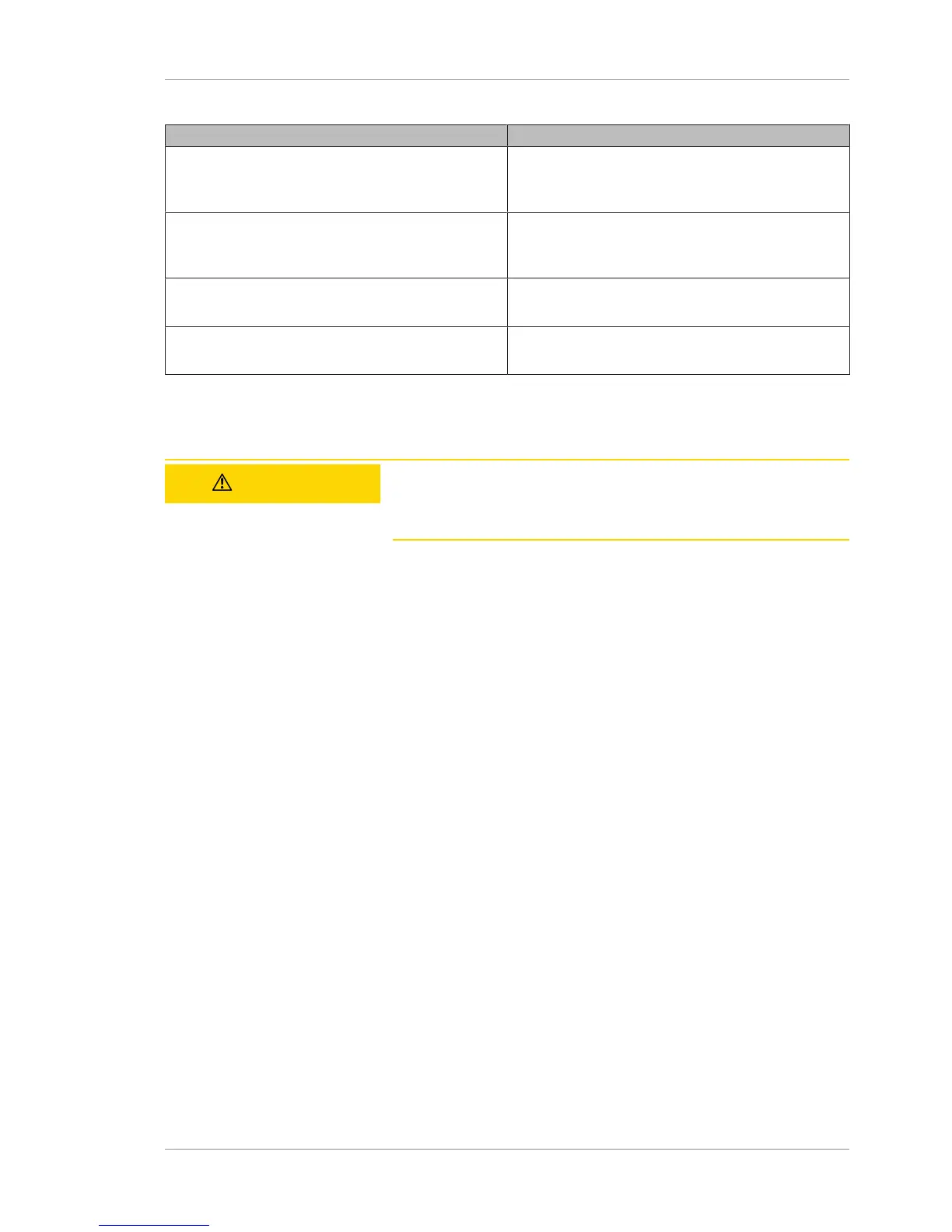
Requirement Task
Required (if using DICOM) Setup up DICOM connection
(Enabling Automatic Worklist Search (DICOM)
[}68]).
Required (if networked) Set internet protocol
(Setting the Preventive Maintenance Schedule
[}70]).
Recommended Configure Windows updates
(Configuring Windows Automatic Updates [}176]).
Recommended Verify instrument performance
(Performance Verification Check [}189]).
Table7: Added Instrument or Review Station Configuration Checklist
6.1.2 Log in as Admin
CAUTION!
Not adding an Admin password
can be a serious security breach.
u Create an Admin password on initial launch.
To Log in as the Administrator:
Prerequisite
þ System Startup [}55] completed successfully (system login
displayed).
Action 1. For User Name, type admin.
2. If this is the initial administrator login, create a new password.
3. If the password was already created, type the admin password.
4. Click OK.
6.1.3 Configuring the Instrument or Review Station
This section describes how to configure settings on the PLEX® Elite
9000 instrument and review stations with your institution's infor-
mation, users, and instrument identification.
6.1.3.1 About Assigning the Issuer of Patient ID
The Issuer of Patient ID field allows you to configure how your
practice assigns patient IDs to new patients. Recommendations for
configuring the Issuer of Patient ID:
• Set to the same Issuer of Patient ID value on every instrument
in your practice.
• If you use an Electronic Medical Record (EMR) system, configure
the Issuer of Patient ID to match the EMR system's patient ID
value.







 To Next Page