6 Configuring Software Instructions for Use
2660021169042 Rev. A 2018-036.1 System Administration
60 / 246 2660021169042 Rev. A 2018-03
If you change the Issuer of Patient ID, the change will apply to
future patient records; patient information already in the database
does not change.
6.1.3.2 Editing Your Institution Information
NOTE
You must restart the software for the Institution Name
changes to appear in report headers.
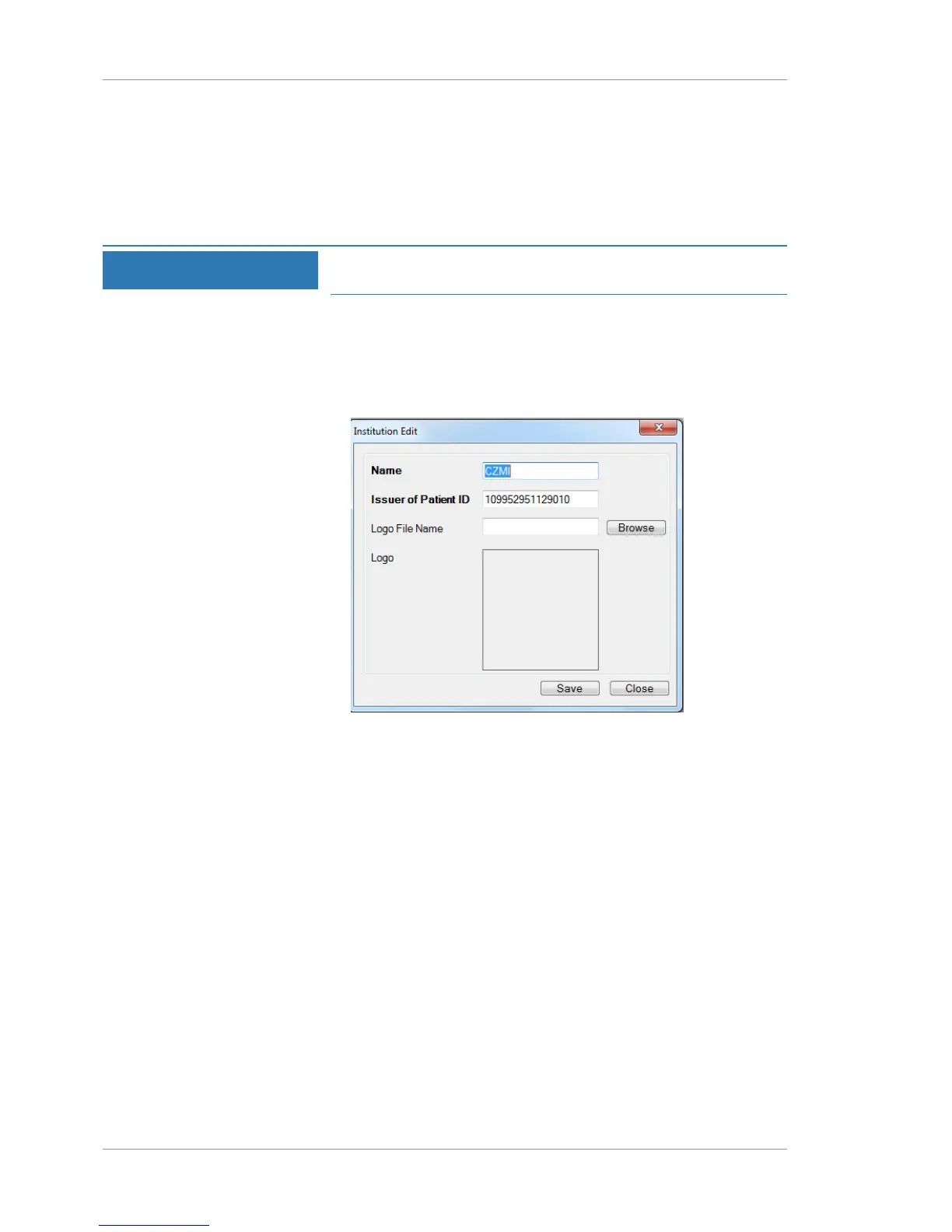
The institution name and logo appear on scan analysis reports.
To specify your Institution name and add a logo:
Prerequisite
þ Log in as Admin [}59]
Action 1. Select Tools > Options > Institution Edit.
2. For Name, type the name of your institution.
NOTE!Institution name cannot be blank. Type an insti-
tution name consisting of 1 - 64 characters.
3. For Issuer of Patient ID, type your institution's patient identi-
fication settings (see: About Assigning the Issuer of Patient ID
[}59].
4. To add your institution's logo, click Browse and navigate to
the logo image file.
NOTE!The image file must be bitmap format (.bmp). For
best results, use a square image.
ð Your logo appears in the preview box. If your image is not
square, it will stretch to fit. The proportion shown in the
preview box shows how your logo will appear in reports.
5. Click Save.
ð The new settings implement the next time you open the
application.
6. To apply the new settings now, restart (close and reopen) the
application.








 To Next Page