Instructions for Use 8 Operation
2660021169042 Rev. A 2018-03 8.2 Select the Patient
2660021169042 Rev. A 2018-03 75 / 246
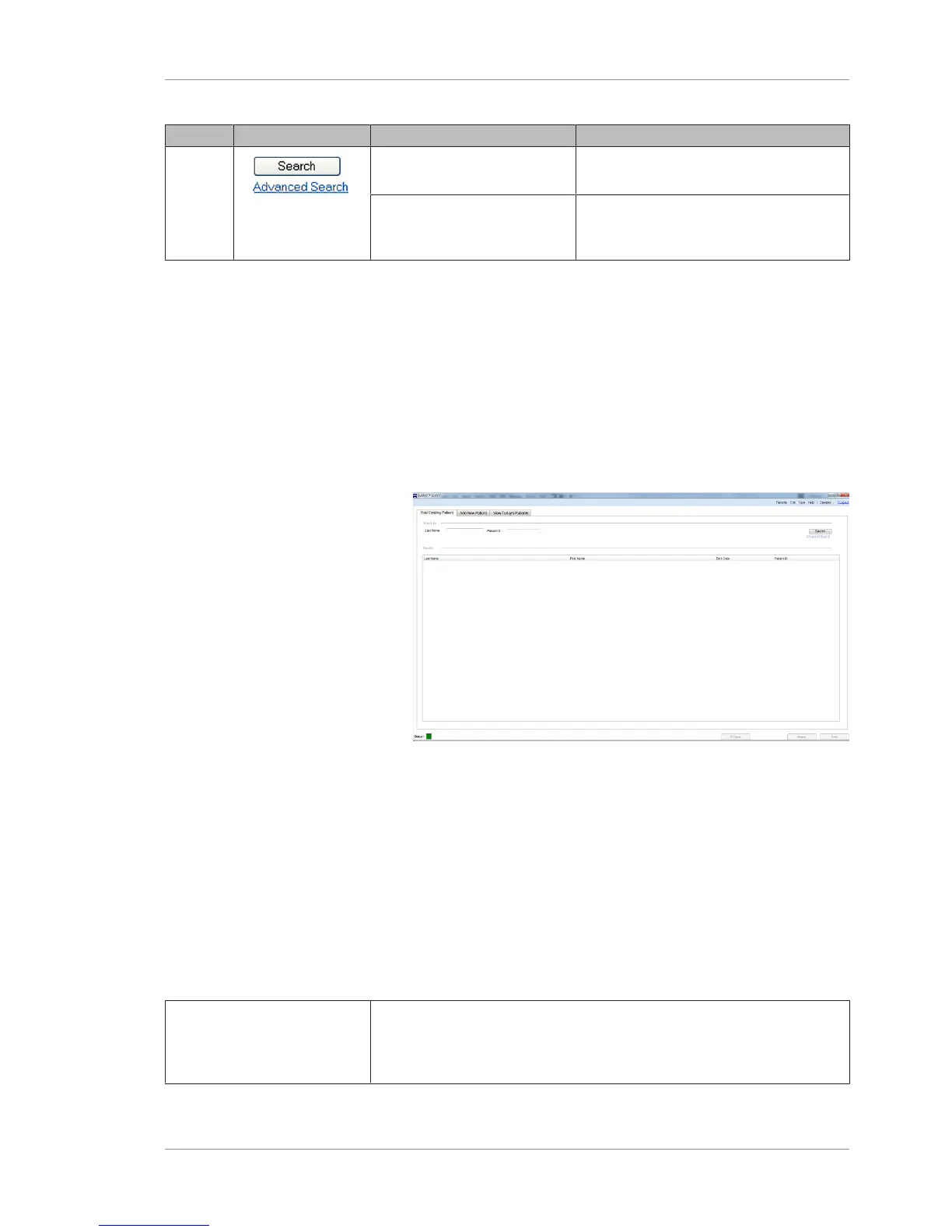
Pos. Symbol Name Explanation
6 Search Quick search to find a patient when all or
part of their last name or ID is known.
Advanced Search Additional criteria to narrow the search
results further or to search using different
known criteria.
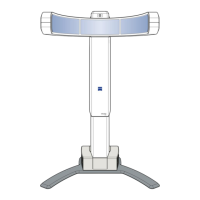
8.2.1.2 Finding an Existing Patient Record
Simple search uses the patient's last name or ID to locate their
record. If you want to search using other criteria or narrow the
results further, see: Advanced Search [}75].
To find a patient record:
Prerequisite þ You are logged in to the PLEX® Elite 9000 instrument or a
review station and the Patient screen is open (Logging In as
Operator or Data Analyst [}73]).
Action 1. Select the Find Existing Patient tab.
2. Type the patient’s Last Name or Patient ID.
3. Click Search.
ð The Results list displays the patient (or list of patients that
have the same last name).
4. Select the appropriate patient's record.
8.2.1.3 Advanced Search
Click Advanced Search if you want to search for patients using
additional parameters besides those provided in the basic search
screen (Finding an Existing Patient Record [}75]). The Advanced
Search dialog appears.
Patient Name To search by Patient name, enter at least the first or last name. Note:
Search parameters you type in are not case-sensitive, except for Patient ID
and Issuer of Patient ID. The Search Preview dialog returns all matching
patients, sorted alphabetically by last name.








 To Next Page