Page 17Aviom A640 Personal Mixer User Guide
AmbienceIntercom
Save Recall
Signal/Clip
Aux Volume Master Volume
Master EQ
Channel
Mix
Names
Trim All
View Mixer Setup
1 2 3 4 5 6 7 8 9 10 11 12 13 14 15 16 Favorite
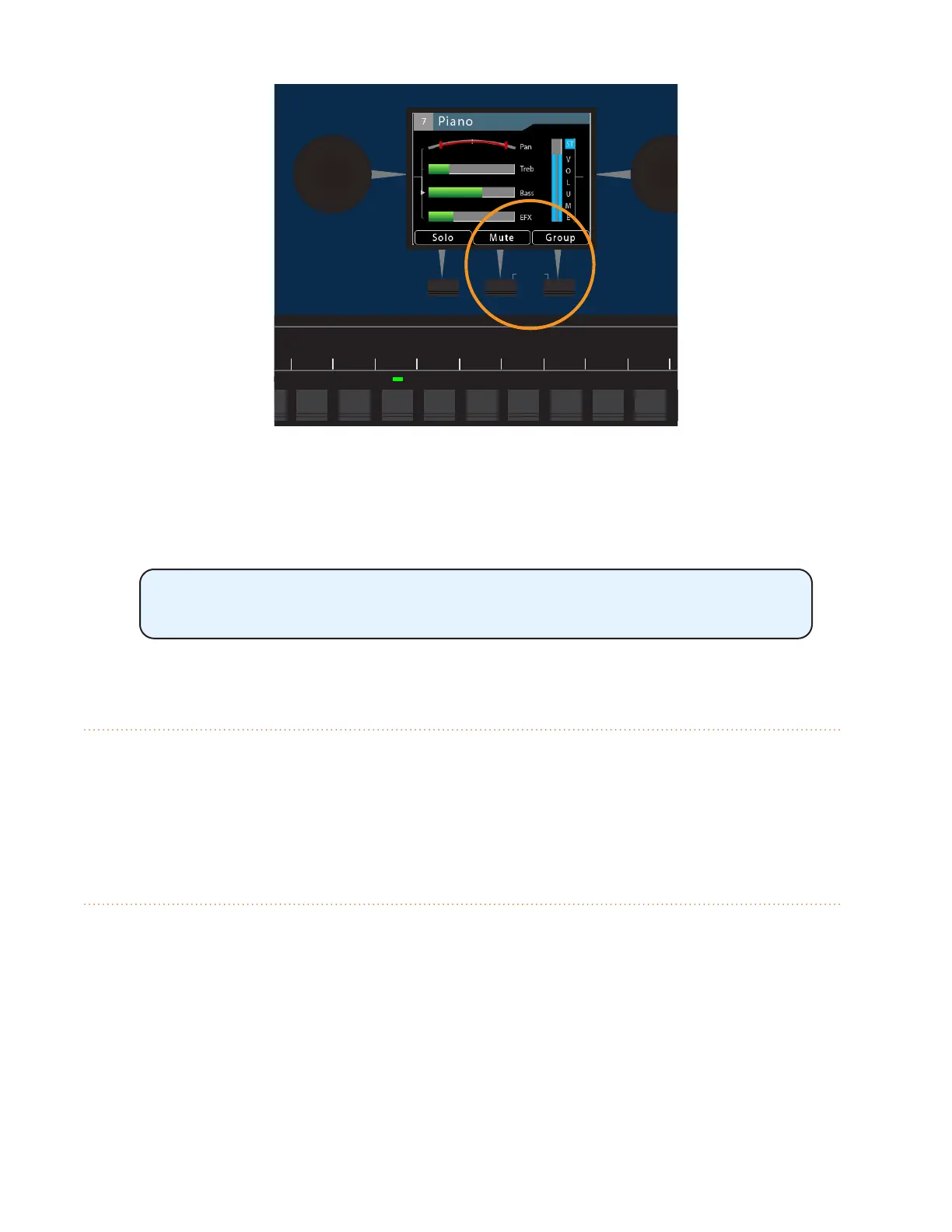
Press both buttons to activate Trim All.
The Trim All function is activated by simultaneously pressing the two rightmost soft buttons beneath
the display. Each press of this button combination lowers the level of each channel in the mix by 3dB.
Trim All is available only when one of the three Views (Channel, Mix, or Names)
is active in the LCD.
Channel Label Strip
The channel label strip is designed to accept 1/2-inch (13 mm) wide artist’s tape or custom-made
printed labels. A channel label template is available at the end of this document and on the Aviom
website. Do not use permanent adhesives or tapes with your Aviom product.
Channel Buttons
The A640 Personal Mixer has 16 standard mix channel buttons that can host either a mono or stereo
network source (global stereo links are assigned at the network's input device with the stereo link
switches).
To select a channel and make it active for editing, press one of the 16 mix channel buttons; its green
LED will light. Make channel-level changes as needed using the Channel Volume, Pan, Treble, Bass,
Eects (EFX), and Mute controls. Use the Channel View for the most detailed editing.
While editing, the Solo function is also available to isolate the selected channel from the mix.


 To Next Page