Page 56Aviom A640 Personal Mixer User Guide
• Intercom volume
• Intercom audio source Slot
• LCD Backlight Level
• Mixer Name
• Dante channel names auto-sync on/o setting
• Startup Help on/o at power up setting
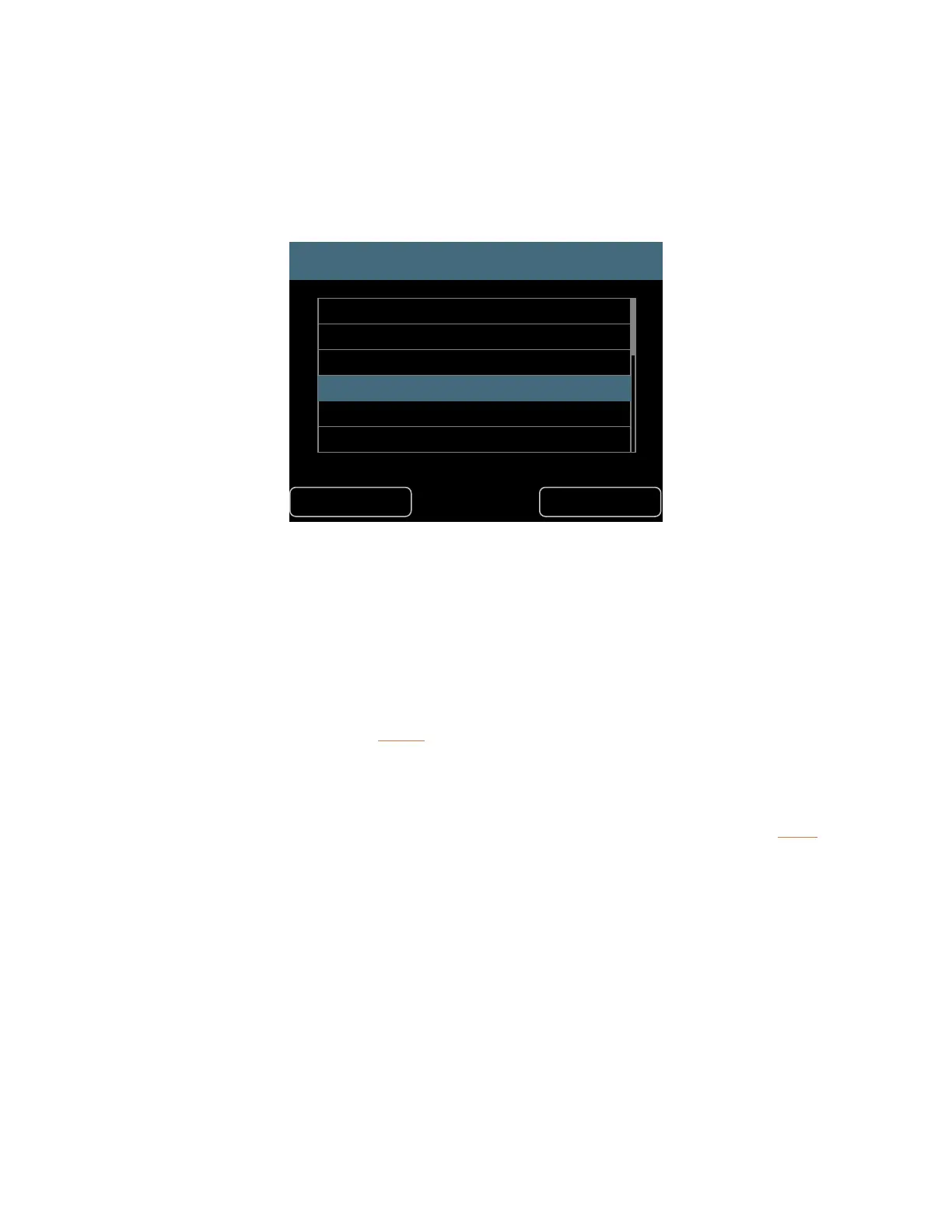
Recall Conguration
Back Enter
Studio Session-01
Studio Session-02
03_Freddy_Monday
John’s A640
Paul’s A640
George’s A640
Scroll to select a conguration to recall.
To recall a saved A640 conguration:
• Select the Recall Conguration option by scrolling with either encoder knob.
• Press the encoder button to activate it.
• When the Recall Conguration window opens, scroll to select one of the saved
congurations.
• Press the soft button below enteR to start the loading process.
• An on-screen progress bar is displayed and a conrmation message follows once the recall
process is complete.
• Press any button to exit the save routine and return to the File Transfer menu.
To cancel and return to the File Transfer menu without recalling a conguration, press the back
button.
Import an A360 Conguration
The A640 Personal Mixer can import congurations created for the A360 Personal Mixer. A360
congurations save custom channel maps created with the A360 Channel Manager software plus mix
presets 1-16 created on the A360 itself. A360 mix presets saved to its four Instant Mix recall locations
A-D are ignored. Because the feature sets of the A360 and A640 are dierent, importing an A360
conguration will map the A360 settings to the A640 parameters as closely as possible. The Master
EQ settings on the A640 are set to their defaults when importing an A360 conguration.
Imported A360 congurations will appear in the list of available congurations whenever the Recall


 To Next Page