Page 28Aviom A640 Personal Mixer User Guide
gold Mute LED will be on for all members of the Group.
To create additional Groups:
• Select any channel that is not currently part of an established Group.
• Press the GRoup button; it lights in purple.
• Double-click other channels to add them to the Group. (Adding a channel that is already
part of an existing Group to a new Group will remove its assignment as a member of the
original Group.)
• Press the GRoup button again to complete the process.
• The Group indicator goes out.
While mixing, each Group will be identied (Group 1, Group 2, Group 3, etc.) whenever any channel
belonging to a Group is selected.
All Groups and their settings are saved as part of a mix preset and are also saved when an A640
conguration is saved to a USB storage device using the File Transfer function found in the Mixer
Setup menu.
Editing a Group
Any channel that is part of a Group may be edited or removed from a Group completely. This allows
each channel's volume, pan, tone and eects (EFX) level to changed while it remains an active
member of a Group.
To edit a channel's mix settings while it is part of a Group:
• Switch to the desired View (Channel View oers the most detailed editing).
• Select the Group that contains the mix channel that you need to edit.
• Press the GRoup button; it lights purple.
• The channels that are part of the Group have blinking green Channel Select LEDs and one
of those channels is lit with a solid LED. This is the channel that is active for editing.
• To choose a dierent channel to edit, press its channel button to select it.
• Its green Select LED will light solid while all others blink.
• Make edits to volume, pan, tone, or eects as needed.
• To remove a channel from the Group, double-click its channel button.
• Continue the process to select other Group channels for editing.
• When the edits are complete, press the GRoup button again to exit and return to mixing.
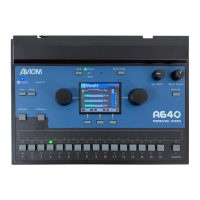
The example below shows a Group of ve channels (5, 6, 7, 9, and 10), a blend of mono and stereo
audio. When selected, all members of the Group are highlighted (as seen here in Mix View in the left
image).


 To Next Page