Page 40Aviom A640 Personal Mixer User Guide
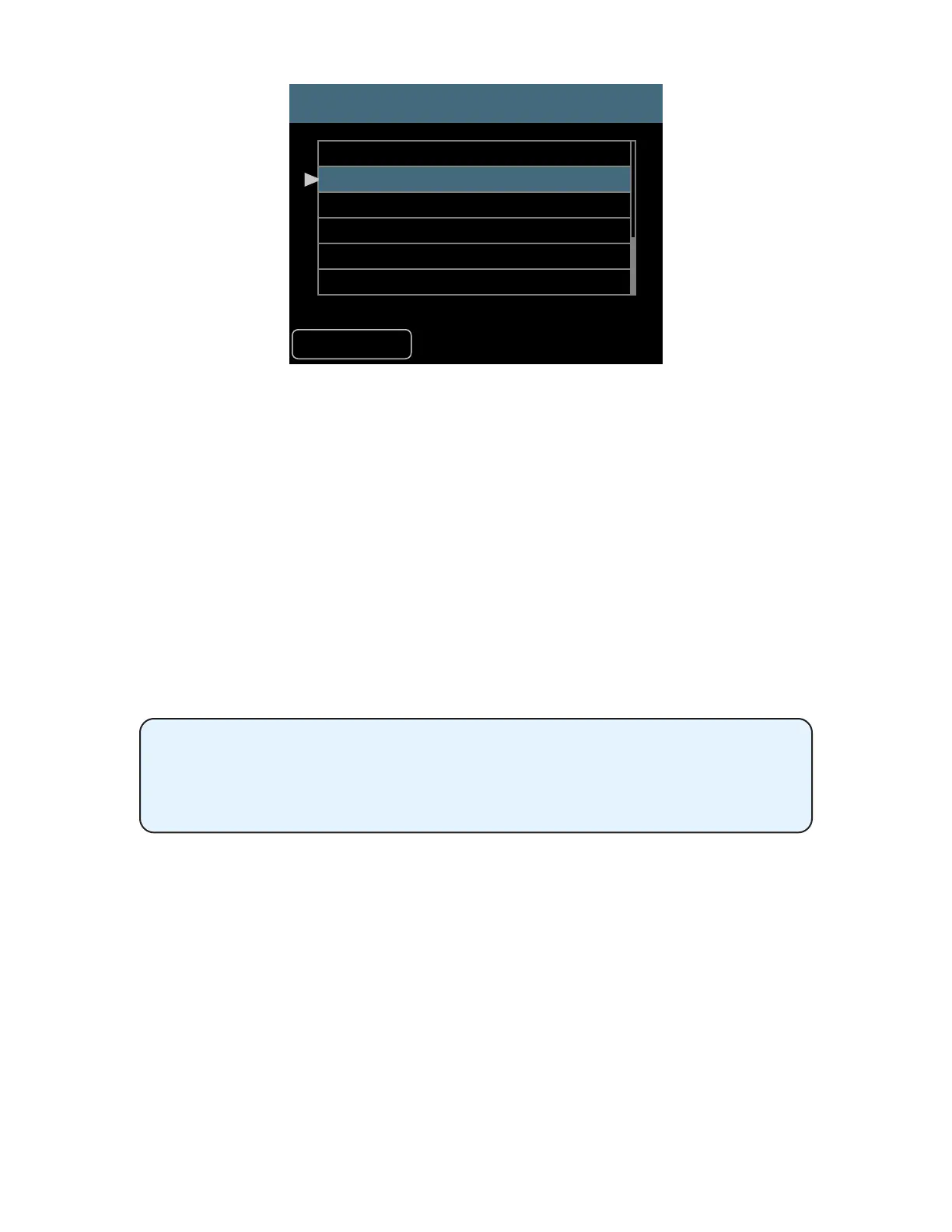
Intercom Audio Source
Back
Listen Only
Internal Mic
Slot 1
Slot 2
Slot 3
Slot 4
Selecting a transmit source for the Intercom
To choose the Intercom’s audio transmit source:
• Choose Intercom in the Mixer Setup menu; press either encoder button to open the
options.
• Select the Audio Source option by pressing either encoder button.
• Scroll to select Internal Mic or any one of the 64 network Slots where an external mic is
connected.
• To prevent an A640 from broadcasting over the Intercom, choose Listen Only.
• Press either encoder button to conrm the selection.
• The display returns to the main Intercom window and the selected source is shown within
the Audio Source text.
See page 73 for additional information about setting up the Intercom.
When using a D800-Dante A-Net Distributor, note that the Audio Source setting
for transmitting audio while using an external microphone must be set to a
Dante channel that is both active in the Dante network and available at the
current Dante sample rate.
Receiving Intercom Audio
The Broadcast Slot is a global setting that tells the A-Net network which network channel (referred to
as a Slot) will be used by all A640 Personal Mixers when they listen to incoming Intercom audio from
another A640 user.
You can choose any one of the 64 available network Slots to be the Broadcast Slot, regardless of the
sample rate that might be selected when using a D800-Dante A-Net Distributor (the Dante network's
sample rate does not aect the number of Slots available in an Aviom A-Net network). The A-Net
Pro16e network always has 64 available Slots. Choose a Broadcast Slot that will not be used for
monitor mixing audio, for example, Slot 64.


 To Next Page